
Disabling Amazon Prime: A Step-by-step Guide
Are you tired of paying for Amazon Prime? Maybe you’re not using the service as much as you thought, or perhaps the cost is just too high. Whatever your reason, disabling Amazon Prime is a relatively simple process that can save you some money each month.
Understanding Your Amazon Prime Subscription
Before we dive into the steps to disable Amazon Prime, it’s essential to understand how the subscription works. When you sign up for Amazon Prime, you’re committing to a monthly or annual payment plan. The subscription includes access to various services like Prime Video, Prime Gaming, and more.
Why Disable Amazon Prime?
There are several reasons why you might want to disable Amazon Prime:
- You don’t use the service as much as you thought.
- The cost is too high for your budget.
- You’re not getting enough value from the subscription.
- You’ve found an alternative streaming service that meets your needs.
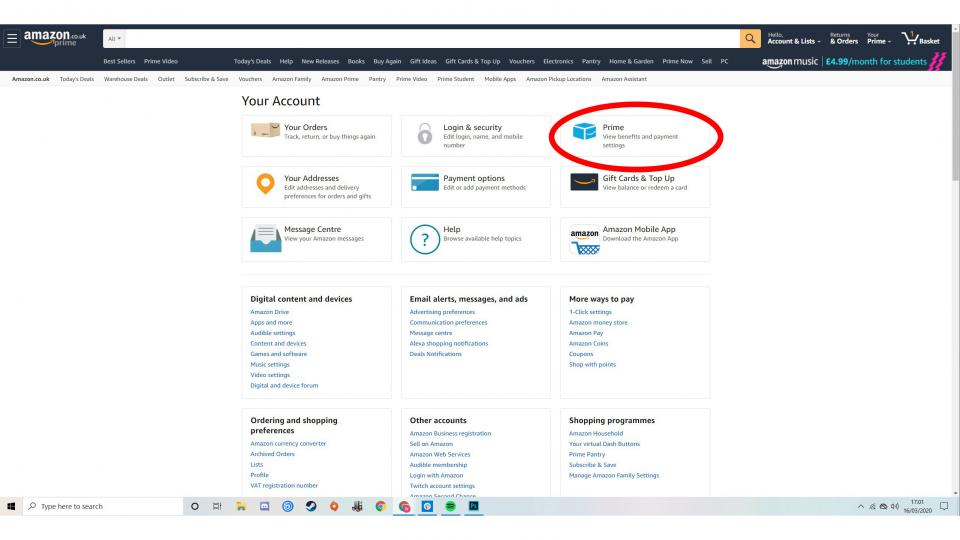
Disabling Amazon Prime on a Computer
To disable Amazon Prime on your computer, follow these steps:
- Log in to Your Amazon Account: Go to www.Amazon.Com and log in to your account using your email address and password.
- Click on “Account & Lists”: Once logged in, click on the “Account & Lists” dropdown menu at the top right corner of the page.
- Select “Your Prime Membership”: From the dropdown menu, select “Your Prime Membership”.
- Click on “Update, Cancel, And More”: On the next page, click on the “Update, Cancel, and More” button.
- Choose to End Your Prime Membership: Select the option to end your Prime membership.
Disabling Amazon Prime on a Smartphone or Tablet
If you want to disable Amazon Prime on your smartphone or tablet, follow these steps:
- Open The Amazon App: Open the Amazon app on your device and log in to your account.
- Tap on “Account & Lists”: Tap on the “Account & Lists” icon at the bottom of the screen.
- Select “Your Prime Membership”: From the dropdown menu, select “Your Prime Membership”.
- Choose to End Your Prime Membership: Select the option to end your Prime membership.
Disabling Amazon Prime Business
If you have an Amazon Prime Business subscription, disabling it follows a similar process:
- Log in to Your Amazon Account: Go to www.Amazon.Com and log in to your account using your email address and password.
- Click on “Account & Lists”: Once logged in, click on the “Account & Lists” dropdown menu at the top right corner of the page.
- Select “Your Prime Membership”: From the dropdown menu, select “Your Prime Membership”.
- Choose to End Your Prime Business Membership: Select the option to end your Prime business membership.
Disabling Amazon Prime Video
If you only want to disable Amazon Prime Video without affecting your overall Amazon Prime subscription:
- Go to Prime Video: Go to www.Primevideo.Com and log in to your account.
- Click on Your Profile Picture: Click on your profile picture at the top right corner of the page.
- Select “Account & Settings”: From the dropdown menu, select “Account & Settings”.
- Choose to End Your Prime Video Subscription: Select the option to end your Prime video subscription.
Disabling Amazon Prime Music
If you only want to disable Amazon Prime Music without affecting your overall Amazon Prime subscription:
- Go to Prime Music: Go to www.Primemusic.Com and log in to your account.
- Click on Your Profile Picture: Click on your profile picture at the top right corner of the page.
- Select “Account & Settings”: From the dropdown menu, select “Account & Settings”.
- Choose to End Your Prime Music Subscription: Select the option to end your Prime music subscription.
Troubleshooting
If you’re experiencing issues disabling Amazon Prime, try the following:
- Check that you’ve correctly logged out of your account.
- Ensure that you’ve selected the correct option to disable your Prime membership.
- If you’re still having trouble, contact Amazon’s customer support team for assistance.
Conclusion
Disabling Amazon Prime is a straightforward process that can save you money each month. Remember to carefully review your subscription details before making any changes. If you have any issues or concerns during the process, don’t hesitate to reach out to Amazon’s customer support team for help.
Frequently Asked Questions (FAQs)
- Q: How do I Disable Amazon Prime on my Smartphone?
A: To disable Amazon Prime on your smartphone, open the Amazon app and log in to your account. Tap on “Account & Lists” and select “Your Prime Membership”. Choose to end your Prime membership. - Q: Can I Keep Using Amazon Prime Video Without Disabling my Overall Subscription?
A: Yes, you can keep using Amazon Prime Video without disabling your overall subscription by following the steps outlined above. - Q: How do I Contact Amazon’s Customer Support Team For Help?
A: To contact Amazon’s customer support team, go to www.Amazon.Com and click on “Help & Customer Service”. Follow the prompts to initiate a conversation with an Amazon representative. - Q: Will Disabling my Amazon Prime Subscription Affect my Other Amazon Services?
A: Disabling your Amazon Prime subscription will not automatically disable your other Amazon services, such as Prime Music or Prime Video. You can continue using these services separately from your overall Prime membership.
By following this guide and the steps outlined above, you’ll be able to successfully disable your Amazon Prime subscription and save yourself some money each month.


