
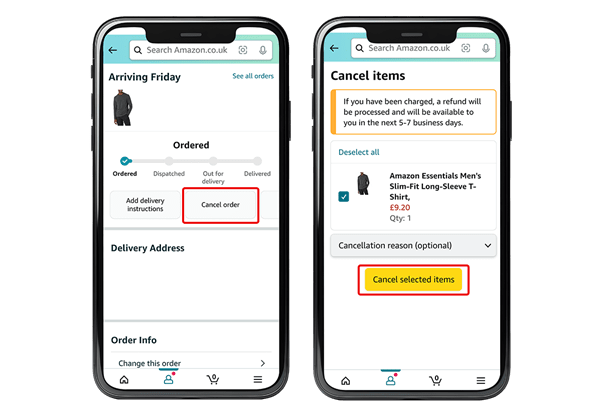
How to Cancel a Command on Amazon: A Step-by-step Guide
Are you tired of unwanted purchases or mistakes made while shopping on Amazon? Don’t worry, cancelling a command on Amazon is easier than you think! In this article, we’ll walk you through the simple steps to cancel an order on Amazon, including paid orders and Prime Video purchases.
Why Cancel a Command on Amazon?
Before we dive into the process, let’s discuss why cancelling a command might be necessary. Whether it’s a wrong product, an accidental purchase, or simply changing your mind, there are valid reasons to cancel an order. Here are some scenarios where you might need to cancel a command:
- You’ve ordered something by mistake.
- The product is not what you expected.
- You want to return an item that’s already been shipped.
When Can You Cancel a Command on Amazon?
Now, let’s talk about when it’s possible to cancel an order. In general, you can cancel an order on Amazon if the merchant has not yet shipped the product. If the order is in processing or has already been shipped, you might need to contact the seller directly for assistance.
How to Cancel a Command on Amazon
Here are the step-by-step instructions for cancelling a command on Amazon:
- Check The Order Status: First, check the status of your order by logging into your Amazon account and going to “Your Orders.”
- Go to The Order Details: Click on the specific order you want to cancel.
- Contact Customer Service: If the order has already shipped, contact Amazon customer service for assistance.
Canceling a Paid Command on Amazon
If you’ve paid for an order but still want to cancel it, follow these steps:
- Log Into Your Account: Log in to your Amazon account and go to “Your Orders.”
- Find The Order: Locate the order you want to cancel.
- Click Cancel: Click on the “Cancel” button next to the order.
Cancelling a Command on Amazon Prime Video
For orders made through Amazon Prime Video, follow these steps:
- Log Into Your Account: Log in to your Amazon account and go to “Your Orders.”
- Find The Order: Locate the order you want to cancel.
- Click Cancel: Click on the “Cancel” button next to the order.
How to Cancel a Periodic Command on Amazon
If you’ve set up a periodic subscription, follow these steps:
- Log Into Your Account: Log in to your Amazon account and go to “Your Orders.”
- Find The Subscription: Locate the subscription you want to cancel.
- Click Cancel: Click on the “Cancel” button next to the order.
How to File a Command on Amazon
To file an old command, follow these steps:
- Log Into Your Account: Log in to your Amazon account and go to “Your Orders.”
- Find The Order: Locate the order you want to cancel.
- Click File Command: Click on the “File Command” button.
Conclusion
Cancelling a command on Amazon is a straightforward process that can be done through your account settings. Whether it’s a paid order or an accidental purchase, follow these simple steps to resolve the issue.
Frequently Asked Questions (FAQs)
Here are some additional questions and answers:
- Q: Can I Cancel an Order if it Has Already Been Shipped?
A: If the order is in processing or has already been shipped, contact Amazon customer service for assistance. - Q: How Long Does it Take to Get a Refund After Cancelling an Order?
A: Refunds typically take 5-7 business days to process. - Q: Can I Cancel a Command on Amazon Prime Video?
A: Yes, follow the same steps as for cancelling an order. - Q: How do I File an Old Command on Amazon?
A: Follow the steps outlined in this article.
Conclusion
Canceling a command on Amazon is easier than you think! By following these simple steps, you can resolve issues with unwanted purchases or mistakes made while shopping.


