
How to Cancel a Subscription App: A Step-by-step Guide
Are you tired of recurring subscription payments that you no longer need or want? Cancelling a subscription app can be a straightforward process, but it may vary depending on the platform and service provider. In this article, we will guide you through the steps to cancel a subscription app on Android, iOS/iPadOS, Windows, and macOS.
Understanding Subscription Apps
Subscription apps are digital services that offer users access to premium features, content, or tools in exchange for a recurring payment. These payments can be made monthly, annually, or even weekly, depending on the service provider. While subscription apps can provide immense value, they can also become unnecessary or unwanted over time.
Why Cancel a Subscription App?
There are several reasons why you might want to cancel a subscription app:
- You no longer use the service and do not see any value in continuing the payment.
- The cost of the subscription is higher than what you feel comfortable paying.
- You have found alternative services that offer better value for your money.
Canceling a Subscription App: A Step-by-step Guide
Android
To cancel a subscription app on Android, follow these steps:
- Open The Google Play Store: Find and tap on the Google Play Store icon on your device.
- Navigate to The Subscriptions Section: Tap on the menu icon (three horizontal lines) at the top left corner of the screen and select “Subscriptions.”
- Find The Subscription You Want to Cancel: Browse through the list of subscriptions and locate the one you want to cancel.
- Tap on The Subscription: Select the subscription by tapping on it.
- Cancel The Subscription: Tap on the “Cancel” button to confirm your decision.
Ios/ipados
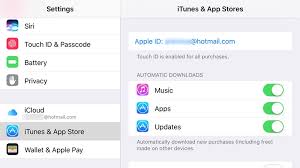
To cancel a subscription app on iOS or iPadOS, follow these steps:
- Open The App Store: Find and tap on the App Store icon on your device.
- Navigate to The Profile Section: Tap on your profile picture at the top right corner of the screen.
- Select “Subscriptions”: Scroll down and select the “Subscriptions” option from the menu.
- Find The Subscription You Want to Cancel: Browse through the list of subscriptions and locate the one you want to cancel.
- Tap on The Subscription: Select the subscription by tapping on it.
- Cancel The Subscription: Tap on the “Cancel Subscription” button to confirm your decision.
Windows
To cancel a subscription app on Windows, follow these steps:
- Open The Microsoft Store: Find and click on the Microsoft Store icon on your device.
- Navigate to The Account Section: Click on your profile picture at the top right corner of the screen.
- Select “Subscriptions”: Scroll down and select the “Subscriptions” option from the menu.
- Find The Subscription You Want to Cancel: Browse through the list of subscriptions and locate the one you want to cancel.
- Click on The Subscription: Select the subscription by clicking on it.
- Cancel The Subscription: Click on the “Cancel Subscription” button to confirm your decision.
Macos
To cancel a subscription app on macOS, follow these steps:
- Open The Mac App Store: Find and click on the Mac App Store icon on your device.
- Navigate to The Profile Section: Click on your profile picture at the top right corner of the screen.
- Select “Subscriptions”: Scroll down and select the “Subscriptions” option from the menu.
- Find The Subscription You Want to Cancel: Browse through the list of subscriptions and locate the one you want to cancel.
- Click on The Subscription: Select the subscription by clicking on it.
- Cancel The Subscription: Click on the “Cancel Subscription” button to confirm your decision.
Common Questions And Answers
- Q: How do I Cancel a Subscription App if I no Longer Have Access to my Device?
A: If you no longer have access to your device, you can try contacting the service provider’s customer support team for assistance. - Q: Can I Still Use The App After Cancelling my Subscription?
A: Yes, you will still be able to use the app without any restrictions, but you may not have access to premium features or content. - Q: Will I Receive a Refund if I Cancel my Subscription?
A: Refund policies vary depending on the service provider and your location. Check with the provider for more information.
Conclusion
Canceling a subscription app can be a straightforward process, but it may require some patience and persistence, especially if you’re using multiple devices or platforms. By following these step-by-step guides, you can easily cancel your subscription app and avoid unnecessary payments.
Frequently Asked Questions (FAQs)
- Q: How do I cancel my subscription on Android?
A: To cancel a subscription app on Android, open the Google Play Store, navigate to the Subscriptions section, find the subscription you want to cancel, tap on it, and select “Cancel.” - Q: Can I still use the app after cancelling my subscription on iOS/iPadOS?
A: Yes, you will still be able to use the app without any restrictions. - Q: How do I contact customer support for assistance with cancelling my subscription?
A: You can try contacting the service provider’s customer support team via phone, email, or live chat.


