
How to Cancel Apple Tv+ Subscription: A Step-by-step Guide
Are you tired of streaming services renewing your subscription automatically? Do you want to cancel your Apple TV+ subscription without any hassle? Look no further! In this article, we will guide you through the process of canceling your Apple TV+ subscription on various devices.
What Happens When You Cancel Apple Tv+ Subscription
Before we dive into the cancellation process, it’s essential to know what happens when you cancel your Apple TV+ subscription. When you cancel your subscription, you will no longer have access to the Apple TV+ service until the end of your current billing cycle. If you’re on a free trial or promotional period, you may still be able to enjoy Apple TV+ until that period ends.
Canceling Apple Tv+ Subscription on Computer
To cancel your Apple TV+ subscription on computer, follow these steps:
- Open The Web Version of Apple Tv+: Go to the Apple TV+ website and sign in with your Apple ID.
- Click on Your Profile Picture: Click on your profile picture located at the top right corner of the page.
- Select Settings: From the dropdown menu, select “Settings.”
- Scroll Down to Subscriptions: Scroll down to the “Subscriptions” section and click on it.
- Cancel Subscription: Click on the “Cancel subscription” button.
That’s it! If you have any issues or need further assistance, please contact Apple TV+ support.
Canceling Apple Tv+ Subscription on Iphone/ipad
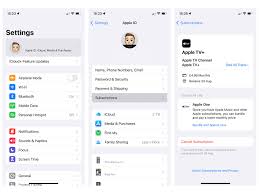
To cancel your Apple TV+ subscription on an iPhone or iPad, follow these steps:
- Open Settings: Open the Settings app on your iPhone or iPad.
- Tap on Your Name: Tap on your name located at the top of the screen.
- Select Subscriptions: From the dropdown menu, select “Subscriptions.”
- Find Apple Tv+: Find Apple TV+ in the list of subscriptions and tap on it.
- Cancel Subscription: Tap on the “Cancel subscription” button.
That’s it! If you have any issues or need further assistance, please contact Apple TV+ support.
Canceling Apple Tv+ Subscription on Apple TV
To cancel your Apple TV+ subscription on an Apple TV, follow these steps:
- Open Settings: Open the Settings app on your Apple TV.
- Select Users And Accounts: Select “Users and Accounts” from the menu.
- Check Icloud: Make sure that your Apple ID is associated with iCloud.
- Select Account: Select your account name from the list of accounts.
- Cancel Subscription: Click on the “Cancel subscription” button.
That’s it! If you have any issues or need further assistance, please contact Apple TV+ support.
Canceling Multiple Subscriptions on Apple TV
If you have multiple subscriptions active on your Apple TV and want to cancel them all at once, follow these steps:
- Open Settings: Open the Settings app on your Apple TV.
- Select Users And Accounts: Select “Users and Accounts” from the menu.
- Check Icloud: Make sure that your Apple ID is associated with iCloud.
- Select Account: Select your account name from the list of accounts.
- Cancel Subscriptions: Click on the “Cancel subscriptions” button.
That’s it! If you have any issues or need further assistance, please contact Apple TV+ support.
Frequently Asked Questions (FAQs)
Q: What happens when I cancel my Apple TV+ subscription?
A: When you cancel your Apple TV+ subscription, you will no longer have access to the service until the end of your current billing cycle. If you’re on a free trial or promotional period, you may still be able to enjoy Apple TV+ until that period ends.
Q: Can I cancel my Apple TV+ subscription on multiple devices?
A: Yes, you can cancel your Apple TV+ subscription on multiple devices by following the steps outlined in this article.
Q: What if I have issues canceling my Apple TV+ subscription?
A: If you experience any issues while canceling your Apple TV+ subscription, please contact Apple TV+ support for further assistance.
Conclusion
Canceling your Apple TV+ subscription is a straightforward process that can be completed on various devices. By following the steps outlined in this article, you can easily cancel your subscription and avoid any unexpected renewal charges. If you have any questions or need further assistance, please don’t hesitate to contact us!


