
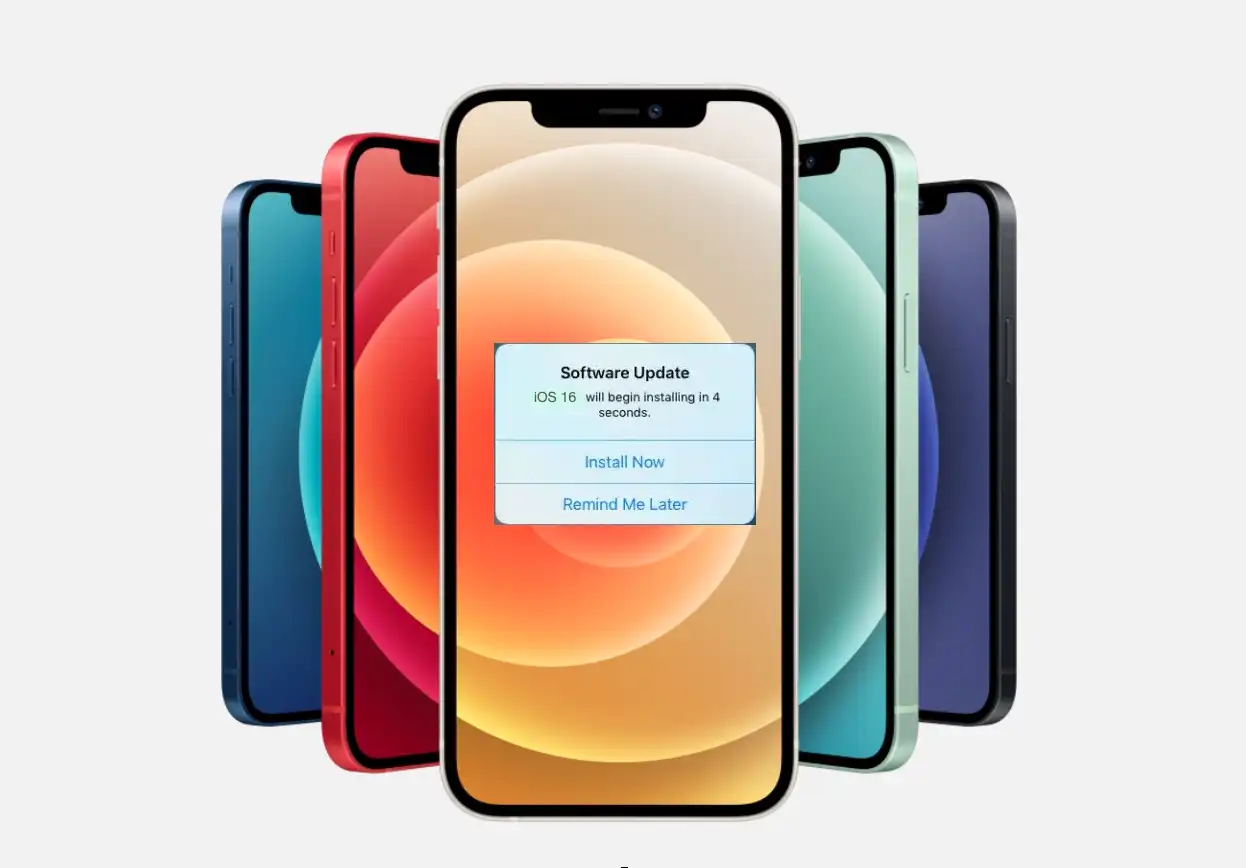
Cancel Update Iphone: A Step-by-step Guide
Are you tired of unwanted updates on your iPhone? Do you want to know how to cancel an update or go back to a previous version of iOS? Look no further! In this article, we will guide you through the process of cancelling an update on your iPhone and provide you with some helpful tips.
Why Cancel an Update?
Before we dive into the steps, let’s quickly discuss why you might want to cancel an update. Perhaps you’ve downloaded a new version of iOS but don’t feel like installing it yet. Maybe you’re experiencing issues with the latest update and want to revert back to a previous version. Whatever your reason, cancelling an update is definitely possible.
Cancel Update Iphone in Progress
If you’ve already downloaded the update on your iPhone and are having second thoughts about installing it, don’t worry! You can easily cancel the update by deleting the downloaded file from your device. Here’s how:
- Open the Settings app on your iPhone.
- Tap on General > Blank iPhone.
- Look for the “iOS X.X.X” file in the list of installed apps.
- Tap on the file and then tap on Delete.
Cancel Update Iphone in Case of Error
If you’ve already initiated the installation process but encounter an error, don’t panic! You can cancel the update by deleting the downloaded file from your device. Here’s how:
- Open the Settings app on your iPhone.
- Tap on General > Blank iPhone.
- Look for the “iOS X.X.X” file in the list of installed apps.
- Tap on the file and then tap on Delete.
How to Impede Future Updates of Ios
Do you want to avoid future updates of iOS altogether? You can do this by disabling automatic updates on your device. Here’s how:
- Open the Settings app on your iPhone.
- Tap on General > Update Software.
- Remove the checkmark next to “Download updates” and “Install updates”.
- Also, go to iTunes or Finder and uncheck the option for automatic updates.
How to Install a Precedent Version of Ios
If you’re experiencing issues with the latest version of iOS and want to revert back to a previous version, here’s what you can do:
- Download the IPSW file for the previous version of iOS from a reliable source like IPSW.Me.
- Create a backup of your iPhone on iCloud or iTunes.
- Disable the “Find My iPhone” feature.
- Connect your iPhone to your computer using a Lightning cable and launch iTunes (or Finder if you’re on a Mac).
- Select your iPhone in iTunes and click on Restore.
- Locate the IPSW file for the previous version of iOS and select it.
How to Download The Precedent Version of Ios
If you haven’t already downloaded the IPSW file for the previous version of iOS, here’s what you need to do:
- Go to IPSW.Me and select your iPhone model.
- Choose the version of iOS you want to download.
- Click on the “Download” button.
- Wait for the download process to complete.
How to Carry Out The Downgrade of Ios
Now that you have the IPSW file downloaded, it’s time to carry out the downgrade of iOS on your iPhone:
- Backup your iPhone on iCloud or iTunes.
- Disable the “Find My iPhone” feature.
- Connect your iPhone to your computer using a Lightning cable and launch iTunes (or Finder if you’re on a Mac).
- Select your iPhone in iTunes and click on Restore.
- Locate the IPSW file for the previous version of iOS and select it.
Why Downgrade Ios?
Downgrading iOS is not recommended, as newer versions are generally safer and more feature-rich. However, there may be situations where downgrading becomes necessary. Be sure to check if you’re eligible for a downgrade before proceeding.
Conclusion
Canceling an update on your iPhone is definitely possible, whether it’s in progress or due to an error. By following the steps outlined in this article, you should be able to successfully cancel an update and even go back to a previous version of iOS. Remember to always create a backup of your device before making any significant changes.
Frequently Asked Questions
Q: Can I cancel an update if it’s already downloaded?
A: Yes, you can delete the downloaded file from your device to cancel the update.
Q: How do I disable future updates of iOS?
A: Go to Settings > General > Update Software and remove the checkmark next to “Download updates” and “Install updates”.
Q: Can I install a previous version of iOS if my iPhone is experiencing issues with the latest update?
A: Yes, you can downgrade your iOS by following the steps outlined in this article.
Q: How do I download the IPSW file for a previous version of iOS?
A: Go to IPSW.Me and select your iPhone model and desired version of iOS.
Q: Can I create a backup of my iPhone on iCloud or iTunes while it’s connected to my computer via USB?
A: Yes, you can create a backup of your iPhone using either method.
Q: How do I disable the “Find My iPhone” feature?
A: Go to Settings > [Your Name] > Where is my iPhone? and toggle off the switch next to “Find My iPhone”.
Q: What are some situations where downgrading iOS might be necessary?
A: Downgrading iOS may become necessary if you’re experiencing issues with the latest update that can’t be resolved by other means.
Q: Can I use a Mac or PC to downgrade my iOS?
A: Yes, both options are available for downgrading your iOS.


