
The Ultimate Guide to Canceling Linkedin Premium Subscription
Are you tired of paying for LinkedIn Premium features that you no longer need or want? Do you want to know how to cancel your subscription without any hassle? Look no further! In this article, we will guide you through the step-by-step process of canceling your LinkedIn Premium subscription on both mobile devices and computers.
Why Cancel Your Linkedin Premium Subscription?
Before we dive into the cancellation process, let’s explore why you might want to cancel your LinkedIn Premium subscription in the first place. Perhaps you’ve found that the features aren’t as useful as you thought they would be, or maybe you’re not getting enough value from them. Whatever the reason, canceling your subscription is a straightforward process that we’ll walk you through below.
How to Cancel Linkedin Premium Subscription on Mobile Devices
If you want to cancel your LinkedIn Premium subscription using your mobile device, follow these steps:
- Open The Linkedin App: First, open the LinkedIn app on your smartphone or tablet.
- Log In to Your Account: Log in to your account if you haven’t already done so.
- Tap on Your Profile Icon: Tap on the profile icon situated at the top right corner of the screen.
- Select “Functionality Premium”: Select “Functionality Premium” from the menu options.
- Choose “Details Subscription”: Choose “Details subscription” to view more information about your premium features.
- Tap on “Manage Subscription”: Tap on “Manage subscription” to access the subscription settings.
- Select “Cancel Subscription”: Select “Cancel subscription” and confirm the cancellation by tapping on “Continue” three consecutive times.
How to Cancel Linkedin Premium Subscription on Apple Devices
If you’re using an iPhone or iPad, follow these steps:
- Open The Settings App: Open the Settings app.
- Select “Your Name”: Select your name from the menu options.
- Tap on “Subscriptions”: Tap on “Subscriptions”.
- Find Linkedin Premium: Find the LinkedIn Premium subscription and tap on it.
- Select “Cancel Subscription”: Select “Cancel subscription” to confirm the cancellation.
How to Cancel Linkedin Premium Subscription on Android Devices
If you’re using an Android device, follow these steps:
- Open The Google Play Store App: Open the Google Play Store app.
- Tap on Your Profile Icon: Tap on your profile icon situated at the top right corner of the screen.
- Select “Payments And Subscriptions”: Select “Payments and subscriptions”.
- Find Linkedin Premium: Find the LinkedIn Premium subscription and tap on it.
- Select “Cancel Subscription”: Select “Cancel subscription” to confirm the cancellation.
How to Cancel Linkedin Premium Subscription on Computers
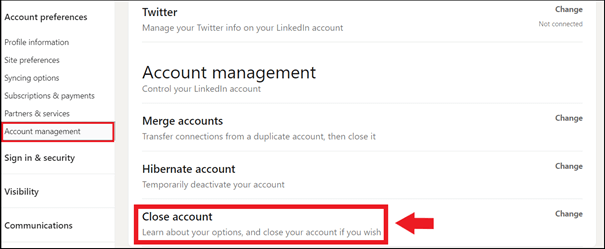
If you want to cancel your LinkedIn Premium subscription using a computer, follow these steps:
- Log In to Your Account: Log in to your account using the LinkedIn website.
- Click on Your Profile Picture: Click on your profile picture situated at the top right corner of the screen.
- Select “Functionality Premium”: Select “Functionality Premium” from the menu options.
- Choose “Manage Subscription”: Choose “Manage subscription” to access the subscription settings.
- Click on “Cancel Subscription”: Click on “Cancel subscription” and confirm the cancellation by clicking on the cancel button.
Conclusion
Canceling your LinkedIn Premium subscription is a straightforward process that can be completed in just a few steps. Whether you’re using a mobile device or computer, follow the steps outlined above to ensure that your premium features are canceled without any hassle. If you have any doubts or issues during the cancellation process, feel free to contact us for assistance.
References
- Microsoft
Note: This article has been written based on publicly available information and may not reflect any changes to LinkedIn’s policies or features.


