
How to Cancel a Payment on Paypal: A Step-by-step Guide
Are you wondering how to cancel a payment on PayPal? Perhaps you’ve made a mistake or need to request a refund. Whatever the reason, we’ve got you covered with this comprehensive guide.
Understanding Paypal Payments
Before we dive into the nitty-gritty of canceling payments on PayPal, let’s quickly understand how payments work on the platform. When you make a payment on PayPal, it can be in one of two states: Pending or complete.
- A Pending Payment is when the sender has sent money to the recipient but hasn’t been confirmed by the recipient.
- A Complete Payment is when the sender has successfully transferred funds to the recipient, and the transaction is finalized.
Canceling a Payment on Paypal
Now that we’ve covered the basics of PayPal payments, let’s get to canceling one. Here are the steps:
- Access your PayPal account via computer or mobile app.
- Go to the “Activity” tab and select the transaction you want to cancel.
- Click on the three dots next to the transaction and select “Cancel” from the dropdown menu.
Why Can’t I Cancel a Complete Payment?
Unfortunately, you can only cancel a payment on PayPal if it’s still pending. If the payment has been completed, your only option is to contact the sender or recipient directly to request a refund.
How Long Does It Take For Refunds to Be Processed?
The processing time for refunds on PayPal varies depending on the payment method used. Here are some general guidelines:
- Instant Refund: If you use PayPal Balance, Instant Transfer, or other instant payment methods, your refund will be processed immediately.
- 1-3 Business Days: For most payment methods, including credit/debit cards and bank transfers, refunds take 1-3 business days to process.
What Happens If The Recipient Doesn’t Respond?
If you’ve requested a refund but haven’t received it, you can try contacting PayPal support for assistance. They’ll help mediate the situation and provide guidance on how to proceed.
Understanding Automatic Payments
PayPal allows you to set up automatic payments for recurring transactions, such as subscription services or bill payments. Here’s what you need to know:
- Setting Up Auto-payments: To set up auto-payments, follow these steps: Access your PayPal account and click on the “Wallet” icon. Select the payment method you want to use (e.G., Credit/debit card) and then select the automatic payment option.
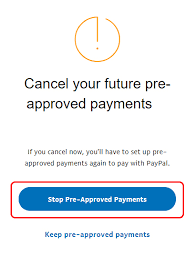
- Canceling Auto-payments: If you want to cancel an automatic payment, go to the “Settings” section of your PayPal account and click on “Automatic Payments.” Find the specific transaction you want to cancel and click on the “Cancel” button.
Paypal Alternatives
If you’re not satisfied with PayPal’s services or have experienced issues, there are alternative payment platforms available. Some popular options include:
- Stripe: Stripe is a popular payment platform known for its flexibility and reliability.
- Square: Square offers a range of payment solutions for businesses and individuals.
Conclusion
Canceling payments on PayPal can be straightforward if you know what to do. By following these steps, you can cancel pending payments or request refunds for completed transactions. If you’re unsure about any aspect of the process, don’t hesitate to reach out to PayPal support for assistance.
Here are eight FAQs related to the article:
Q1: What Happens When I Try to Cancel a Payment on Paypal?
A1: When you try to cancel a payment on PayPal, the system will display an error message if it’s already been completed. You can request a refund or contact the sender/recipient directly.
Q2: Why Can’t I Cancel a Complete Payment on Paypal?
A2: A complete payment on PayPal cannot be canceled because it has already been finalized and confirmed by both parties.
Q3: How Long Does it Take For Refunds to be Processed on Paypal?
A3: The processing time for refunds on PayPal varies depending on the payment method used. Instant Refund is immediate, while most other payment methods take 1-3 business days.
Q4: What Happens if I Have Issues With a Refund?
A4: If you experience issues with a refund, contact PayPal support for assistance. They’ll help mediate the situation and provide guidance on how to proceed.
Q5: Can I Set up Automatic Payments on Paypal?
A5: Yes, you can set up automatic payments on PayPal. To do so, go to your account settings and select the “Automatic Payments” option.
Q6: How do I Cancel an Automatic Payment on Paypal?
A6: To cancel an automatic payment on PayPal, access your account settings and find the specific transaction you want to cancel. Click on the “Cancel” button to complete the process.
Q7: Are There Alternative Payment Platforms Like Paypal?
A7: Yes, there are other popular payment platforms available, such as Stripe and Square. These alternatives offer flexibility and reliability for various business needs.
Q8: What Should I do if I’m Unsure About Canceling a Payment on Paypal?
A8: If you’re unsure about any aspect of the process, don’t hesitate to reach out to PayPal support for guidance and assistance.
By following this guide and understanding the steps involved in canceling payments on PayPal, you’ll be able to navigate the platform with confidence.


