
How to Cancel Updates on Windows 10: A Step-by-step Guide
Are you tired of your computer automatically updating to the latest version of Windows 10? Do you want to know how to cancel these updates and take control back from Microsoft? Look no further! In this article, we will guide you through a step-by-step process on how to disable automatic updates on Windows 10.
Why Cancel Updates on Windows 10?
Before we dive into the process, let’s quickly discuss why you might want to cancel these updates. While Microsoft claims that their updates are essential for your computer’s safety and good operation, some users may not need or want them. Perhaps you’re a gamer who wants to keep your internet connection free for gaming purposes, or maybe you’re concerned about the potential impact of updates on your system.
Method 1: Suspend Updates Temporarily
One way to cancel updates is by suspending them temporarily. This method works for all Windows 10 editions, including Home and Pro.
To do this:
- Press the Windows key + I to open the Settings app.
- Click on Update & Security > Windows Update.
- Click on the “Suspend updates” button for 7 days or up to 35 days.
This will temporarily suspend all updates on your system, giving you time to make any necessary changes before resuming updates.
Method 2: Disable Updates Permanently
If you’re using a Pro or Enterprise edition of Windows 10, you can permanently disable updates. This method involves changing some system settings and disabling the Windows Update service.
To do this:
- Press the Windows key + R to open the Run dialog box.
- Type “gpedit.Msc” and press Enter to open the Local Group Policy Editor.
- Navigate to Computer Configuration > Administrative Templates > Windows Components > Windows Update.
- Double-click on the “Configure Automatic Updates” policy and select Disabled.
This will permanently disable all updates on your system. However, keep in mind that this method requires administrative privileges, so make sure you’re logged in as an administrator before attempting it.
Method 3: Disable Windows Update Service
Another way to cancel updates is by disabling the Windows Update service. This method works for all Windows editions and can be easily reversed if needed.
To do this:
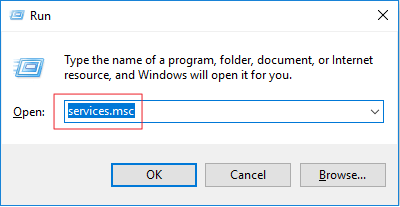
- Press the Windows key + R to open the Run dialog box.
- Type “services.Msc” and press Enter to open the Services console.
- Find the Windows Update service in the list and double-click on it.
- In the Properties window, select Disabled as the startup type.
This will temporarily disable all updates on your system. However, keep in mind that this method can be easily reversed by following the same steps and selecting “Enabled” instead of “Disabled.”
Method 4: Change System Settings to Control Consumption
If you’re not able to suspend or disable updates altogether, you can try changing system settings to control consumption. This method involves setting your internet connection as a metered connection.
To do this:
- Press the Windows key + I to open the Settings app.
- Click on Network & Internet > Ethernet or Wi-Fi > Properties.
- Set the “Connect to a network” dropdown menu to “Metered”.
This will change your system settings to control consumption, which can help reduce update sizes and slow down downloads.
Method 5: Cancel Specific Updates
If you want to cancel specific updates instead of disabling them all, you can try uninstalling them manually. This method works for most Windows 10 updates.
To do this:
- Press the Windows key + I to open the Settings app.
- Click on Update & Security > Windows Update.
- Click on “View update history” and find the specific update you want to cancel.
- Right-click on it and select “Uninstall”.
This will remove the specified update from your system, effectively canceling its installation.
Conclusion
Canceling updates on Windows 10 can be a bit tricky, but with these step-by-step guides, you should be able to achieve your goals. Whether you want to suspend updates temporarily or disable them permanently, there’s an option for you. Remember to always make sure you have the necessary permissions and privileges before attempting any of these methods.
Frequently Asked Questions
- Q: Will Canceling Updates Affect my System’s Security?
A: Canceling updates can potentially compromise your system’s security if you’re not careful. - Q: Can I Revert Back to Previous Versions of Windows 10?
A: Yes, but keep in mind that this process may require a full system restore and formatting. - Q: Will Canceling Updates Affect my Ability to Receive New Features And Improvements?
A: Yes, you won’t be able to receive any new features or improvements once updates are canceled. - Q: Can I Cancel Specific Updates Instead of Disabling Them All?
A: Yes, you can try uninstalling specific updates manually if needed. - Q: Will Canceling Updates Affect my Ability to Connect to The Internet?
A: No, canceling updates will not affect your ability to connect to the internet.
Important Note
Keep in mind that these methods may require administrative privileges and have potential consequences on your system’s security and functionality. Always make sure you understand the implications before attempting any of these steps.


