
How to Type Special Characters on a Keyboard
In today’s digital age, typing special characters is an essential skill that many people take for granted. Whether you’re writing emails, creating documents, or chatting with friends online, being able to type special characters can make all the difference.
But what happens when you need to type a character like the accented capital “E” (#Be) on your keyboard? Do you know how to do it?
In this article, we’ll show you exactly how to type special characters on a Windows computer, including the accented capital “E” and other variants. We’ll also cover how to type these characters on Macs, Android devices, and iPhones/iPads.
Why Typing Special Characters Matters
Before we dive into the nitty-gritty of typing special characters, let’s talk about why it matters.
In today’s globalized world, communicating with people from different cultures is more important than ever. Being able to type special characters can help you connect with others and avoid misunderstandings that might arise from misinterpretation of plain text.
For example, if you’re writing an email to a friend who speaks a language that uses accented letters (like Spanish or French), being able to type those letters accurately is crucial for effective communication.
Typing Special Characters on Windows
If you use a Windows computer, there are several ways to type special characters like the accented capital “E” (#Be).
Using Alt Codes
One way to type special characters on Windows is by using Alt codes. To do this:
- Hold Down The Alt Key: This will open the Alt code window.
- Type The Corresponding Number: In the case of the accented capital “E”, you’ll need to type 212.
- Release The Alt Key: The character should now appear on your screen.
Here are some common Alt codes for special characters:
- Alt + 212 = #Be
- Alt + 144 = *É
- Alt + 210 = *Ê
- Alt + 211 = *Ë
Using The Character Map
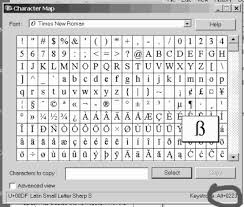
Another way to type special characters on Windows is by using the Character Map.
- Open The Start Menu: Click on the Windows logo in the bottom left corner of your screen.
- Type “Character Map”: In the search bar, type “Character Map” and select it from the results.
- Select a Character: Browse through the character map to find the character you want to use (like #Be).
- Copy And Paste: Once you’ve selected the character, right-click on it and choose Copy. Then, go back to your document or email and press Ctrl + V to paste the character.
Using Word
If you’re using Microsoft Word to type special characters, there’s a built-in function that can help you out.
- Open Word: Launch Microsoft Word on your computer.
- Type a Character: Type a character like #Be in your document.
- Click on The Character: Select the character by clicking on it once with your mouse.
- Go to The “Format” Tab: Click on the “Home” tab and then click on the arrow next to the “Character Map” button (it looks like a smiley face).
- Select a Variant: Browse through the character map to find the variant of #Be that you need.
Typing Special Characters on Mac
If you’re using a Mac, typing special characters is just as easy!
Using The Keyboard
One way to type special characters on a Mac is by using the keyboard. Here’s how:
- Hold Down The Option Key: This will open the character palette.
- Type The Corresponding Number: In the case of #Be, you’ll need to type 3 (yes, just 3!).
- Release The Option Key: The character should now appear on your screen.
Here are some common keyboard combinations for special characters:
- Shift + Option + E = *É
- Shift + Option + e = *ê
Using Character Viewer
Another way to type special characters on a Mac is by using the Character Viewer.
- Open The Character Viewer: You can find this app in your Applications folder.
- Select a Character: Browse through the character map to find the character you want to use (like #Be).
- Copy And Paste: Once you’ve selected the character, right-click on it and choose Copy. Then, go back to your document or email and press Command + V to paste the character.
Typing Special Characters on Android
If you’re using an Android device, typing special characters is relatively easy!
Using a Keyboard
One way to type special characters on an Android device is by using a keyboard app like Gboard or SwiftKey. Here’s how:
- Open Your Keyboard: Launch the keyboard app of your choice.
- Type a Character: Type a character like #Be in your document or email.
- Click on The Character: Select the character by clicking on it once with your mouse.
- Go to The Settings Menu: Click on the three dots in the top right corner of your screen and select Settings.
- Select a Variant: Browse through the character map to find the variant of #Be that you need.
Typing Special Characters on Iphone/ipad
If you’re using an iPhone or iPad, typing special characters is also relatively easy!
Using a Keyboard
One way to type special characters on an iPhone or iPad is by using a keyboard app like Gboard or SwiftKey. Here’s how:
- Open Your Keyboard: Launch the keyboard app of your choice.
- Type a Character: Type a character like #Be in your document or email.
- Click on The Character: Select the character by clicking on it once with your mouse.
- Go to The Settings Menu: Click on the three dots in the top right corner of your screen and select Settings.
- Select a Variant: Browse through the character map to find the variant of #Be that you need.
Conclusion
Typing special characters is an essential skill that can make all the difference when communicating with people from different cultures or languages. Whether you’re using a Windows computer, Mac, Android device, or iPhone/iPad, we’ve shown you exactly how to type special characters like #Be and other variants.
So next time you need to type a special character, don’t worry – just follow these simple steps!


