
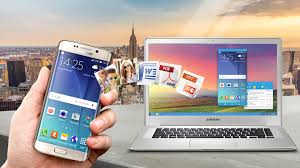
Convey Monitor Android on Pc: A Step-by-step Guide
Are you tired of using your smartphone or tablet as a separate device? Do you want to experience the freedom of using your Android device’s monitor on your PC? Look no further! In this article, we will guide you through the process of conveying your Android device’s monitor onto your PC using various methods.
Why Convey Your Android Device’s Monitor on Pc?
Before we dive into the nitty-gritty details, let’s explore why you might want to convey your Android device’s monitor on PC. Here are some compelling reasons:
- Convenience: By conveying your Android device’s monitor onto your PC, you can enjoy a larger and more immersive screen experience.
- Productivity: You can use your Android device as an extension of your PC, making it easier to multitask and stay productive.
- Entertainment: Imagine watching movies or playing games on a bigger and better screen – it’s a game-changer!
Method 1: Using Windows 11’s Built-in Functionality
If you’re running Windows 11 on your PC, you’re in luck! You can use the built-in functionality to convey your Android device’s monitor onto your PC.
- Step 1: Open the Settings app on your PC and navigate to System > Projection.
- Step 2: Click on the “Add a wireless display” button and select “Miracast” from the list of available options.
- Step 3: On your Android device, go to Settings > Devices connected > Preferences of connection > Transmission.
- Step 4: Select your PC’s name from the list of available devices and click on the “Connect” button.
Method 2: Using Teamviewer
If you’re not a fan of using Windows 11’s built-in functionality, don’t worry! You can use TeamViewer to convey your Android device’s monitor onto your PC.
- Step 1: Download and install TeamViewer on both your PC and Android device.
- Step 2: Open the TeamViewer app on your Android device and enter the code displayed on your PC.
- Step 3: On your PC, open the TeamViewer app and enter the code displayed on your Android device.
Method 3: Using Huawei Share
If you’re a HUAWEI user, you can use the HUAWEI Share feature to convey your Android device’s monitor onto your PC.
- Step 1: Open the HUAWEI PC Manager app on your PC.
- Step 2: Click on the “HUAWEI Share” button and select your Android device from the list of available devices.
- Step 3: On your Android device, go to Settings > Devices connected > Preferences of connection > Transmission.
Method 4: Using Hdmi Cable
If you prefer a wired connection, you can use an HDMI cable to convey your Android device’s monitor onto your PC.
- Step 1: Make sure your Android device has a USB port with video output.
- Step 2: Connect the HDMI cable to both your Android device and PC.
- Step 3: On your PC, open the Settings app and navigate to System > Projection.
Conclusion
Conveying your Android device’s monitor onto your PC is easier than you think! Whether you choose Windows 11’s built-in functionality, TeamViewer, HUAWEI Share, or an HDMI cable, you can enjoy a larger and more immersive screen experience. So, go ahead and give it a try – your productivity and entertainment will thank you!
Faqs
Here are some frequently asked questions to help you better understand the process:
- Q: What is Miracast?
- A: Miracast is a wireless display technology that allows you to project your Android device’s monitor onto your PC.
- Q: Can I Use Teamviewer on Mac or Linux?
- A: Yes, TeamViewer can be used on Mac and Linux devices as well.
- Q: Is Huawei Share Compatible With Non-huawei Devices?
- A: Unfortunately, no. HUAWEI Share is only compatible with HUAWEI devices.
- Q: Can I Use an Hdmi Cable to Convey my Android Device’s Monitor Onto my Pc?
- A: Yes, you can use an HDMI cable to convey your Android device’s monitor onto your PC.
We hope this article has helped you understand the process of conveying your Android device’s monitor onto your PC. If you have any further questions or need more assistance, feel free to ask!


