
How to Convey Monitor Android on Tv: A Comprehensive Guide
Are you tired of watching movies or TV shows on your small smartphone screen? Do you wish you could project the content onto a larger display, like a TV? Well, you’re in luck! In this article, we’ll show you how to convey monitor Android on TV using various methods.
Method 1: Using Chromecast
If you have a Smart TV with Google TV or Android TV, you’re in luck. These devices are natively compatible with the Google Cast technology, which allows you to stream content from your smartphone or tablet to your TV.
To set up Chromecast, follow these steps:
- Ensure your TV is connected to the internet via cable or Wi-Fi.
- Connect your device (smartphone or tablet) to the same network as your TV.
- Open the Google Home app on your device and tap on the “Devices” tab.
- Tap on the “+” button to add a new device, then select “New voice device.”
- Select the room where you want to set up Chromecast and follow the instructions to complete the setup process.
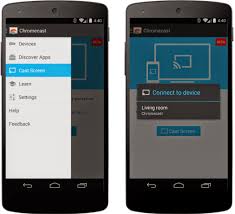
Once set up, you can initiate the transmission of content from your device to your TV by opening the Google Home app and selecting the Chromecast device. You can also use the app to mirror the entire screen or project specific apps.
Method 2: Using Miracast
If you don’t have a Smart TV with Chromecast built-in, you can still use the Miracast technology to stream content from your Android device to your TV.
Miracast is a wireless display standard that allows you to stream audio-visual content from your device to a compatible receiver. To set up Miracast, follow these steps:
- Ensure your TV is connected to the internet via cable or Wi-Fi.
- Open the Settings app on your device and go to “Display” > “Wireless Display” (or similar).
- Select the TV as the wireless display and follow the instructions to complete the setup process.
Once set up, you can initiate the transmission of content from your device to your TV by opening the Settings app and selecting the TV as the wireless display. You can also use the Google Home app to stream content from your device to your TV using Miracast.
Method 3: Using an Adaptor
If you don’t have a Smart TV or don’t want to use wireless technology, you can use an adaptor to connect your Android device to your TV via cable.
There are various adaptors available on the market that support HDMI connectivity. To set up an adaptor, follow these steps:
- Connect the adaptor to one of your device’s USB ports.
- Connect the other end of the adaptor to a free HDMI port on your TV.
- Open the Settings app on your device and go to “Display” > “Wireless Display” (or similar).
- Select the TV as the wireless display and follow the instructions to complete the setup process.
Once set up, you can initiate the transmission of content from your device to your TV by opening the Settings app and selecting the TV as the wireless display. You can also use the Google Home app to stream content from your device to your TV using an adaptor.
Method 4: Using Mhl
If you don’t have a USB-C port on your Android device, you can still connect it to your TV via cable using an MHL (Mobile High-Definition Link) adaptor.
MHL is a technology that allows you to stream high-definition video and audio from your device to a compatible receiver. To set up MHL, follow these steps:
- Connect the MHL adaptor to one of your device’s microUSB ports.
- Connect the other end of the MHL cable to a free HDMI port on your TV.
- Open the Settings app on your device and go to “Display” > “Wireless Display” (or similar).
- Select the TV as the wireless display and follow the instructions to complete the setup process.
Once set up, you can initiate the transmission of content from your device to your TV by opening the Settings app and selecting the TV as the wireless display. You can also use the Google Home app to stream content from your device to your TV using MHL.
Conclusion
Conveying monitor Android on TV is a straightforward process that can be achieved using various methods, including Chromecast, Miracast, an adaptor, or MHL. By following these steps and choosing the right method for your needs, you can enjoy watching movies or TV shows on a larger display without any hassle.
Faqs
- What is The Difference Between Chromecast And Miracast?
Chromecast is a Google-developed technology that allows you to stream content from your device to a compatible receiver using Wi-Fi. Miracast is a wireless display standard developed by Microsoft, which also enables streaming of audio-visual content from your device to a compatible receiver. - Can I Use Chromecast or Miracast on Any Tv?
No, both technologies require a Smart TV with the respective technology built-in. However, you can purchase an adaptor or converter that allows you to connect your Android device to a non-Smart TV using one of these technologies. - How do I Set up Miracast?
To set up Miracast, ensure your TV is connected to the internet via cable or Wi-Fi. Open the Settings app on your device and go to “Display” > “Wireless Display” (or similar). Select the TV as the wireless display and follow the instructions to complete the setup process. - What is Mhl?
MHL (Mobile High-Definition Link) is a technology that allows you to stream high-definition video and audio from your device to a compatible receiver using an adaptor or converter. - Can I Use Mhl on Any Tv?
No, MHL requires a TV with an HDMI port that supports this technology. However, you can purchase an adaptor or converter that allows you to connect your Android device to a non-MHL-compatible TV. - How do I Know if my TV is Compatible With Miracast?
To check if your TV is compatible with Miracast, look for the following labels on your TV: “Wireless Display” (or similar) or “Screen Share.” - Can I Use an Adaptor to Connect my Android Device to a Non-smart Tv?
Yes, you can purchase an adaptor or converter that allows you to connect your Android device to a non-Smart TV using one of the technologies mentioned in this article.
We hope this guide has been helpful!


