
How to Change Your Whatsapp Account: A Step-by-step Guide
Are you tired of using your current WhatsApp account? Do you want to change it to a new one but don’t know how? Look no further! In this article, we will guide you through the process of changing your WhatsApp account in a few easy steps.
Why Change Your Whatsapp Account?
Before we dive into the step-by-step guide, let’s talk about why you might want to change your WhatsApp account. Maybe you’ve outgrown your current number or want to separate your personal and professional life. Whatever the reason, changing your WhatsApp account is a simple process that can be completed in just a few minutes.
Changing Your Whatsapp Account on Android
To change your WhatsApp account on Android, follow these steps:
- Backup Your Chat: Before you start, make sure to backup your chat by going to Settings > Chats > Backup chats.
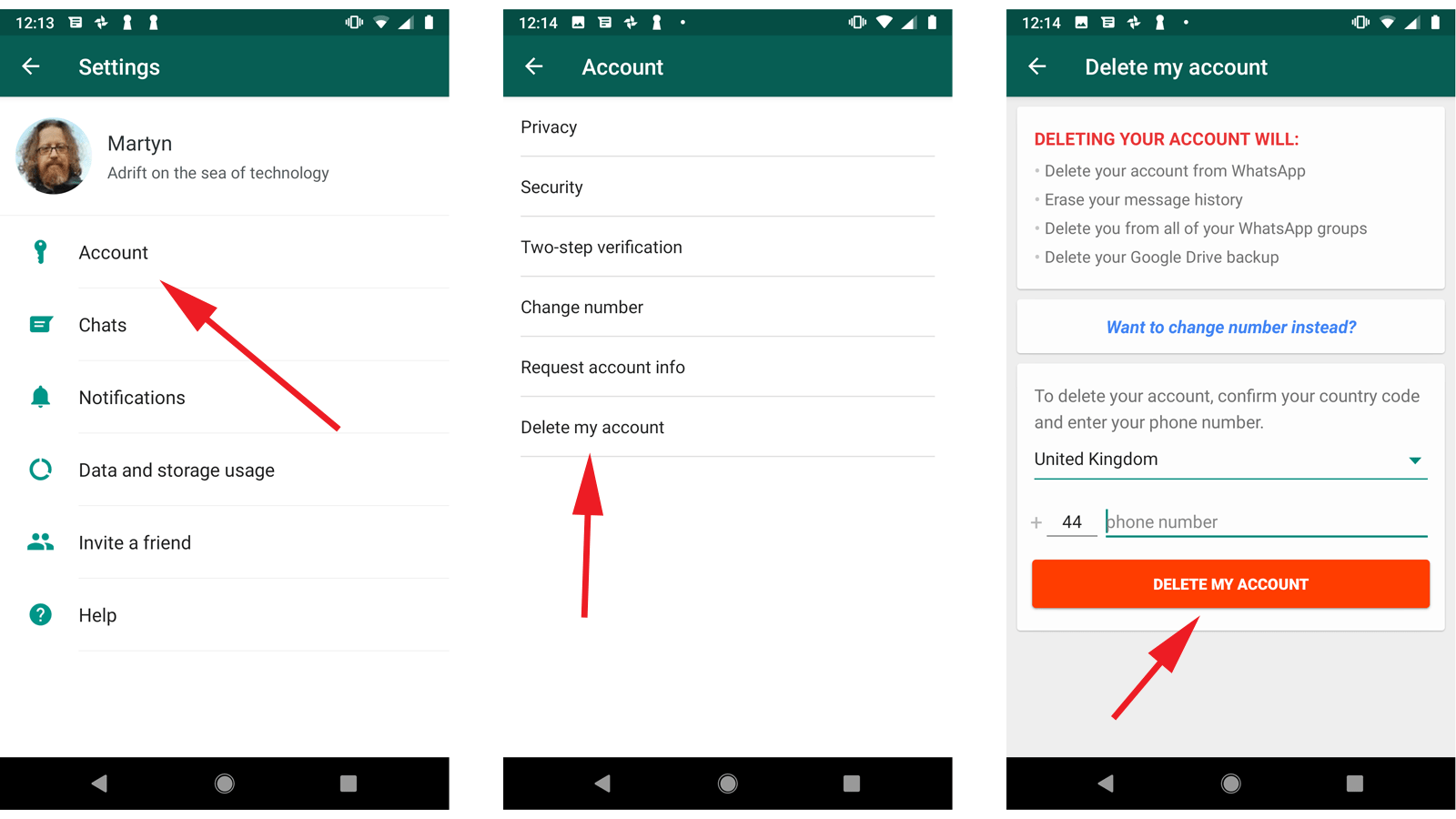
- Open Whatsapp: Open WhatsApp and go to Settings > Account > Change number.
- Enter New Number: Enter the new number you want to use for your WhatsApp account.
- Verify Your New Number: Verify your new number by entering a verification code sent to you via SMS.
- Replace Old Number With New Number: Replace your old number with your new number, and your WhatsApp account will be updated accordingly.
Changing Your Whatsapp Account on Iphone
The process of changing your WhatsApp account on iPhone is similar to the one on Android:
- Backup Your Chat: Before you start, make sure to backup your chat by going to Settings > Chats > Backup chats.
- Open Whatsapp: Open WhatsApp and go to Settings > Account > Change number.
- Enter New Number: Enter the new number you want to use for your WhatsApp account.
- Verify Your New Number: Verify your new number by entering a verification code sent to you via SMS.
- Replace Old Number With New Number: Replace your old number with your new number, and your WhatsApp account will be updated accordingly.
Changing Your Whatsapp Account on Web
If you want to change your WhatsApp account on web, the process is slightly different:
- Disconnect From Whatsapp Web: Log in to WhatsApp Web and click on the three dots at the top right corner of the screen.
- Click on Disconnect: Click on disconnect to log out of your current account.
- Scan QR Code With New Device: Scan a QR code using your new device to connect it to WhatsApp Web.
- Connect New Account: Connect your new account to WhatsApp Web, and you’re good to go!
Frequently Asked Questions (FAQs)
- How do I Backup my Chat?
To backup your chat, go to Settings > Chats > Backup chats.
- Can I Change my Whatsapp Account if It’s Associated With a Google Account?
Yes, you can change your WhatsApp account even if it’s associated with a Google account.
- Will my Old Chat be Deleted When I Change my Whatsapp Account?
No, your old chat will not be deleted when you change your WhatsApp account.
- How do I Change my Whatsapp Account on Iphone?
To change your WhatsApp account on iPhone, follow the steps outlined in this article.
- Can I Have Multiple Whatsapp Accounts?
Yes, you can have multiple WhatsApp accounts, but each account must be associated with a different number.
- How do I Delete my Old Whatsapp Account?
To delete your old WhatsApp account, go to Settings > Account > Delete account.
- Will Changing my Whatsapp Account Affect my Contacts?
Changing your WhatsApp account will not affect your contacts; they will still receive messages from you.
- Can I Change my Whatsapp Account if It’s Associated With an Apple Id?
Yes, you can change your WhatsApp account even if it’s associated with an Apple ID.
Conclusion
Changing your WhatsApp account is a simple process that can be completed in just a few minutes. Whether you’re looking to upgrade to a new number or separate your personal and professional life, this guide has got you covered. Remember to backup your chat before making any changes, and don’t hesitate to reach out if you have any further questions!


