
How to Rename Your Alexa Device: A Step-by-step Guide
Are you tired of saying “Alexa” every time you want to interact with your Amazon Echo device? Do you have multiple devices in different rooms, and you’d like to give each one a unique name? Look no further! In this article, we’ll show you how to rename your Alexa device using the Amazon Alexa app.
Why Rename Your Alexa Device?
Renaming your Alexa device can be useful for several reasons:
- Multiple Devices: If you have multiple devices in different rooms, giving each one a unique name can help you easily identify which device is responding.
- Personalization: Renaming your device can make it feel more personalized and connected to your home or workspace.
- Convenience: With a custom name, you’ll never have to worry about saying the wrong name when trying to interact with your device.
Step 1: Open The Amazon Alexa App
To rename your Alexa device, you’ll need to open the Amazon Alexa app on your smartphone or tablet. If you don’t already have the app installed, download it from the Google Play Store (for Android devices) or the Apple App Store (for iOS devices).
Step 2: Access Device Settings
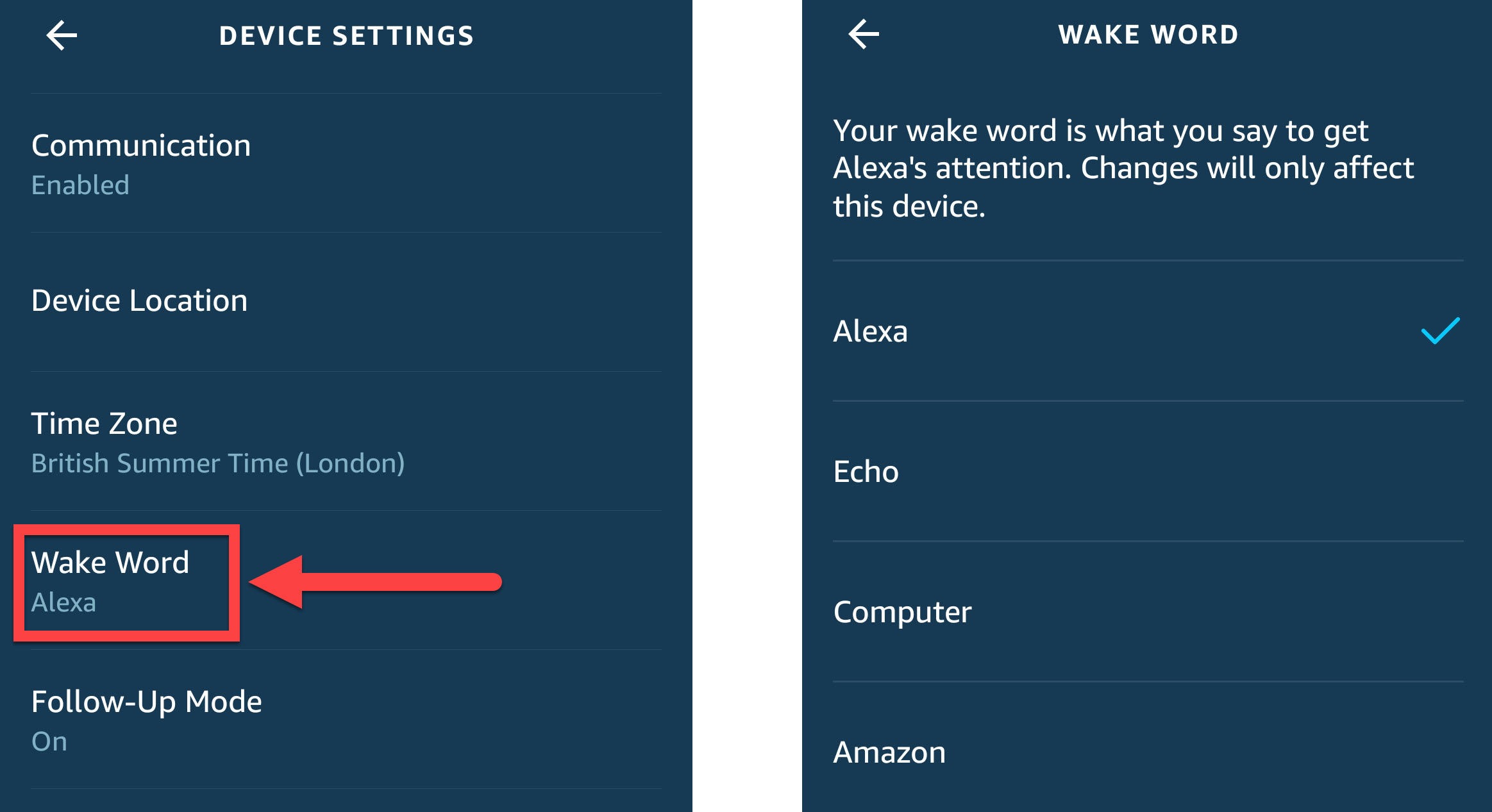
Once you’ve opened the app, tap on the menu icon (usually represented by three horizontal lines or a hamburger icon). Then, select “Devices” and choose the device you want to rename.
Step 3: Modify The Device Name
Scroll down to the “Settings” section and tap on “Modify name.” This will take you to a new screen where you can enter your desired device name. You can choose from pre-approved names or create a custom name that suits your preferences.
Step 4: Confirm The Changes
After entering your new device name, tap “OK” to confirm the changes. It may take a few minutes for the updates to take effect.
Tips And Variations
- Renaming Multiple Devices: If you have multiple devices with the same name, renaming one device will update all instances of that name.
- Device Voice And Language: You can also modify the voice and language settings for your Alexa device in the app. This allows you to customize the way your device responds and interacts with you.
Conclusion
Renaming your Alexa device is a simple process that can enhance your overall experience with your Amazon Echo device. By following these steps, you’ll be able to give your device a unique name that suits your preferences and makes it easier to identify which device is responding.
Frequently Asked Questions (FAQs)
- Q: Can I Rename my Alexa Device Using The Google Assistant or Siri?
A: No, renaming an Alexa device can only be done through the Amazon Alexa app. - Q: Will Renaming my Device Affect Its Functionality?
A: Renaming your device will not affect its overall functionality or responsiveness. - Q: Can I Rename Multiple Devices at Once?
A: Yes, you can rename multiple devices with the same name in a single operation. - Q: Will Renaming my Device Update All Instances of That Name?
A: Yes, renaming one device will update all instances of that name across your Alexa app. - Q: Can I Modify The Voice And Language Settings For my Alexa Device?
A: Yes, you can modify the voice and language settings for your Alexa device in the Amazon Alexa app.
What’s Next?
Now that you’ve learned how to rename your Alexa device, explore more features of the Amazon Echo device. You might be interested in learning about:
- Smart Home Integration: Discover how to connect your Alexa device with other smart home devices and systems.
- Skills And Apps: Find out which skills and apps are compatible with your Alexa device and learn how to enable them.
Additional Resources
For more information on the Amazon Echo, its features, and accessories, visit:
We hope this guide has been helpful in getting you started with renaming your Alexa device. Happy exploring!


