
How to Customize Your Smartphone Icons: A Comprehensive Guide
Are you tired of looking at the same old icons on your smartphone screen? Do you want to give your device a fresh new look without having to buy a new phone? Well, you’re in luck! In this article, we’ll show you how to customize your smartphone icons on various devices, including Android, Samsung, Huawei, Xiaomi, iPhone, iPad, and PC.
Why Customize Your Smartphone Icons?
Customizing your smartphone icons can be a great way to personalize your device and make it stand out from the crowd. With so many different apps and widgets available, it’s easy to get confused and lose track of what you have installed on your phone. By customizing your icons, you can create a unique look that reflects your personality and makes it easier to find what you need.
Customizing Icons on Android
If you own an Android device, you’re in luck! Customizing your icons is relatively easy and can be done without installing any additional software. Here’s how:
- Hold Down on an Empty Zone: On the home screen of your Android device, hold down on an empty zone for a few seconds.
- Access The Settings Menu: A menu will appear with various options. Tap on “Sfondo and style” to access the customization settings.
- Customize Icons: In this menu, you’ll see an option to customize icons based on your home screen theme. Select this option to choose from a variety of icon packs.
Customizing Icons on Samsung
If you own a Samsung device, you can use the Galaxy Themes app to customize your icons. Here’s how:
- Access The Settings Menu: On the home screen of your Samsung device, tap and hold an empty zone.
- Open The Galaxy Themes App: A menu will appear with various options. Tap on “Themes” to access the Galaxy Themes app.
- Select a Theme: In this app, you’ll see a variety of themes that you can select from. Choose one that matches your style and tap on it to apply.
Customizing Icons on Huawei
If you own a Huawei device, you can use the Topics app to customize your icons. Here’s how:
- Access The Settings Menu: On the home screen of your Huawei device, tap and hold an empty zone.
- Open The Topics App: A menu will appear with various options. Tap on “Topics” to access this app.
- Select a Topic: In this app, you’ll see a variety of topics that you can select from. Choose one that matches your style and tap on it to apply.
Customizing Icons on Xiaomi
If you own an Xiaomi device running MIUI, customizing your icons is relatively easy. Here’s how:
- Access The Settings Menu: On the home screen of your Xiaomi device, tap and hold an empty zone.
- Open The Topics App: A menu will appear with various options. Tap on “Topics” to access this app.
- Select a Topic: In this app, you’ll see a variety of topics that you can select from. Choose one that matches your style and tap on it to apply.
Customizing Icons on Iphone
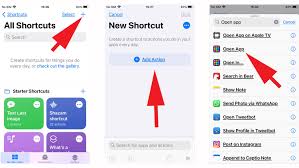
If you own an iPhone, customizing your icons is a bit more complicated than on Android devices. However, here’s how:
- Access The Settings Menu: On the home screen of your iPhone, tap and hold an empty zone.
- Open The Settings App: A menu will appear with various options. Tap on “Settings” to access this app.
- Customize Icons: In this app, you’ll see an option to customize icons for each app. Select this option to choose from a variety of icon packs.
Customizing Icons on Ipad
If you own an iPad, customizing your icons is similar to on iPhone devices. Here’s how:
- Access The Settings Menu: On the home screen of your iPad, tap and hold an empty zone.
- Open The Settings App: A menu will appear with various options. Tap on “Settings” to access this app.
- Customize Icons: In this app, you’ll see an option to customize icons for each app. Select this option to choose from a variety of icon packs.
Customizing Icons on PC
If you own a PC running Windows 10 or later, customizing your icons is relatively easy. Here’s how:
- Access The Settings Menu: On the desktop of your PC, right-click an empty zone.
- Open The Personalization App: A menu will appear with various options. Tap on “Personalize” to access this app.
- Customize Icons: In this app, you’ll see an option to customize icons for each application. Select this option to choose from a variety of icon packs.
Conclusion
In conclusion, customizing your smartphone icons can be a great way to personalize your device and make it stand out from the crowd. With these easy-to-follow steps, you can customize your icons on various devices, including Android, Samsung, Huawei, Xiaomi, iPhone, iPad, and PC.
Frequently Asked Questions
- Q: Can I Customize my Icons Without Installing Any Additional Software?
A: Yes, on some devices, such as Android, you can customize your icons without installing any additional software. - Q: How do I Customize my Icons on Iphone?
A: To customize your icons on iPhone, access the Settings app and select the option to customize icons for each app. - Q: Can I Use a Custom Icon Pack on my Android Device?
A: Yes, you can use a custom icon pack on your Android device by selecting the option in the Personalize menu. - Q: How do I Customize my Icons on Pc?
A: To customize your icons on PC, access the Personalization app and select the option to customize icons for each application. - Q: Can I Use a Custom Icon Pack on my Ipad?
A: Yes, you can use a custom icon pack on your iPad by selecting the option in the Settings app. - Q: How do I Apply Changes Made to my Icon Customization Settings?
A: To apply changes made to your icon customization settings, tap on “Apply” and then “OK”. - Q: Can I Revert Back to The Original Icon Style if Needed?
A: Yes, you can revert back to the original icon style by selecting the option in the Personalize menu.
I hope this comprehensive guide has helped you understand how to customize your smartphone icons on various devices!


