
How to Capsize Your ID Apple on Iphone
Are you tired of using an old ID Apple on your iPhone, but can’t access the Settings or App Store? Do you want to know how to capsize your ID Apple and associate it with a new account? You’ve come to the right place!
What is ID Apple?
ID Apple is a unique identifier that links all of your Apple devices, including your iPhone, iPad, iPod touch, Mac, and Apple Watch. It’s used to access various services like iCloud, App Store, iTunes, and more.
Why Capsize Your ID Apple on Iphone?
If you’ve forgotten the password of your old ID Apple or want to create a new account, capsizing it might be the solution for you! However, this process can be tricky, especially if you’re not tech-savvy. That’s why we’ll guide you through each step.
How to Capsize Your ID Apple on Iphone: A Step-by-step Guide
Capsize ID Apple For Icloud on Iphone
- Go to the Settings app on your iPhone.
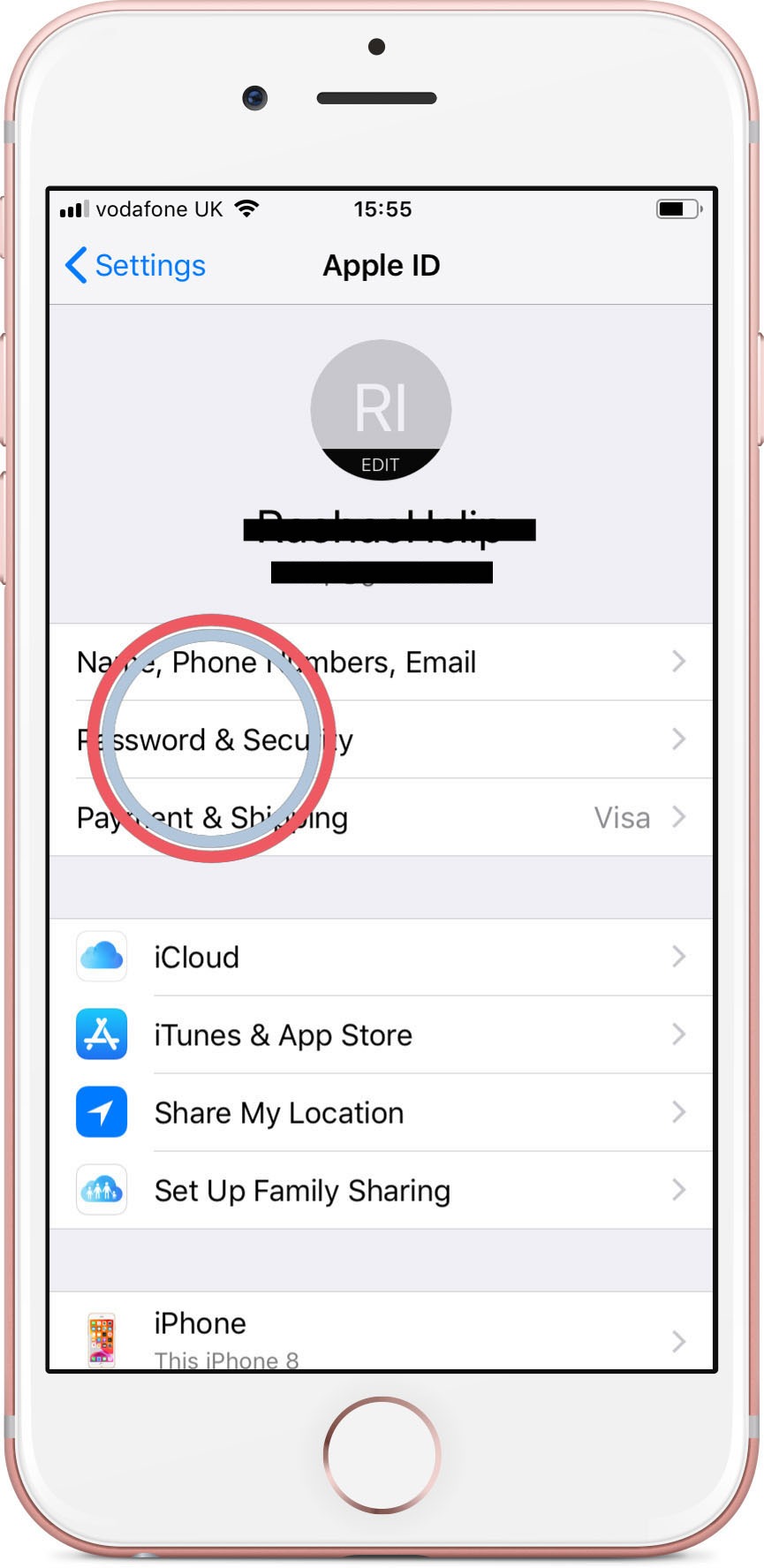
- Tap on your name at the top of the screen.
- Scroll down and tap on “iCloud.”
- Enter your Apple ID password.
- Tap on “Sign Out” to confirm.
How to Capsize Your ID Apple For App Store on Iphone
- Go to the Settings app on your iPhone.
- Tap on your name at the top of the screen.
- Scroll down and tap on “App Store.”
- Enter your Apple ID password.
- Tap on “Sign Out” to confirm.
How to Capsize Your ID Apple in Case of Services on Iphone
If you want to modify only the ID Apple associated with specific services like Messages, FaceTime, or Game Center:
- Go to the Settings app on your iPhone.
- Tap on the corresponding service (e.G., Messages).
- Enter your Apple ID password.
- Tap on “Sign Out” to confirm.
How to Capsize Data of Your ID Apple on Iphone
If you want to remove all data associated with your old ID Apple:
- Go to the Settings app on your iPhone.
- Tap on your name at the top of the screen.
- Scroll down and tap on “iCloud.”
- Enter your Apple ID password.
- Tap on “Sign Out” to confirm.
How to Capsize Your ID Apple on Iphone Without Missing Data
If you want to keep a copy of your data:
- Go to the Settings app on your iPhone.
- Tap on your name at the top of the screen.
- Scroll down and tap on “iCloud.”
- Enter your Apple ID password.
- Tap on “Sign Out” to confirm.
How to Capsize Your ID Apple on Iphone Without Password
If you’ve forgotten your password:
- Go to the Settings app on your iPhone.
- Tap on your name at the top of the screen.
- Scroll down and tap on “iCloud.”
- Enter your Apple ID password (if you remember it).
- If not, follow the prompts to recover your password.
How to Capsize Your ID Apple on Iphone Used
If you’ve purchased a used iPhone with an existing ID Apple:
- Follow the steps above.
- Contact the previous owner for their Apple ID and password.
- Use those credentials to capsize the ID Apple.
Conclusion:
Capsizing your ID Apple on iPhone can be a straightforward process if done correctly. Remember to back up your data before initiating the procedure, and don’t hesitate to contact us if you need further assistance.
Frequently Asked Questions (FAQs):
- Q: How do I capsize my ID Apple on iPhone?
A: Follow the step-by-step guide above. - Q: What is the difference between capsizing ID Apple for iCloud and App Store?
A: Capsizing ID Apple for iCloud removes all data associated with your account, while capsizing it for App Store only affects access to the App Store. - Q: Can I capsize my ID Apple on iPhone without a password?
A: Yes, but you’ll need to recover your password first. - Q: How do I keep a copy of my data when capsizing ID Apple?
A: Choose to conserve a copy of your data during the process. - Q: What happens if I capsize my ID Apple on iPhone used?
A: You’ll need to contact the previous owner for their Apple ID and password. - Q: Can I modify only specific services associated with my ID Apple?
A: Yes, follow the steps above for each service (e.G., Messages, FaceTime). - Q: How do I recover my Apple ID password if forgotten?
A: Follow the prompts on your iPhone or visit the official Apple website. - Q: What should I do if I encounter any issues during the capsizing process?
A: Contact us or visit the official Apple support page for assistance.
Hope this helps you capsize your ID Apple with confidence!


