
How to Reset Apple ID Password: A Step-by-step Guide
Are you tired of forgetting your Apple ID password? Do you want to reset it but don’t know where to start? Look no further! This article will guide you through the process of resetting your Apple ID password on iPhone, iPad, Mac, and online.
Why Reset Your Apple ID Password?
Before we dive into the steps, let’s quickly discuss why you might need to reset your Apple ID password. Perhaps you’ve forgotten it, or maybe you’re trying to change it for security reasons. Whatever the reason, resetting your password is a straightforward process that can be done in just a few minutes.
Resetting Your Apple ID Password on Iphone
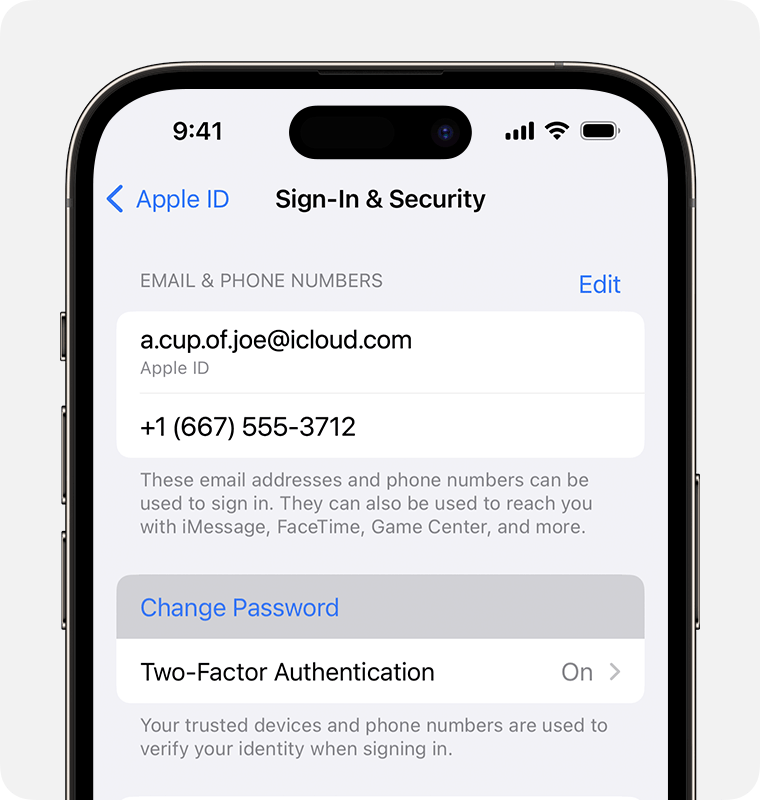
If you have an iPhone, resetting your Apple ID password is a breeze. Here’s how:
- Go to Settings: Tap on the icon of the gear present in the Home screen.
- Access The Settings App: Enter your name and tap on “Password & Security”.
- Tap on Modify Password: Select this option to change your current password.
- Enter Your New Password: Make sure it’s at least 8 characters long, includes a number, capital letter, and special character.
- Confirm Your New Password: Tap on the “Check” button to verify your new password.
Resetting Your Apple ID Password Without Iphone
If you don’t have an iPhone or prefer not to use one, don’t worry! You can still reset your Apple ID password using other devices, such as iPad, Mac, or online.
Resetting Your Apple ID Password on Ipad
The process of resetting your Apple ID password on iPad is similar to that of the iPhone:
- Go to Settings: Tap on the icon of the gear present in the Home screen.
- Access The Settings App: Enter your name and tap on “Password & Security”.
- Tap on Modify Password: Select this option to change your current password.
- Enter Your New Password: Make sure it’s at least 8 characters long, includes a number, capital letter, and special character.
- Confirm Your New Password: Tap on the “Check” button to verify your new password.
Resetting Your Apple ID Password on Mac
To reset your Apple ID password on Mac:
- Click on The Icon of The Gear: Present in the top right corner of the screen.
- Access The System Preferences App: Select this option to change your current password.
- Enter Your New Password: Make sure it’s at least 8 characters long, includes a number, capital letter, and special character.
- Confirm Your New Password: Click on the “Save Changes” button to verify your new password.
Resetting Your Apple ID Password Online
If you prefer to reset your Apple ID password online:
- Go to The Official Apple Website: Visit www.Apple.Com and log in with your Apple ID.
- Click on Forgot Password?: Select this option to start the password recovery process.
- Enter Your Email Address: The one associated with your Apple ID.
- Follow The Instructions: To reset your password, you may be asked to verify your identity using a security question or by answering a few questions.
What If I’ve Forgotten My Apple ID Password?
If you’ve forgotten your Apple ID password and can’t access it on any device:
- Go to The Official Apple Website: Visit www.Apple.Com and click on Forgot Password?
- Enter Your Email Address: The one associated with your Apple ID.
- Follow The Instructions: To reset your password, you may be asked to verify your identity using a security question or by answering a few questions.
Conclusion
Resetting your Apple ID password is a straightforward process that can be done on iPhone, iPad, Mac, and online. Remember to choose a strong and unique password that includes a number, capital letter, and special character. If you’ve forgotten your password, don’t worry – you can easily reset it using the steps outlined above.
Frequently Asked Questions
- Q: Why do I Need to Reset my Apple ID Password?
A: You may need to reset your Apple ID password for various reasons, such as forgetting it or wanting to change it for security reasons. - Q: How do I Reset my Apple ID Password on Iphone?
A: To reset your Apple ID password on iPhone, go to Settings > Password & Security > Modify Password and follow the instructions. - Q: Can I Reset my Apple ID Password Without an Iphone?
A: Yes, you can reset your Apple ID password using other devices, such as iPad, Mac, or online. - Q: How do I Recover my Forgotten Apple ID Password?
A: If you’ve forgotten your Apple ID password, go to the official Apple website and click on Forgot Password? to start the recovery process. - Q: Is it Safe to Reset my Apple ID Password Online?
A: Yes, resetting your Apple ID password online is a secure process that requires verification of your identity using a security question or by answering a few questions.


