
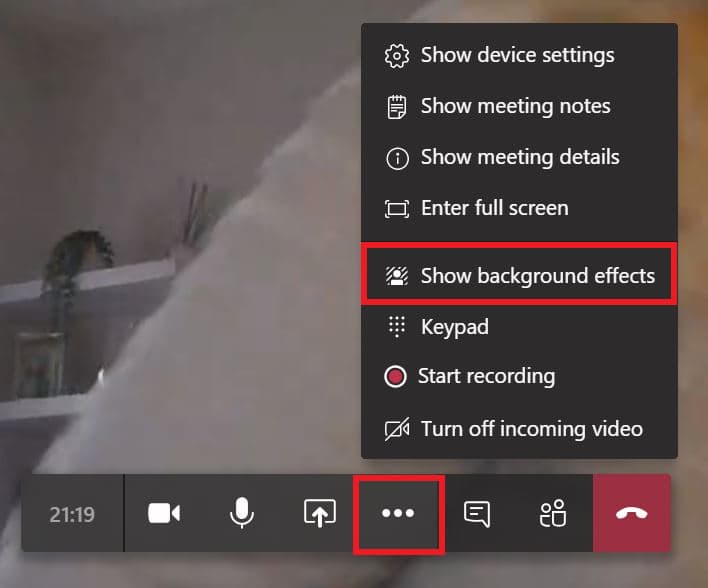
How to Blur Your Background on Microsoft Teams
Are you tired of having your messy home office or cluttered workspace visible to your colleagues during online meetings? Do you wish there was a way to blur your background on Microsoft Teams without worrying about compromising the quality of the video call? Look no further! In this article, we will guide you through the steps to capsize (or blur) your background on Microsoft Teams, whether you’re using a PC, Mac, or mobile device.
Preliminary Information
Before we dive into the nitty-gritty details, let’s cover some preliminary information. To blur your background on Microsoft Teams, you have several options:
- Apply a Filter to Your Webcam Background: This will apply a blurred effect to your background without affecting the quality of your video.
- Use a Pre-set Background Image: Choose from a variety of pre-designed backgrounds that can be applied to your video feed.
- Personalize Your Background Image: Use an image from your computer or mobile device as your custom background.
How to Blur Your Background on Microsoft Teams (PC And Mac)
To blur your background on Microsoft Teams using the desktop client, follow these steps:
- Initiate a New Meeting: Open the Microsoft Teams app and start a new meeting by clicking on the “New Meeting” button.
- Access The Video Settings: In the next window, click on the “Video” tab to access the video settings.
- Click on “Effects And Avatar”: Click on the “Effects and Avatar” dropdown menu and select “Effects Video”.
- Choose Your Background Effect: From the options provided, choose either “Blur” or one of the pre-set background images.
If you want to apply a filter to your webcam background, click on the “Blur” option. If you prefer to use a pre-set background image, click on one of the available options. To personalize your background image, follow the instructions below:
How to Personalize Your Background Image (PC And Mac)
To personalize your background image using the desktop client, follow these steps:
- Click on “Other Effects Video”: In the “Effects Video” dropdown menu, click on “Other effects video”.
- Add a New Effect: Click on the “+” icon to add a new effect.
- Choose an Image From Your Computer: Select an image from your computer or mobile device as your custom background.
How to Blur Your Background on Microsoft Teams (Mobile Device)
To blur your background on Microsoft Teams using a mobile device, follow these steps:
- Open The Microsoft Teams App: Open the Microsoft Teams app on your smartphone or tablet.
- Access The Meeting Settings: Click on the “Meeting Settings” icon in the top-right corner of the screen.
- Click on “Modify Background”: Click on the “Modify background” option to access the background settings.
- Choose Your Background Effect: Choose either “Blur” or one of the pre-set background images.
How to Personalize Your Background Image (Mobile Device)
To personalize your background image using a mobile device, follow these steps:
- Tap on The “+” Icon: Tap on the “+” icon in the bottom-right corner of the screen.
- Choose an Image From Your Photo Library: Select an image from your photo library or take a new one as your custom background.
Conclusion
Blurring your background on Microsoft Teams is a simple and effective way to maintain professionalism during online meetings, regardless of your work environment. By following these steps, you can ensure that your colleagues see only what they need to see – you!


