
Capsize Cartridges Printer Canon Pixma: A Step-by-step Guide
Are you tired of dealing with empty ink cartridges in your Canon Pixma printer? Look no further! This guide will walk you through the process of capsize cartridges, check the levels of ink, and even help you troubleshoot any issues that may arise.
Understanding Your Printer’s Cartridges
Before we dive into the nitty-gritty details, it’s essential to understand your printer’s cartridges. The Canon Pixma series uses a combination of black and color cartridges to print high-quality documents and photos. Each cartridge has its own specific pattern, which is crucial for optimal performance.
Checking Ink Levels
To avoid unnecessary purchases or waste, it’s vital to check the ink levels before buying new cartridges. Your printer might have an integrated system to display the ink levels on the LCD screen, but sometimes, you’ll need to download a driver from Canon’s website to access this information.
For Windows Users: Downloading And Installing Drivers
If you’re using Windows 10, follow these steps:
- Press the Start button in the lower left corner of your screen.
- Select the icon of the gear (Settings) from the menu.
- Click on Devices and select Printers & scanners from the list.
- Right-click on your Canon Pixma printer and select Properties.
- In the Maintenance tab, click on Visualize to check the ink levels.
For Macos Users: Using Built-in Features
On a Mac, you can easily check the ink levels using the built-in features:
- Click on Apple Logo > System Preferences > Printers & Scanners.
- Select your Canon Pixma printer and click on Options & Supplies.
- Click on Levels to see the current ink levels.
Smartphone Users: Using The Canon Print Inkjet/selphy App
For smartphone users, you can download the Canon PRINT Inkjet/SELPHY app from the App Store or Google Play. This app will help you check the ink levels remotely and even control your printer wirelessly.
Replacing Cartridges
Now that we’ve covered checking ink levels, it’s time to replace the cartridges!
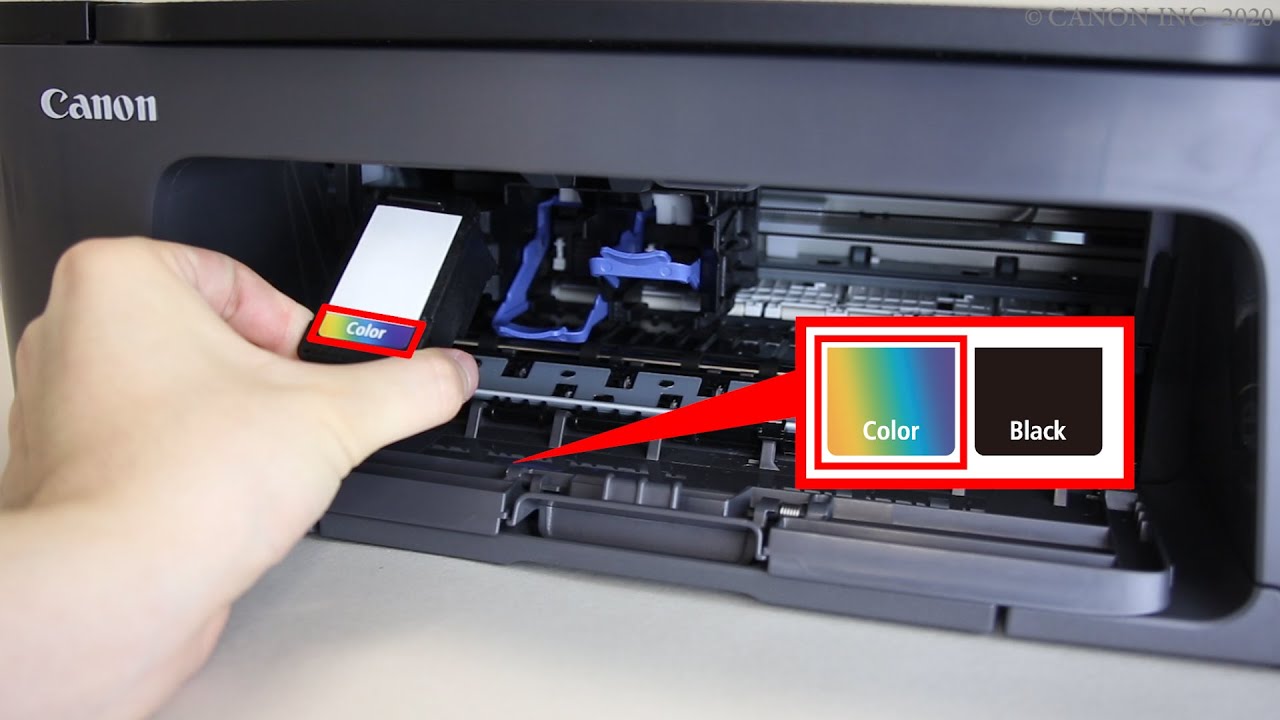
- Open the printer’s top cover (usually found under a separate flap).
- Locate the cartridge that needs replacing.
- Remove any protective tape or clips from the new cartridge.
- Install the new cartridge into its designated slot.
- Close the top cover and acknowledge the new cartridges to your printer.
Troubleshooting Issues
If you’re experiencing problems during the replacement process, don’t worry! Canon’s customer support is always available to help. You can reach out to their online assistance center or contact them directly for further guidance.
Conclusion
Capsize cartridges printing with your Canon Pixma printer is a straightforward process that requires some basic knowledge of your device. By following this guide, you’ll be able to check ink levels, replace cartridges, and troubleshoot any issues that may arise. Remember, it’s always better to err on the side of caution when dealing with electronics.
Frequently Asked Questions
- Q: How Often Should I Check my Ink Levels?
A: It’s recommended to check your ink levels every 3-6 months or whenever you notice a decrease in print quality. - Q: Can I Use Any Type of Cartridge For my Canon Pixma Printer?
A: No, it’s essential to use genuine Canon cartridges or third-party compatible cartridges specifically designed for your printer model. - Q: What Should I do if I Encounter an Issue During The Replacement Process?
A: If you’re experiencing difficulties, contact Canon’s customer support for assistance. - Q: How Can I Prevent Damage to my Printer When Replacing Cartridges?
A: Always follow the manufacturer’s guidelines and take necessary precautions to avoid any accidental damage. - Q: Can I Recycle Empty Ink Cartridges?
A: Yes, many retailers and manufacturers offer recycling programs for used ink cartridges. - Q: How Long do New Cartridges Typically Last?
A: The lifespan of a cartridge depends on usage patterns and factors like print frequency and quality settings. - Q: Are There Any Tips For Extending The Life of my Canon Pixma Printer’s Cartridges?
A: Yes, using the correct type of paper, maintaining proper humidity levels, and following manufacturer guidelines can help extend the life of your cartridges. - Q: What if I Accidentally Damage a Cartridge During Replacement?
A: In such cases, it’s best to contact Canon’s customer support for guidance on handling damaged cartridges.
Hope this guide has helped you navigate the world of capsize cartridges printing with your Canon Pixma printer!


