
How to Change Initial Page on Google Chrome: A Step-by-step Guide
Are you tired of seeing a specific page every time you open Google Chrome? Do you want to customize the home page of your browser? Look no further! In this article, we will guide you through the process of changing the initial page on Google Chrome for Windows, Mac, Android, and iOS/iPadOS.
Why Change Initial Page on Google Chrome?
Changing the initial page on Google Chrome can be beneficial in several ways. For instance, if you have a favorite website that you want to see every time you open your browser, you can set it as your home page. This way, you will save time and effort by not having to manually type the URL of your favorite site every time.
How to Change Initial Page on Google Chrome For Windows
To change the initial page on Google Chrome for Windows, follow these steps:
- Click on the Start button and select the Google Chrome icon.
- Click on the three dots in the top right corner of the browser window.
- Select Settings from the dropdown menu.
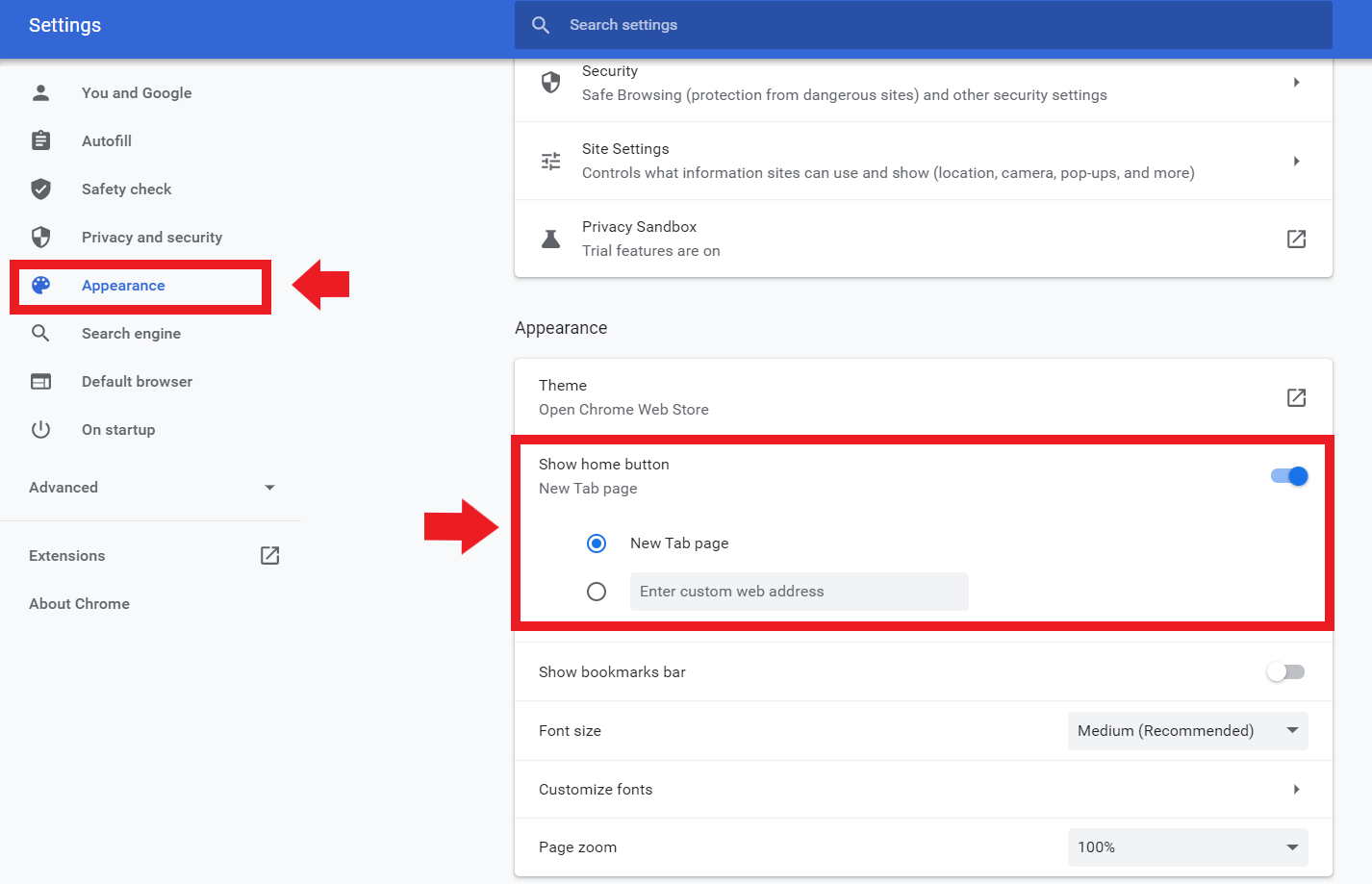
- In the Settings page, click on the Appearance tab.
- Scroll down to the “Home button” section and toggle the switch to turn it on.
- Enter the URL of your favorite website in the box provided.
- Click on the Save Changes button.
How to Change Initial Page on Google Chrome For Mac
To change the initial page on Google Chrome for Mac, follow these steps:
- Click on the Launchpad icon and select Google Chrome.
- Click on the three dots in the top right corner of the browser window.
- Select Settings from the dropdown menu.
- In the Settings page, click on the Appearance tab.
- Scroll down to the “Home button” section and toggle the switch to turn it on.
- Enter the URL of your favorite website in the box provided.
- Click on the Save Changes button.
How to Change Initial Page on Google Chrome For Android
To change the initial page on Google Chrome for Android, follow these steps:
- Open Google Chrome on your Android device.
- Tap on the three dots in the top right corner of the browser window.
- Select Settings from the dropdown menu.
- In the Settings page, tap on the “Home” option.
- Toggle the switch to turn it on.
- Enter the URL of your favorite website in the box provided.
- Tap on the Save Changes button.
How to Change Initial Page on Google Chrome For Ios/ipados
To change the initial page on Google Chrome for iOS/iPadOS, follow these steps:
- Open Google Chrome on your iOS or iPadOS device.
- Tap on the three dots in the top right corner of the browser window.
- Select Settings from the dropdown menu.
- In the Settings page, tap on the “Home” option.
- Toggle the switch to turn it on.
- Enter the URL of your favorite website in the box provided.
- Tap on the Save Changes button.
Why Your Initial Page May Have Been Changed
If you have noticed that your initial page has been changed without any intervention from you, it may be due to a malware infection. Malware can hijack your browser and change its settings without your knowledge or consent. To resolve this issue, scan your device with an anti-malware software and follow the instructions provided.
Conclusion
Changing the initial page on Google Chrome is a simple process that can be completed in just a few steps. By following the guidelines provided above, you can customize the home page of your browser to suit your preferences. Remember to always be cautious when browsing online and take necessary measures to protect yourself from malware infections.
Frequently Asked Questions (FAQs)
- Q: How do I Change my Initial Page on Google Chrome?
A: To change your initial page on Google Chrome, follow the steps provided above for Windows, Mac, Android, or iOS/iPadOS. - Q: Why Did my Initial Page Change Without Any Intervention From Me?
A: If you have noticed that your initial page has been changed without any intervention from you, it may be due to a malware infection. - Q: How do I Protect Myself From Malware Infections?
A: To protect yourself from malware infections, scan your device with an anti-malware software and follow the instructions provided. - Q: Can I Change my Initial Page on Google Chrome For Ios/ipados?
A: Yes, you can change your initial page on Google Chrome for iOS/iPadOS by following the steps provided above. - Q: How do I Customize my Home Page on Google Chrome?
A: You can customize your home page on Google Chrome by entering a URL in the box provided and saving the changes. - Q: Can I Set Multiple Initial Pages on Google Chrome?
A: Yes, you can set multiple initial pages on Google Chrome by following the steps provided above for Windows, Mac, Android, or iOS/iPadOS. - Q: How do I Reset my Browser Settings to Default?
A: To reset your browser settings to default, follow the instructions provided in the Settings page of Google Chrome. - Q: Can I Use a Different Browser Instead of Google Chrome?
A: Yes, you can use a different browser instead of Google Chrome by downloading and installing it on your device.


