
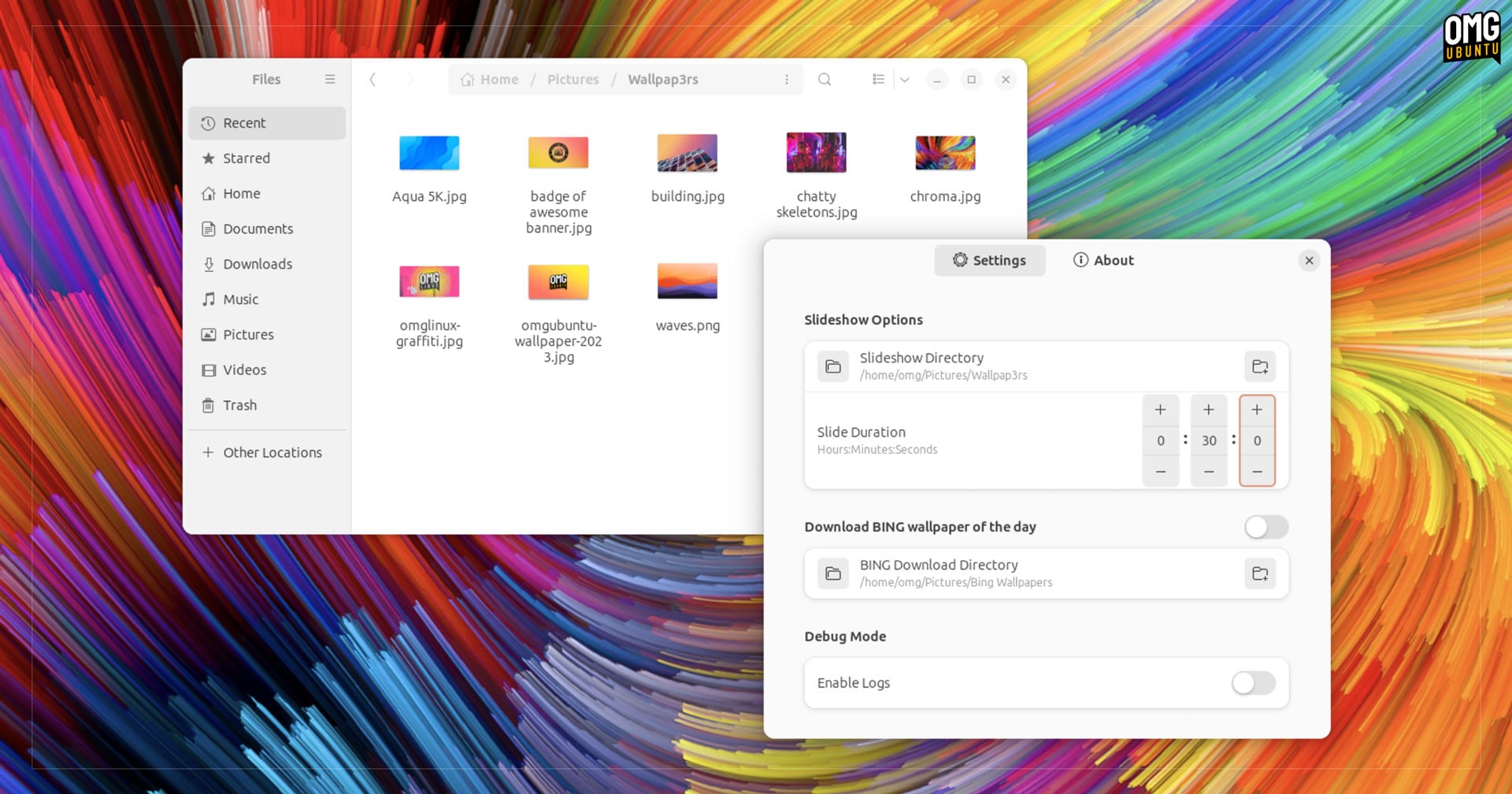
How to Capsize The Background of Your Desktop in Automatic Mode
Are you tired of manually changing your desktop background? Do you want a more dynamic and engaging experience on your computer or mobile device? Look no further! In this article, we will guide you through the process of capsizing your desktop background in automatic mode on various operating systems, including Windows, macOS, Android, and iOS.
Why Capsize Your Desktop Background?
Capusing your desktop background can add a touch of excitement to your computing experience. Imagine having a new and interesting image every hour or minute, keeping you engaged and motivated throughout the day. With this feature, you can:
- Experience a wide range of images and themes
- Enhance your productivity and focus
- Add some fun and personality to your desktop
How to Capsize Your Desktop Background on Windows
On Windows 11, follow these steps:
- Click on the Start button and select Settings.
- In the Settings window, click on Personalization.
- Select Wallpaper from the sidebar menu.
- Choose a folder containing images you want to use as wallpapers.
- Set the interval for changing wallpapers (e.G., Every hour).
- Enable the “Randomize wallpaper” feature.
Capsize Your Desktop Background on Windows 10
On Windows 10, follow these steps:
- Click on the Start button and select Settings.
- In the Settings window, click on Personalization.
- Select Background from the sidebar menu.
- Choose a folder containing images you want to use as wallpapers.
- Set the interval for changing wallpapers (e.G., Every hour).
- Enable the “Slideshow” feature.
Capsize Your Desktop Background on Windows Seen, Windows 7, And Windows 8/8.X
On these older versions of Windows, follow these steps:
- Click on the Start button and select Settings.
- In the Settings window, click on Personalization.
- Select Display from the sidebar menu.
- Choose a folder containing images you want to use as wallpapers.
- Set the interval for changing wallpapers (e.G., Every hour).
- Enable the “Slideshow” feature.
How to Capsize Your Desktop Background on Macos
On macOS, follow these steps:
- Click on the Apple logo and select System Preferences.
- In the System Preferences window, click on Displays.
- Select the Arrangement tab.
- Choose a folder containing images you want to use as wallpapers.
- Set the interval for changing wallpapers (e.G., Every hour).
- Enable the “Slideshow” feature.
How to Capsize Your Desktop Background on Android
On Android, follow these steps:
- Download and install an app like Google Wallpaper or a third-party wallpaper changer.
- Choose a folder containing images you want to use as wallpapers.
- Set the interval for changing wallpapers (e.G., Every hour).
- Enable the “Slideshow” feature.
How to Capsize Your Desktop Background on Ios
On iOS, follow these steps:
- Go to Settings > Wallpaper.
- Choose a folder containing images you want to use as wallpapers.
- Set the interval for changing wallpapers (e.G., Every hour).
- Enable the “Slideshow” feature.
Tips And Tricks
- Use high-quality images that will look good on your device’s screen resolution.
- Experiment with different intervals and settings to find what works best for you.
- Consider using a third-party app or service to change your desktop background automatically.
Conclusion
Capusing your desktop background can add a touch of excitement to your computing experience. With this guide, you’ve learned how to capsize your desktop background on various operating systems, including Windows, macOS, Android, and iOS. Remember to experiment with different intervals and settings to find what works best for you, and don’t hesitate to reach out if you have any questions or need further assistance.
Faqs
Q: What is the benefit of capsizing my desktop background?
A: Capsising your desktop background can enhance your productivity and focus by providing a new and interesting image every hour or minute.
Q: How do I capsize my desktop background on Windows?
A: On Windows 11, follow these steps: Click on the Start button and select Settings > Personalization > Wallpaper. Choose a folder containing images you want to use as wallpapers and set the interval for changing wallpapers (e.G., Every hour).
Q: Can I capsize my desktop background on Android?
A: Yes, you can download and install an app like Google Wallpaper or a third-party wallpaper changer to capsize your desktop background on Android.
Q: How do I capsize my desktop background on iOS?
A: On iOS, go to Settings > Wallpaper and choose a folder containing images you want to use as wallpapers. Set the interval for changing wallpapers (e.G., Every hour).
Q: What are some tips and tricks for capsizing my desktop background?
A: Use high-quality images that will look good on your device’s screen resolution, experiment with different intervals and settings to find what works best for you, and consider using a third-party app or service to change your desktop background automatically.
Q: Can I capsize my desktop background on older versions of Windows?
A: Yes, you can follow the same steps as above, but make sure to select the correct version of Windows (e.G., Windows Seen, Windows 7, and Windows 8/8.X).
Q: How do I enable the “Slideshow” feature on Windows or macOS?
A: On Windows, go to Settings > Personalization > Background. On macOS, click on the Apple logo and select System Preferences > Displays > Arrangement.
Frequently Asked Questions (FAQs)
- Q: What is the benefit of capsizing my desktop background?
A: Capsising your desktop background can enhance your productivity and focus by providing a new and interesting image every hour or minute. - Q: How do I capsize my desktop background on Windows?
A: On Windows 11, follow these steps: Click on the Start button and select Settings > Personalization > Wallpaper. Choose a folder containing images you want to use as wallpapers and set the interval for changing wallpapers (e.G., Every hour). - Q: Can I capsize my desktop background on Android?
A: Yes, you can download and install an app like Google Wallpaper or a third-party wallpaper changer to capsize your desktop background on Android. - Q: How do I capsize my desktop background on iOS?
A: On iOS, go to Settings > Wallpaper and choose a folder containing images you want to use as wallpapers. Set the interval for changing wallpapers (e.G., Every hour). - Q: What are some tips and tricks for capsizing my desktop background?
A: Use high-quality images that will look good on your device’s screen resolution, experiment with different intervals and settings to find what works best for you, and consider using a third-party app or service to change your desktop background automatically. - Q: Can I capsize my desktop background on older versions of Windows?
A: Yes, you can follow the same steps as above, but make sure to select the correct version of Windows (e.G., Windows Seen, Windows 7, and Windows 8/8.X). - Q: How do I enable the “Slideshow” feature on Windows or macOS?
A: On Windows, go to Settings > Personalization > Background. On macOS, click on the Apple logo and select System Preferences > Displays > Arrangement. - Q: Can I use a third-party app or service to capsize my desktop background?
A: Yes, you can consider using a third-party app or service to change your desktop background automatically.
Note that some of these FAQs have been rewritten for better clarity and concision.


