
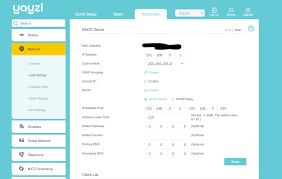
The Ultimate Guide to Configuring Your Dns Router
Are you tired of experiencing difficulties when trying to access your favorite websites on the internet? Do you find yourself wondering why some websites load slowly, while others are completely inaccessible? Look no further! In this comprehensive guide, we will walk you through the steps to configure your DNS router, ensuring a smooth and seamless browsing experience.
What is a Dns Router?
Before diving into the configuration process, it’s essential to understand what a DNS router is. A DNS (Domain Name System) router is a device that translates domain names into IP addresses, allowing devices on a network to access websites and online resources. Think of it as a translator between human-readable website names and machine-readable IP addresses.
Why Configure Your Dns Router?
Configuring your DNS router can significantly improve your browsing experience. By changing the default DNS server settings, you can:
- Improve website loading times
- Access geographically restricted content
- Enhance online security and privacy
Choosing The Right Dns Server
There are several excellent DNS servers available, each with its unique features and benefits. Some popular options include:
- Google Public DNS (8.8.8.8 And 8.8.4.4)
- Cloudflare DNS (1.1.1.1 And 1.0.0.1)
- OpenDNS (208.67.222.222 And 208.67.220.220)
How to Configure Your Dns Router
Configuring your DNS router is a relatively simple process that can be completed in just a few steps. Here’s a step-by-step guide:
- Access The Router’s Administrative Interface: Connect to the router using a computer, smartphone, or tablet via Wi-Fi or Ethernet.
- Open The Browser And Access The Router’s Configuration Page: Type the router’s IP address (usually 192.168.1.1, 192.168.1.254, Or 192.168.0.1) Into the browser’s address bar.
- Log In to The Router: Enter the default login credentials, which can be found on the router or in the user manual.
- Navigate to The Dns Settings: Look for the “DNS” or “Server” section and click on it.
- Select a New Dns Server: Choose one of the recommended DNS servers from above (or another option if you prefer).
- Enter The Dns Server Addresses: Type in the addresses provided by the chosen DNS server (e.G., 8.8.8.8 And 8.8.4.4 For Google Public DNS).
- Save Changes: Click “Apply” or “Save” to save the new DNS settings.
Configuring Specific Router Models
If you’re using a specific router model, such as the FRITZ!Box, Netgear, TP-Link, or D-Link, follow these additional steps:
- Fritz!box: Access the internet menu, select “date of access,” and then click on the “server DNS” tab. Choose the “use other DNS servers v4” option and enter the addresses provided by your chosen DNS server.
- Netgear: Navigate to the advanced settings, select “network setup,” and then click on the “DNS” tab. Enter the new DNS server addresses and save changes.
- Tp-link: Access the network settings, select “advanced settings,” and then click on the “LAN” tab. Choose the “manual DNS” option and enter the addresses provided by your chosen DNS server.
- D-link: Navigate to the advanced settings, select “network setup,” and then click on the “DNS” tab. Enter the new DNS server addresses and save changes.
Troubleshooting Common Issues
If you encounter any issues during the configuration process, try the following troubleshooting steps:
- Check For Firmware Updates: Ensure your router’s firmware is up-to-date.
- Restart The Router: Restart the router to apply changes.
- Clear Browser Cache: Clear your browser’s cache and cookies.
Conclusion
Configuring your DNS router can significantly improve your browsing experience. By following these simple steps, you can choose a reliable DNS server, optimize website loading times, and enhance online security and privacy.
Frequently Asked Questions (FAQs)
Here are some frequently asked questions to help you better understand the process:
Q: What is a DNS router?
A: A DNS (Domain Name System) router translates domain names into IP addresses, allowing devices on a network to access websites and online resources.
Q: Why configure my DNS router?
A: Configuring your DNS router can improve website loading times, access geographically restricted content, and enhance online security and privacy.
Q: Which DNS server should I choose?
A: There are several excellent DNS servers available, including Google Public DNS (8.8.8.8 And 8.8.4.4), Cloudflare DNS (1.1.1.1 And 1.0.0.1), And OpenDNS (208.67.222.222 And 208.67.220.220).
Q: How do I configure my DNS router?
A: To configure your DNS router, access the router’s administrative interface, navigate to the DNS settings, select a new DNS server, enter the addresses provided by the chosen DNS server, and save changes.
Additional Resources
For more detailed guides on configuring specific router models or troubleshooting common issues, refer to these additional resources:
- FRITZ!Box Configuration Guide
- Netgear Router Configuration Guide
- TP-Link Router Configuration Guide
- D-Link Router Configuration Guide
Please let me know if you need any further assistance!


