
How to Capsize Email Instagram: A Step-by-step Guide
Are you tired of using the same old email address associated with your Instagram account? Do you want to change it up and start fresh? Look no further! In this article, we’ll show you how to capsize email Instagram on your smartphone, computer, or web browser.
Why Change Your Email Address?
Before we dive into the nitty-gritty of changing your email address, let’s talk about why you might want to do so in the first place. Maybe you’ve changed jobs and want to separate your personal and professional email addresses. Or perhaps you’re simply tired of using the same old email address and want a fresh start.
Whatever your reason, we’ve got you covered. In this article, we’ll show you how to capsize email Instagram on all devices, including smartphones, computers, and web browsers.
How to Change Your Email Address on Smartphone
If you want to change your email address associated with your Instagram account using your smartphone, follow these steps:
- Open The Instagram App: First, open the Instagram app on your smartphone.
- Tap on Your Profile Picture: Tap on your profile picture in the top-right corner of the screen.
- Select Settings: Select the settings icon (represented by a small gear) from the menu that appears.
- Choose Email: Choose “Email” from the list of options.
- Enter New Email Address: Enter your new email address in the field provided.
- Save Changes: Tap on “Save Changes” to confirm.
How to Change Your Email Address on Computer
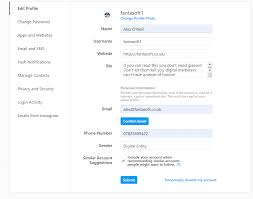
If you want to change your email address associated with your Instagram account using a computer, follow these steps:
- Open The Instagram Website: First, open the Instagram website on your computer.
- Log in to Your Account: Log in to your Instagram account using your current email address and password.
- Click on Your Profile Picture: Click on your profile picture in the top-right corner of the screen.
- Select Settings: Select “Settings” from the menu that appears.
- Choose Email: Choose “Email” from the list of options.
- Enter New Email Address: Enter your new email address in the field provided.
- Save Changes: Click on “Save Changes” to confirm.
How to Change Your Email Address on Web Browser
If you want to change your email address associated with your Instagram account using a web browser, follow these steps:
- Open The Instagram Website: First, open the Instagram website in your web browser.
- Log in to Your Account: Log in to your Instagram account using your current email address and password.
- Click on Your Profile Picture: Click on your profile picture in the top-right corner of the screen.
- Select Settings: Select “Settings” from the menu that appears.
- Choose Email: Choose “Email” from the list of options.
- Enter New Email Address: Enter your new email address in the field provided.
- Save Changes: Click on “Save Changes” to confirm.
How to Change Your Email Address With Facebook
If you’ve linked your Instagram account to Facebook, follow these steps:
- Log in to Your Facebook Account: Log in to your Facebook account using your current email address and password.
- Click on Settings: Click on the settings icon (represented by a small gear) from the menu that appears.
- Choose Email: Choose “Email” from the list of options.
- Enter New Email Address: Enter your new email address in the field provided.
- Save Changes: Click on “Save Changes” to confirm.
How to Change Your Email Address Without Accessing
If you’ve forgotten your password or can’t access your account, don’t worry! You can still change your email address associated with your Instagram account using the app’s recovery feature. Here’s how:
- Open The Instagram App: First, open the Instagram app on your smartphone.
- Tap on Get Help: Tap on “Get Help” from the menu that appears.
- Choose Recovery: Choose “Recovery” from the list of options.
- Follow Instructions: Follow the instructions provided to recover your account and change your email address.
How to Change Your Email Address With Blocked Account
If you’ve had your Instagram account blocked, don’t worry! You can still try to change your email address associated with your account using the app’s recovery feature. Here’s how:
- Open The Instagram App: First, open the Instagram app on your smartphone.
- Tap on Get Help: Tap on “Get Help” from the menu that appears.
- Choose Recovery: Choose “Recovery” from the list of options.
- Follow Instructions: Follow the instructions provided to recover your account and change your email address.
Conclusion
Changing your email address associated with your Instagram account is a simple process that can be completed on all devices, including smartphones, computers, and web browsers. Whether you’re changing jobs, tired of using the same old email address, or just want a fresh start, we’ve got you covered. Follow these steps to capsize email Instagram today!
Frequently Asked Questions
- Q: Can I change my email address associated with my Instagram account on all devices?
A: Yes, you can change your email address associated with your Instagram account on smartphones, computers, and web browsers. - Q: How do I change my email address if I’ve forgotten my password or can’t access my account?
A: You can still change your email address associated with your Instagram account using the app’s recovery feature. - Q: Can I change my email address even if my account is blocked?
A: Yes, you can try to change your email address associated with your account using the app’s recovery feature.


