
How to Change Your Name on Various Email Services: A Step-by-step Guide
Are you tired of seeing your old name associated with your email address? Do you want to change it but don’t know where to start? Look no further! In this article, we will guide you through the process of changing your name on various email services, including Gmail, iCloud, Outlook, Yahoo!, and Libero.
Why Change Your Email Name?
Before we dive into the step-by-step guide, let’s talk about why you might want to change your email name in the first place. Perhaps you’ve gotten married or divorced and want to update your name on your email account. Maybe you’ve started a new business or project and want to create a professional email address with a new name. Whatever your reason, we’re here to help.
Gmail: Changing Your Name on Gmail
To change your name on Gmail, follow these steps:
- Log in to Your Gmail Account: Open your browser and navigate to www.Gmail.Com. Log in with your existing email address and password.
- Click on The Gear Icon: In the top right corner of the page, click on the gear icon.
- Select “Settings”: From the drop-down menu, select “Settings.”
- Click on The “Accounts” Tab: On the left side of the page, click on the “Accounts” tab.
- Click on “Forwarding And Pop/imap”: Scroll down to the “Forwarding and POP/IMAP” section.
- Click on The “Modify” Button: Next to the “Name” field, click on the “Modify” button.
- Enter Your New Name: Type in your desired new name and click on the “Save Changes” button.
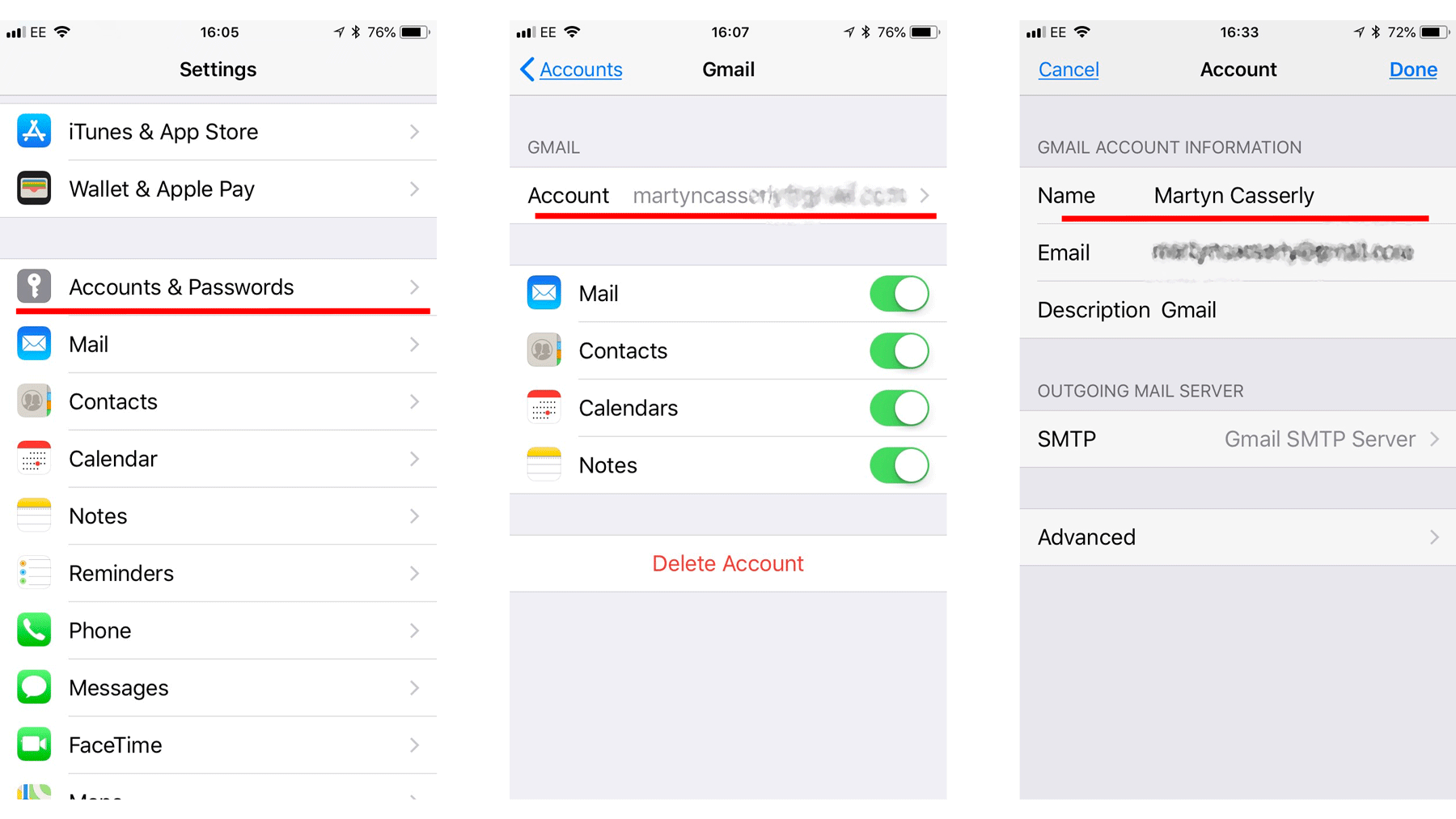
Icloud: Changing Your Name on Icloud
To change your name on iCloud, follow these steps:
- Open The Settings App: On your iPhone or iPad, open the Settings app.
- Tap on Your Profile Picture: Tap on your profile picture at the top of the screen.
- Tap on “Name”: Scroll down to the “Name” section.
- Enter Your New Name: Type in your desired new name and tap on the “Done” button.
Outlook: Changing Your Name on Outlook
To change your name on Outlook, follow these steps:
- Log in to Your Outlook Account: Open your browser and navigate to www.Outlook.Com. Log in with your existing email address and password.
- Click on The Gear Icon: In the top right corner of the page, click on the gear icon.
- Select “Settings”: From the drop-down menu, select “Settings.”
- Click on The “Account” Tab: On the left side of the page, click on the “Account” tab.
- Click on The “Modify” Button: Next to the “Name” field, click on the “Modify” button.
- Enter Your New Name: Type in your desired new name and click on the “Save Changes” button.
Yahoo!: Changing Your Name on Yahoo!
To change your name on Yahoo!, follow these steps:
- Log in to Your Yahoo Account: Open your browser and navigate to www.Yahoo.Com. Log in with your existing email address and password.
- Click on The Gear Icon: In the top right corner of the page, click on the gear icon.
- Select “Settings”: From the drop-down menu, select “Settings.”
- Click on The “Mail Settings” Tab: On the left side of the page, click on the “Mail settings” tab.
- Click on The “Modify” Button: Next to the “Name” field, click on the “Modify” button.
- Enter Your New Name: Type in your desired new name and click on the “Save Changes” button.
Libero: Changing Your Name on Libero
To change your name on Libero, follow these steps:
- Log in to Your Libero Account: Open your browser and navigate to www.Libero.It. Log in with your existing email address and password.
- Click on The Gear Icon: In the top right corner of the page, click on the gear icon.
- Select “Settings”: From the drop-down menu, select “Settings.”
- Click on The “Account” Tab: On the left side of the page, click on the “Account” tab.
- Click on The “Modify” Button: Next to the “Name” field, click on the “Modify” button.
- Enter Your New Name: Type in your desired new name and click on the “Save Changes” button.
Conclusion
Changing your email name can be a simple process if you follow these steps. Remember to update your name on all of your email services to ensure consistency across all platforms. If you have any issues or questions, don’t hesitate to reach out to us for further assistance.
Faqs
Q: Why do I need to change my email name?
A: You may want to change your email name due to a variety of reasons such as marriage, divorce, starting a new business, or creating a professional email address with a new name.
Q: Can I change my email name on multiple services at once?
A: Unfortunately, no. Each service has its own process for changing the email name, and you will need to follow the steps outlined above for each service individually.
Q: Will changing my email name affect my existing emails and contacts?
A: No, changing your email name will not affect any of your existing emails or contacts.
Q: How long does it take to change my email name on a service?
A: The process of changing your email name is typically quick and can be done in just a few minutes.
Q: Can I change my email name back if I realize I made a mistake?
A: Yes, you can change your email name back at any time by following the steps outlined above.
References


