
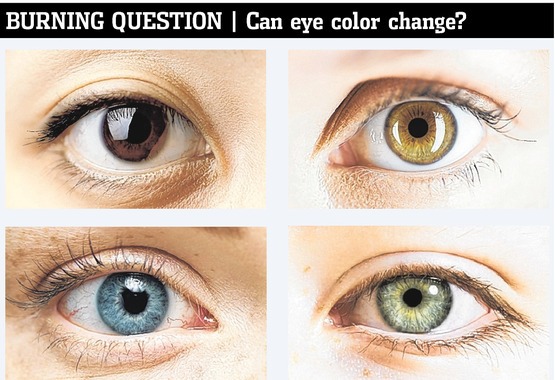
The Ultimate Guide to Changing Eye Color in Photos
Are you tired of the same old eye color in your photos? Do you want to add a touch of creativity and uniqueness to your images? Look no further! In this article, we will explore the world of changing eye color in photos using various software and apps.
Why Change Eye Color in Photos?
Changing eye color in photos can be a fun and creative way to enhance your images. It’s a great way to add a personal touch and make your photos stand out from the rest. Whether you’re a photographer, graphic designer, or just someone who loves editing photos, this guide is for you.
How to Change Eye Color on PC
If you want to change eye color on your PC, there are several software options available. Here’s how you can do it:
-
Adobe Photoshop: This is one of the most popular photo editing software out there. To change eye color in Adobe Photoshop, follow these steps:
- Open your image in Photoshop.
- Go to Image > Adjustments > Hue/Saturation.
- Select the “Iris” option from the drop-down menu.
- Adjust the hue and saturation settings to achieve the desired eye color.
- Click OK to apply the changes.
-
Gimp: GIMP is a free and open-source photo editing software that’s similar to Adobe Photoshop. To change eye color in GIMP, follow these steps:
- Open your image in GIMP.
- Go to Colors > Colorize.
- Select the “Iris” option from the drop-down menu.
- Adjust the hue and saturation settings to achieve the desired eye color.
- Click OK to apply the changes.
How to Change Eye Color on Smartphone And Tablet
Changing eye color on your smartphone or tablet is just as easy! Here are some apps that can help you do it:
-
Change Color: This app allows you to change the color of any object in a photo, including eyes. To use this app, follow these steps:
- Download and install the Change Color app.
- Open your image in the app.
- Select the “Eye” option from the menu.
- Adjust the hue and saturation settings to achieve the desired eye color.
- Click OK to apply the changes.
-
Photo of Apple: If you have an iPhone or iPad, you can use the built-in Photo app to change eye color. To do this, follow these steps:
- Open your image in the Photo app.
- Select the “Edit” option from the menu.
- Tap on the “Adjustments” tab.
- Scroll down to the “Iris” section.
- Adjust the hue and saturation settings to achieve the desired eye color.
- Click OK to apply the changes.
Other Apps For Changing Eye Color
There are many other apps that can help you change eye color on your smartphone or tablet. Some popular options include:
- Pixlr: This app allows you to change the color of any object in a photo, including eyes.
- Photopea: This app is similar to Adobe Photoshop and allows you to change eye color with ease.
Conclusion
Changing eye color in photos can be a fun and creative way to enhance your images. With the right software or app, it’s easy to achieve professional-looking results. Whether you’re a photographer, graphic designer, or just someone who loves editing photos, this guide is for you.
Faqs
Q: What software do I need to change eye color in photos?
A: You can use Adobe Photoshop, GIMP, or other photo editing software to change eye color.
Q: Can I change eye color on my smartphone or tablet?
A: Yes! There are many apps available that allow you to change eye color on your smartphone or tablet.
Q: How do I change eye color using the Change Color app?
A: To use the Change Color app, follow these steps:
1. Download and install the app.
2. Open your image in the app.
3. Select the "Eye" option from the menu.
4. Adjust the hue and saturation settings to achieve the desired eye color.
5. Click OK to apply the changes.
Q: Can I change eye color using the Photo of Apple app?
A: Yes! To use the Photo of Apple app, follow these steps:
1. Open your image in the Photo app.
2. Select the "Edit" option from the menu.
3. Tap on the "Adjustments" tab.
4. Scroll down to the "Iris" section.
5. Adjust the hue and saturation settings to achieve the desired eye color.
6. Click OK to apply the changes.
Q: What other apps can I use to change eye color?
A: Some popular options include Pixlr, Photopea, and other photo editing software.
Q: How do I remove red eyes from my photos using GIMP?
A: To remove red eyes from your photos using GIMP, follow these steps:
1. Open your image in GIMP.
2. Go to Filters > Improvement > Removal #red eyes.
3. Adjust the threshold settings as needed.
4. Click OK to apply the changes.
Q: How do I remove red eyes from my photos using Photoshop?
A: To remove red eyes from your photos using Photoshop, follow these steps:
1. Open your image in Photoshop.
2. Go to Image > Adjustments > Hue/Saturation.
3. Select the "Iris" option from the drop-down menu.
4. Adjust the hue and saturation settings as needed.
5. Click OK to apply the changes.
Q: Can I change eye color using Photo of Windows?
A: Yes! To use Photo of Windows, follow these steps:
1. Open your image in Photo of Windows.
2. Select the "Edit" option from the menu.
3. Tap on the "Adjustments" tab.
4. Scroll down to the "Iris" section.
5. Adjust the hue and saturation settings as needed.
6. Click OK to apply the changes.
The Ultimate Guide to Changing Eye Color in Photos
Changing eye color in photos is a fun and creative way to enhance your images. With the right software or app, it’s easy to achieve professional-looking results. Whether you’re a photographer, graphic designer, or just someone who loves editing photos, this guide is for you.
Whether you want to change eye color on PC, smartphone, or tablet, there are many options available. From Adobe Photoshop and GIMP to Photo of Apple and Change Color, we’ve got you covered.
So, go ahead and experiment with different eye colors!


