
How to Capsize Dns on Fastweb: A Step-by-step Guide
Are you tired of experiencing difficulties accessing specific websites due to slow loading times? Do you suspect that your Dns (Domain Name System) is not functioning properly? Look no further! In this article, we will guide you through the process of capsizing your Dns on Fastweb, ensuring a smoother and faster online experience.
What Are Dns And Why Are They Important?
Before diving into the steps, let’s briefly discuss what Dns is. The Domain Name System (DNS) is a technology that translates human-readable domain names into IP addresses, allowing us to access websites and online services easily. A good Dns provider ensures quick and reliable connections, while a poor one can lead to slow loading times and difficulties accessing certain websites.
Why Capsize Dns on Fastweb?
Fastweb, like other internet service providers (ISPs), has its own pre-configured Dns settings. However, these settings might not always work optimally, leading to slower-than-expected connections or difficulties accessing specific websites. By capsizing your Dns on Fastweb, you can switch to a more efficient and reliable provider, such as Google or OpenDNS, which can improve your online experience.
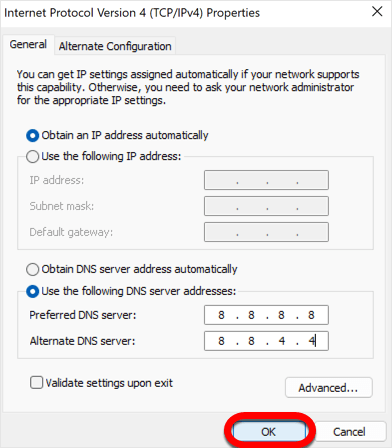
How to Capsize Dns on PC (Windows 11)
To capsize your Dns on a Windows 11 PC:
- Click on the Start button (the window icon) and select Settings.
- In the Settings menu, click on “Net & Internet” from the left-hand side.
- Select the option for “Wi-Fi or Ethernet.”
- Click on the “Edit” button next to the “Allocation server DNS” section.
- Choose the manual configuration option and enter the addresses of your preferred Dns service (e.G., Google’s Dns address is 8.8.8.8).
- Save your changes.
Note: If you want to revert back to your original settings, simply select the “Automatic” option (DHCP) in the same section and click save.
How to Capsize Dns on Mac
To capsize your Dns on a Mac:
- Click on the Apple menu and select System Preferences.
- In the System Preferences window, click on Network.
- Select Wi-Fi or Ethernet from the left-hand side and click on the Advanced button.
- In the DNS section, click on the “+” button next to the Server DNS field.
- Enter the address of your preferred Dns service (e.G., Google’s Dns address is 8.8.8.8).
- Click OK to save your changes.
How to Capsize Dns on Android
To capsize your Dns on an Android device:
- Open the Settings app.
- Select Network & Internet.
- Tap on Wi-Fi.
- Select the network you’re currently connected to.
- Tap on Advanced options.
- Select Static IP and enter the addresses of your preferred Dns service (e.G., Google’s Dns address is 8.8.8.8).
- Save your changes.
Note: On older Android versions, you may need to use a third-party app, such as Cloudflare DNS, to simulate VPN-like functionality and modify your Dns settings.
How to Capsize Dns on Iphone or Ipad
To capsize your Dns on an iPhone or iPad:
- Open the Settings app.
- Select Wi-Fi.
- Tap on the (i) icon next to your network name.
- Scroll down to the DNS section and select “Configure DNS”.
- Choose the manual configuration option and enter the addresses of your preferred Dns service (e.G., Google’s Dns address is 8.8.8.8).
- Save your changes.
How to Capsize Dns on Modem
If you don’t want to capsize your Dns settings on each device, you can also do it directly on your modem. However, keep in mind that not all modems allow this configuration, and you might need to replace yours with a newer model.
To capsize your Dns settings on a new router:
- Open your web browser and navigate to the address 192.168.0.1 Or 192.168.1.1 (The exact address may vary depending on your modem).
- Log in using your admin credentials.
- Search for the “Server DNS” section and modify the settings according to your preferred Dns service.
Remember that some modems might not allow these changes, so be sure to check with your provider or refer to their documentation before attempting any modifications.
Conclusion
Capzing your Dns on Fastweb can significantly improve your online experience by switching to a more efficient and reliable provider. Follow the step-by-step guides above for each device type (PC, Mac, Android, iPhone/iPad), and remember that you can also capsize your settings directly on your modem if desired. Happy browsing!
Frequently Asked Questions
-
What is Dns?
A Domain Name System (DNS) is a technology that translates human-readable domain names into IP addresses.
-
Why Would I Want to Capsize my Dns Settings?
To experience faster and more reliable online connections, potentially resolving issues with accessing specific websites or services.
-
Can I Capsize my Dns on Each Device Individually, or Can I do it Directly on The Modem?
You can either capsize your DNS on each device (PC, Mac, Android, iPhone/iPad) or modify it directly on the modem. However, keep in mind that not all modems allow this configuration.
-
Which Dns Provider is Recommended For Use With Fastweb?
Google’s DNS and OpenDNS are two popular providers often recommended due to their efficiency and reliability.
-
Will Modifying my Dns Settings Affect Any Other Network Configurations or Services on my Devices?
Typically, modifying your DNS settings won’t have significant impact on other network configurations, but be cautious when making changes, as they might interfere with certain applications or services.
-
Are There Risks Associated With Capsizing my Dns Settings?
The primary concern is losing connectivity for a short period after making changes. However, this usually resolves itself once the modem/router reconnects to the network. Always refer to your device manufacturer’s documentation and/or consult professional assistance if you’re unsure about any configuration modifications.


