
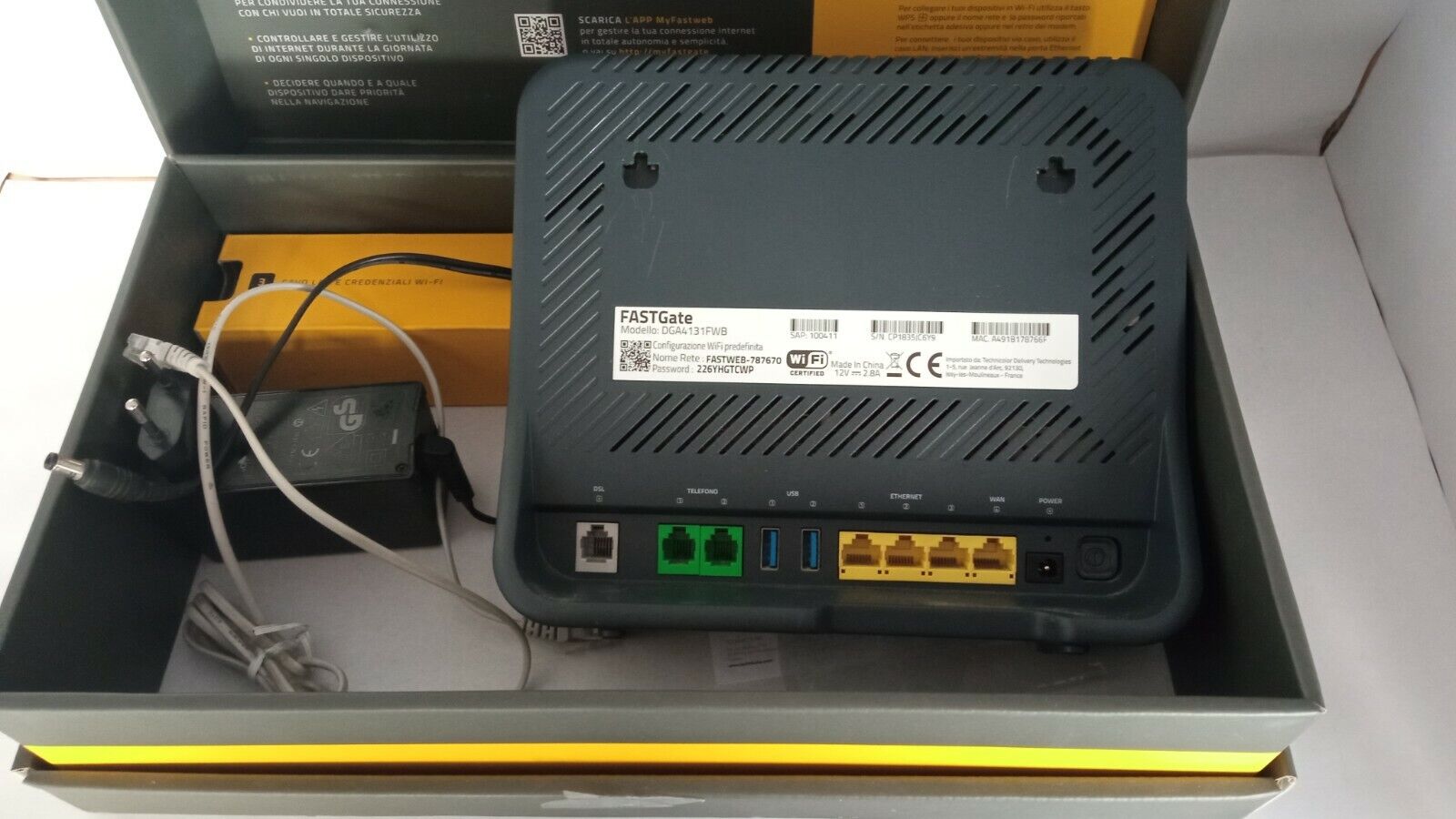
How to Capsize Password Modem Fastweb: A Step-by-step Guide
Are you tired of worrying about unauthorized access to your Wi-Fi network? Do you want to keep your internet connection secure and private? Look no further! In this article, we will guide you through the process of capsizing password modem Fastweb, a simple yet effective way to protect your online world.
Why Capsize Password Modem Fastweb?
Capsizing password modem Fastweb is an essential step in securing your online presence. By changing your Wi-Fi network password regularly, you can prevent unauthorized access and protect your sensitive data. This process is easy to perform and requires minimal technical expertise.
Pre-operative Checks: Understanding The Router’s Address
Before starting, it’s crucial to understand how to find the router’s address. This information will be used to access the modem’s settings page. The router’s address can usually be found by typing 192.168.1.254 In your web browser. If this doesn’t work, you may need to consult your device manufacturer or search online for specific instructions.
Windows: Finding The Router’s Address
For Windows users, follow these steps:
- Open the Command Prompt (cmd) window.
- Type
ipconfigand press Enter. - Look for the “Default Gateway” line, which should display the router’s address.
Macos: Finding The Router’s Address
For macOS users, follow these steps:
- Open Terminal.
- Type
netstat -nr | grep defaultand press Enter. - The router’s address will be displayed in the output.
Android: Finding The Router’s Address
For Android users, follow these steps:
- Go to Settings > Network & Internet > Wi-Fi.
- Tap on the gear icon next to your network name.
- Scroll down to find the “Gateway” or “Router” option.
Ios/ipados: Finding The Router’s Address
For iOS and iPadOS users, follow these steps:
- Go to Settings > Wi-Fi.
- Tap on the “i” icon next to your network name.
- Look for the “Router” or “Gateway” option.
Accessing The Modem’s Settings Page
Now that you have found the router’s address, open a web browser and type 192.168.1.254 (Or the specific address provided by your device manufacturer). This will take you to the modem’s settings page.
Modifying The Wi-fi Network Password
Once you’re logged in, look for the option to change or reset the Wi-Fi network password. This may be found under the “Wireless” or “Network Settings” section. Enter a new password and click “Apply” to save changes.
Tips And Variations: Fastweb Modem Models
Depending on your specific modem model, you might need to follow different steps. Here are some additional tips:
- Fastweb Fastgate: To change the password, log in to the FASTGate panel using the address
http://Myfastgateor the router’s IP address. Select “Capsize password” and enter the new credentials. - Technicolor Tg788vn V2: Access the modem’s settings page by typing
192.168.1.254. Log in with your existing credentials, then select “Management users” and click “Modify password” to change the Wi-Fi network password. - Fastweb Nexxt: If you’re using a Fastweb NeXXt modem, download the MyFastweb app from the App Store or Google Play Store. Log in with your credentials, then tap on the menu button and select “NeXXt.” From there, find the “Settings” option and choose “Wireless” to change the password.
Conclusion
Capsizing password modem Fastweb is a straightforward process that ensures your online security and peace of mind. By following these step-by-step instructions, you can protect your Wi-Fi network from unauthorized access. Remember to keep your password strong and unique to prevent any potential issues.
Frequently Asked Questions (FAQs)
- What is The Purpose of Capsizing Password Modem Fastweb?
Capsizing password modem Fastweb helps secure your online presence by changing your Wi-Fi network password regularly, preventing unauthorized access and protecting sensitive data.
- How do I Find The Router’s Address?
To find the router’s address, type 192.168.1.254 In your web browser or consult your device manufacturer for specific instructions.
- What if I’m Using a Fastweb Nexxt Modem?
If you’re using a Fastweb NeXXt modem, download the MyFastweb app from the App Store or Google Play Store to access and change the Wi-Fi network password.
- Can I Reset my Router’s Password Using The App?
Yes, some modems allow resetting the password using the app. Consult your device manufacturer for specific instructions.
- How Often Should I Capsizing Password Modem Fastweb?
It is recommended to capsizing password modem Fastweb every 3-6 months or whenever you experience any issues with unauthorized access.
- Can I Use a Strong And Unique Password?
Yes, it’s essential to use a strong and unique password for your Wi-Fi network to prevent any potential security risks.
- What if I’m Experiencing Problems With my Modem?
If you’re facing difficulties with your modem or its settings page, consult your device manufacturer or contact their customer support for assistance.
- Can I Share my Wi-fi Network With Others?
While it’s possible to share your Wi-Fi network with others, be cautious and ensure that the shared password is strong and unique to prevent any potential security risks.


