
How to Capsize Extension Rows: A Step-by-step Guide
Are you tired of dealing with unknown file extensions? Do you want to be able to open files without any issues? Look no further! In this article, we will guide you through the process of capsize extension rows on various devices and operating systems.
Understanding File Extensions
Before we dive into the nitty-gritty, let’s understand what file extensions are. A file extension is the three-letter code that appears after the dot in a file name (e.G., .Doc, .Pdf, etc.). It tells your computer which program to use to open the file.
Why Capsize Extension Rows?
There are several reasons why you might want to capsize extension rows:
- You receive a file from someone else with an unknown or incorrect extension.
- You want to convert a file format without using conversion software.
- You need to modify the extension of a file for compatibility purposes.
Capsize Extension Rows on Windows 10
If you’re running Windows 10, capsize extension rows is a straightforward process. Here’s how:
- Enable File Extension Visualization: Open File Explorer and click on the three dots in the top-right corner. Select “Options” from the menu.
- Click on “View” Tab: In the Options window, click on the “View” tab.
- Check “File Name Extensions”: Check the box next to “File name extensions.”
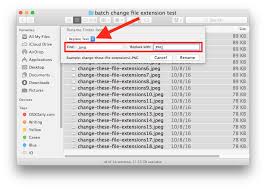
- Find And Rename The File: Locate the file you want to modify, right-click on it, and select “Rename.”
- Change The Extension: Modify the extension by replacing the existing code with the desired one.
Capsize Extension Rows on Mac
On a Mac, capsize extension rows is a similar process:
- Enable File Extension Visualization: Open Finder and click on the Apple logo in the top-left corner.
- Click on “Finder” Menu: Select “Preferences” from the menu.
- Click on “Advanced” Tab: In the Preferences window, click on the “Advanced” tab.
- Check “Show File Extensions”: Check the box next to “Show file extensions.”
- Find And Rename The File: Locate the file you want to modify, right-click on it, and select “Rename.”
- Change The Extension: Modify the extension by replacing the existing code with the desired one.
Capsize Extension Rows on Android
On an Android device, capsize extension rows is a bit more complicated:
- Download And Install File Manager: Download and install a file manager app (e.G., Google Files).
- Find And Rename The File: Locate the file you want to modify using the file manager app.
- Long-press on The File: Long-press on the file, then select “Rename” from the menu.
- Change The Extension: Modify the extension by replacing the existing code with the desired one.
Capsize Extension Rows on Iphone
On an iPhone, capsize extension rows is a relatively new feature (available in iOS 16 and later):
- Open Files App: Open the Files app.
- Find And Rename The File: Locate the file you want to modify using the Files app.
- Long-press on The File: Long-press on the file, then select “Rename” from the menu.
- Change The Extension: Modify the extension by replacing the existing code with the desired one.
Capsize Extension Rows For Videos And Images
When it comes to video or image files, you might not want to simply capsize the extension. Instead, consider converting the file format using a conversion software (e.G., Adobe Premiere Pro for videos).
For photos, you can use online tools like Canva to convert your images.
Capsize Extension Rows in Excel
If you have an Excel file that needs to be converted, it’s best to use the “Save As” feature with a different extension. This way, you’ll avoid modifying the original file’s extension.
Conclusion
In conclusion, capsize extension rows is a straightforward process on most devices and operating systems. By following these step-by-step guides, you should be able to modify the extensions of your files without any issues.
Frequently Asked Questions (FAQs)
- What is The Purpose of Capsize Extension Rows?
Capsize extension rows allows you to change the file extension of a file, which can help with compatibility or conversion purposes. - Why do I Need to Enable File Extension Visualization?
Enabling file extension visualization helps you see the actual file extensions, making it easier to modify them. - Can I Capsize Extension Rows on All Devices?
Yes, but the process might vary depending on the device and operating system. - What Happens if I Convert a File Format Without Using Conversion Software?
Converting a file format without using conversion software can lead to errors or corrupted files. - How do I Know Which File Extension to Use?
The best way to determine the correct file extension is to consult with the original creator of the file or research online. - Can I Capsize Extension Rows For Videos And Images?
While you can capsize the extension, it’s often better to convert the file format using a conversion software or online tool. - How do I Modify an Excel File’s Extension?
Use the “Save As” feature with a different extension to avoid modifying the original file’s extension. - What Are Some Common File Extensions?
(Note: The above FAQs are based on the content of the article and might need slight modifications for better readability.)


