
The Ultimate Guide to Increasing Font Size on Various Devices And Platforms
Are you tired of struggling to read small text on your devices? Do you wish there was a way to increase the font size without compromising the user experience? Look no further! In this article, we will explore various methods for increasing font size on different operating systems, browsers, and platforms.
Why Increase Font Size?
Increasing font size can be beneficial for users who struggle with vision impairments, are using devices with small screens, or simply prefer a larger text size. By adjusting the font size, you can enhance readability and improve overall user experience.
Methods For Increasing Font Size on Various Devices And Platforms
Windows And Macos
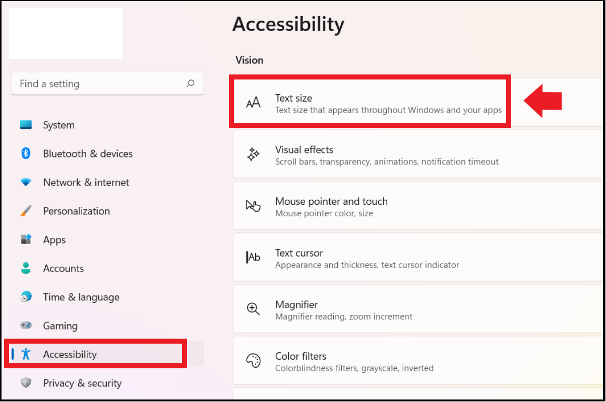
To increase font size on Windows 10 and Windows 11:
- Click right on an empty area of the desktop.
- Select “Settings” from the contextual menu.
- Choose “Display” options, then select “Text size” and adjust it as desired.
On macOS:
- Click right on the desktop background.
- Select “Displays” from the contextual menu.
- Adjust the text size to your liking.
Smartphones And Tablets
To increase font size on smartphones and tablets:
- Use the pinch gesture to zoom in (for Android, iOS, and Windows Mobile devices).
- Alternatively, go to Settings > Display > Text size/Character size and adjust it as desired.
- For specific guidance on each platform, see below.
Android
On Android devices:
- Go to Settings > Display > Text size/Character size.
- Adjust the text size using the slider or by selecting a predefined option (e.G., “Large”).
- If available, use an accessibility feature like “Zoom” or “Display zoom.”
Ios
On iOS devices (iPhone and iPad):
- Go to Settings > Display & Brightness.
- Tap on “Text Size.”
- Select the desired text size from the list.
Html And Web Browsers
To increase font size in HTML:
- Use a CSS style sheet to define a font size for specific elements or the entire page.
- Apply zooming functions available in most web browsers, such as Google Chrome, Mozilla Firefox, or Microsoft Edge.
For detailed guidance on how to adjust font size using HTML and CSS styles, see our dedicated section below.
Outlook
To increase font size in Outlook:
- Adjust text size settings for email composition and reading:
- In Outlook Web: Access your inbox, click the gear icon, select Settings > Mail, and adjust font size.
- In Outlook for Windows: Open Options > Accessibility > Text size, and choose from predefined options or set a custom size.
- In Outlook for Mac: Go to Preferences > Types of Characters > Text Size, and select a desired text size.
Increasing Font Size in Html And Css
To increase font size using HTML and CSS styles:
- Inline Styles: Use the
<font>tag with asizeattribute or apply an inline CSS style sheet. - Css Stylesheets: Define font sizes for specific elements or the entire page using CSS classes, IDs, or global settings.
Some common methods include:
- Specificing font size in points (pt), pixels (px), percentages (%), ems (em), or absolute dimensions (e.G., “Xx-large”).
- Using relative definitions like small, medium, large, x-large, or xx-large.
- Utilizing the
font-sizeproperty to set a custom font size.
See below for more information on specific methods and their usage in HTML and CSS styles.
Specific Methods For Increasing Font Size
Points (pt)
Alleging font size in points is a straightforward method:
Some text
Note that using points can result in inconsistencies across different devices and resolutions, as it relies on the monitor’s DPI (dots per inch) setting.
Pixels (px)
Using pixels to define font sizes offers more flexibility:
Some text
However, this approach may cause issues when dealing with responsive design, as browsers might ignore any adjustments and stick to their predefined values.
Percentages (%)
Alleging font size in percentages relative to the parent element’s text size can be beneficial for adaptive designs:
Some text
Keep in mind that using percentages may lead to inconsistent results, as it depends on the parent element’s current text size.
Ems (em)
Using ems to define font sizes is another relative method:
Some text
Note that this approach can result in inconsistencies across different devices and resolutions, similar to using points or pixels.
Conclusion
Increasing font size on various devices and platforms is a straightforward process. By understanding the available options for each operating system, browser, and platform, you can enhance readability and improve overall user experience.
If you have any further questions or would like more information on specific methods, please don’t hesitate to ask.
Frequently Asked Questions (FAQs)
Q: How do I increase font size in Outlook?
A: To adjust text size settings for email composition and reading, follow the steps outlined above for each platform.
Q: What are the differences between various methods for increasing font size?
A: The main differences lie in consistency across devices, resolutions, and responsive designs. Some methods may result in inconsistencies or issues with adaptive design, while others offer more flexibility and reliability.
Q: How do I increase font size using HTML and CSS styles?
A: Use the <font> tag with a size attribute or apply an inline CSS style sheet to increase font size in HTML. For CSS stylesheets, define font sizes for specific elements or the entire page using CSS classes, IDs, or global settings.
Q: What are some best practices for increasing font size?
A: Always consider the user experience and ensure that increased font sizes do not compromise readability or visual appeal. Use relative definitions like small, medium, large, x-large, or xx-large whenever possible to maintain consistency across different devices and resolutions.
Q: Can I increase font size without affecting other elements on the page?
A: Yes! By applying specific CSS stylesheets or inline styles, you can adjust font sizes for individual elements while maintaining consistent appearances elsewhere on the page.
Q: How do I reset font size to its original value?
A: To reset font size to its original value, simply remove any applied CSS stylesheets or inline styles.


