
How to Add a New Gmail Account on Android: A Step-by-step Guide
Are you struggling to add a new Gmail account on your Android device? Do you find yourself in a pickle, unsure of how to switch between multiple accounts or delete an old one? Fear not, dear reader! In this comprehensive guide, we’ll walk you through the process of adding a new Gmail account, deleting an old one, and backing up important data.
Adding a New Gmail Account on Android
To add a new Gmail account on your Android device, follow these simple steps:
- Open Settings: Go to your device’s settings menu by tapping the gear icon or swiping down from the top of the screen.
- Go to Accounts: In the settings menu, scroll down and tap on “Accounts” (or “Synchronisation” on some devices).
- Tap Add Account: Tap the “+” icon next to “Account” and select “Google”.
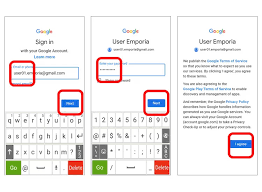
- Enter Credentials: Enter your new Gmail account credentials (username and password) and follow the prompts.
- Confirm Setup: Confirm that you want to add the account by tapping “Add”.
Deleting an Old Gmail Account on Android
To delete an old Gmail account from your device, follow these steps:
- Open Settings: Go to your device’s settings menu by tapping the gear icon or swiping down from the top of the screen.
- Go to Accounts: In the settings menu, scroll down and tap on “Accounts” (or “Synchronisation” on some devices).
- Select Old Account: Select the old Gmail account you want to delete.
- Tap Delete: Tap the “Delete” or “Remove” option next to the account.
- Confirm Deletion: Confirm that you want to delete the account by tapping “OK”.
Backing Up Important Data
Before deleting an old Gmail account, make sure to back up important data, such as:
- Emails
- Conversations (Google Talk/Hangouts)
- Other relevant information
To backup your data, follow these steps:
- Go to Google Account: Go to the Google account settings page.
- Select “Control Your Content”: Select the option to control your content.
- Choose Backup Option: Choose the backup option that suits your needs (e.G., Creating a file or exporting emails).
- Confirm Backup: Confirm that you want to create a backup by tapping “OK”.
Why Delete an Old Gmail Account?
Deleting an old Gmail account can help:
- Avoid cluttered email accounts
- Prevent confusion between multiple accounts
- Improve overall device performance
By following this guide, you’ll be able to add a new Gmail account on your Android device, delete an old one, and backup important data. Remember to exercise caution when deleting an old account, as it may affect other Google services associated with the account.
Frequently Asked Questions (FAQs)
- How do I Restore my Deleted Gmail Account?
To restore a deleted Gmail account, go to the Google account settings page, select “Delete your account or service,” and follow the prompts. - Can I Recover my Old Emails After Deleting The Account?
No, once you delete an old Gmail account, all associated data will be irreversibly deleted. -
How do I Backup my Old Emails Before Deleting The Account?
Follow the steps outlined above to create a backup of your old emails and other relevant data before deleting the account. -
Why Can’t I Add a New Gmail Account on my Device?
If you’re experiencing issues adding a new Gmail account, try restarting your device or checking your internet connection. - Can I Have Multiple Gmail Accounts on One Android Device?
Yes, you can have multiple Gmail accounts on one Android device by following the steps outlined above to add and manage multiple accounts. -
How do I Change my Primary Gmail Account on Android?
To change your primary Gmail account, go to the settings menu, select “Accounts,” and follow the prompts to add a new account or remove an old one. -
What Happens if I Accidentally Delete my Primary Gmail Account?
If you accidentally delete your primary Gmail account, try restoring it by following the steps outlined above. - Can I Transfer Data From an Old Gmail Account to a New One?
Yes, you can transfer data from an old Gmail account to a new one by creating a backup of the old account and importing it into the new account.
We hope this comprehensive guide has helped you navigate the process of adding a new Gmail account on Android, deleting an old one, and backing up important data. If you have any further questions or concerns, feel free to ask!


