
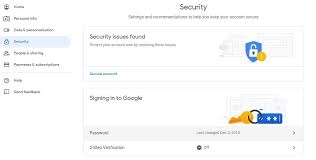
How to Modify Your Gmail Password: A Step-by-step Guide
Are you tired of using a weak password that can be easily guessed by others? Do you want to take control of your online security and protect your email account from unauthorized access? Look no further! In this article, we’ll guide you through the simple process of modifying your Gmail password on both PC and smartphone.
Why Modify Your Password?
Your password is the key to unlocking your email account. A weak or easily guessable password can make it easy for hackers to gain access to your account and steal sensitive information. Modifying your password regularly can help prevent this from happening. By creating a strong and unique password, you’ll be able to keep your account safe and secure.
Modifying Your Password on PC
To modify your Gmail password on PC, follow these steps:
- Open Gmail: Go to the Gmail website and sign in with your existing account.
- Access Account Settings: Click on your profile picture or initials at the top right corner of the page, then select “Account” from the dropdown menu.
- Navigate to Safety & Security: On the next page, click on “Safety & security.”
- Update Password: Scroll down and click on “Password.” You’ll be prompted to enter your current password.
- Enter New Password: Create a strong and unique password by entering it in both the “New password” and “Confirm new password” fields.
- Save Changes: Click on “Save changes.”
Modifying Your Password on Smartphone
To modify your Gmail password on smartphone, follow these steps:
For Android Devices
- Open Gmail App: Launch the Gmail app on your Android device.
- Tap on Profile Picture: Tap on your profile picture or initials at the top right corner of the screen.
- Select Account Settings: Select “Account settings.”
- Navigate to Security: Scroll down and tap on “Security.”
- Update Password: Tap on “Password.” You’ll be prompted to enter your current password.
- Enter New Password: Create a strong and unique password by entering it in both the “New password” and “Confirm new password” fields.
- Save Changes: Tap on “Save changes.”
For Iphone Devices
- Open Gmail App: Launch the Gmail app on your iPhone device.
- Tap on Profile Picture: Tap on your profile picture or initials at the top right corner of the screen.
- Select Account Settings: Select “Account settings.”
- Navigate to Security: Scroll down and tap on “Security.”
- Update Password: Tap on “Password.” You’ll be prompted to enter your current password.
- Enter New Password: Create a strong and unique password by entering it in both the “New password” and “Confirm new password” fields.
- Save Changes: Tap on “Save changes.”
What If I Forget My Password?
If you’ve forgotten your Gmail password, don’t worry! You can easily recover it by following these steps:
- Open Gmail Website: Go to the Gmail website and click on “Forgotten password?”
- Follow Recovery Process: Follow the prompts to reset your password.
- Enter New Password: Create a strong and unique password by entering it in both the “New password” and “Confirm new password” fields.
- Save Changes: Click on “Save changes.”
Tips For Creating a Strong Password
- Use a Combination of Characters: Mix uppercase, lowercase letters, numbers, and special characters to create a strong password.
- Make it Unique: Avoid using the same password across multiple accounts.
- Avoid Common Patterns: Steer clear of easily guessable passwords like “qwerty” or “password123.”
Conclusion
Modifying your Gmail password is a simple process that can be completed on both PC and smartphone. By following these steps, you’ll be able to create a strong and unique password that will keep your account safe from unauthorized access. Remember to update your password regularly and avoid using the same password across multiple accounts.
Frequently Asked Questions
- Q: How Often Should I Modify my Gmail Password?
A: It’s recommended to change your password every 60-90 days. - Q: Can I Use a Password Manager to Generate Strong Passwords?
A: Yes, using a password manager can help you create unique and complex passwords. - Q: What if I Forget my New Password After Modifying It?
A: Don’t worry! You can easily recover your password by following the recovery process.


