
How to Capsize Password Google: A Step-by-step Guide
Are you tired of using the same old password on all your Google accounts? Do you want to ensure that your sensitive information is protected from unauthorized access? Look no further! In this article, we will guide you through the process of changing your Google account password, also known as “capsize” in Italian.
Why Change Your Password?
Changing your password regularly is an essential step in maintaining online security. A strong and unique password can prevent hackers from accessing your sensitive information, including emails, photos, and documents stored on Google Drive. By following these simple steps, you can ensure that your Google account remains secure and protected.
Step 1: Open The Google Account Settings
To change your password, you need to access your Google account settings. This can be done by opening a web browser on your computer or mobile device and navigating to https://Myaccount.Google.Com.
Step 2: Sign In to Your Google Account
If you haven’t already signed in to your Google account, do so now. Enter your email address and password in the respective fields, and click on the “Next” button.
Step 3: Access The Password Settings
Once signed in, click on the profile picture or icon located at the top right corner of the page. A dropdown menu will appear; select “Account settings” from the list.
Step 4: Change Your Password
In the account settings page, scroll down to the “Security” section and click on the “Password” tab. Enter your current password in the field provided, and then type in a new password that meets Google’s security requirements (more on this below).
What Makes a Strong Password?
A strong password should be at least 8 characters long, include a mix of uppercase and lowercase letters, numbers, and special characters. It’s also essential to avoid using easily guessable information such as your name, birthdate, or common words.
Step 5: Confirm Your New Password
After entering your new password, confirm it by re-typing it in the “Confirm new password” field. Make sure to save the changes by clicking on the “Save Changes” button.
Additional Security Measures: Two-step Verification (2SV)
To add an extra layer of security to your Google account, enable two-step verification (2SV). This feature requires you to provide a verification code sent to your phone or email address every time you log in. To set up 2SV:
- Go to the Google Account settings page and scroll down to the “Security” section.
- Click on the “Two-Step Verification” tab.
- Follow the instructions provided to add your phone number or email address.
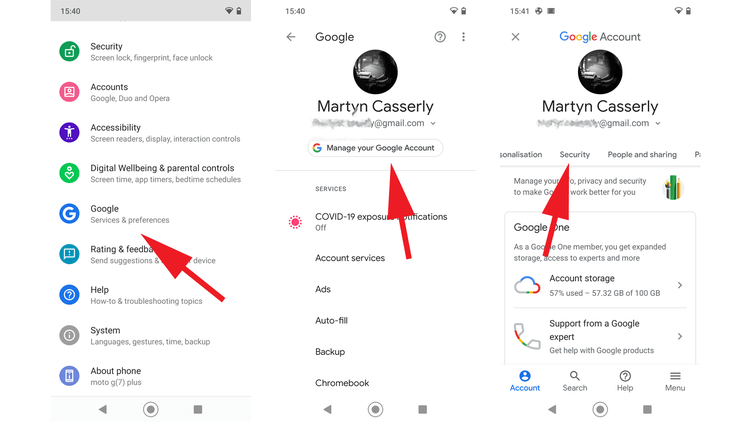
Capsize Password Google on Android
If you have an Android device, you can change your password directly from the Google app. To do so:
- Open the Google app and tap on the three horizontal lines at the top left corner of the screen.
- Select “Settings” from the menu and then choose “Account.”
- Tap on the “Manage account” option and select “Google account settings.”
- Scroll down to the “Security” section and click on the “Password” tab.
Capsize Password Google on Iphone
If you have an iPhone, follow these steps:
- Open a web browser and navigate to https://Myaccount.Google.Com.
- Sign in to your Google account using your email address and password.
- Click on the profile picture or icon at the top right corner of the page and select “Account settings.”
- Scroll down to the “Security” section and click on the “Password” tab.
Troubleshooting Common Issues
If you encounter any problems during the process, refer to Google’s official guide for troubleshooting tips. Additionally, if you have difficulty remembering your current password or need help with setting up 2SV, consider consulting a trusted friend or family member.
Conclusion
Changing your Google account password is a straightforward process that can be completed in just a few minutes. By following these steps and enabling two-step verification (2SV), you can significantly improve the security of your online presence.


