
How to Customize Your Home Screen: A Step-by-step Guide
Are you tired of looking at the same old home screen on your smartphone or tablet? Do you want to give it a fresh new look without having to install any third-party apps? Look no further! In this article, we will guide you through the process of customizing your home screen, whether you’re using an Android device, an iPhone, or a computer.
Why Customize Your Home Screen?
Customizing your home screen can be a great way to personalize your device and make it more efficient for your needs. By rearranging icons, creating folders, and choosing a new background image, you can create a home screen that reflects your personality and style.
Android Customization Options
If you’re using an Android device, there are several ways to customize your home screen. Here are some of the most effective methods:
- Rearrange Icons: To move an icon to a different location on your home screen, simply tap and hold on the icon until it starts to vibrate, then drag it to its new location.
- Create Folders: To create a folder, drag one icon on top of another. This will automatically create a folder containing both icons. You can also add more icons to the folder by dragging them on top of each other.
- Modify Icons: Some devices allow you to modify the appearance of your icons by choosing from various packs and themes.
Iphone Customization Options
If you’re using an iPhone, customizing your home screen is just as easy. Here are some of the most effective methods:
- Rearrange Icons: To move an icon to a different location on your home screen, simply tap and hold on the icon until it starts to vibrate, then drag it to its new location.
- Create Folders: To create a folder, tap and hold on an empty area of your home screen, then select “New Folder” from the menu. You can add icons to the folder by dragging them inside.
- Modify Icons: Some apps allow you to modify the appearance of your icons by choosing from various themes and styles.
Computer Customization Options
If you’re using a computer, customizing your home screen is also relatively easy. Here are some of the most effective methods:
- Change Background Image: To change the background image on your computer, simply right-click on an empty area of the desktop and select “Personalize.” From there, you can choose from various pre-installed images or upload one of your own.
- Rearrange Icons: To move an icon to a different location on your home screen, simply right-click on the icon and select “Pin to Taskbar” (Windows) or drag it to the dock (Mac).
- Create Folders: To create a folder, right-click on an empty area of the desktop and select “New Folder.” You can add icons to the folder by dragging them inside.
Tips And Tricks
Here are some additional tips and tricks for customizing your home screen:
- Use a Consistent Theme: Choose a theme that reflects your personality and style, and stick to it throughout your device.
- Keep Frequently Used Apps Accessible: Make sure to keep frequently used apps on the main page of your home screen for easy access.
- Experiment With Different Icons: Try out different icon packs or themes to find one that suits your taste.
Conclusion
Customizing your home screen is a great way to personalize your device and make it more efficient for your needs. By following these simple steps, you can create a home screen that reflects your personality and style. Whether you’re using an Android device, an iPhone, or a computer, the process of customizing your home screen is relatively easy and straightforward.
Faqs
Q: How do I customize my home screen on an Android device?
A: To customize your home screen on an Android device, simply tap and hold on an icon until it starts to vibrate, then drag it to its new location. You can also create folders by dragging one icon on top of another.
Q: Can I change the background image on my iPhone?
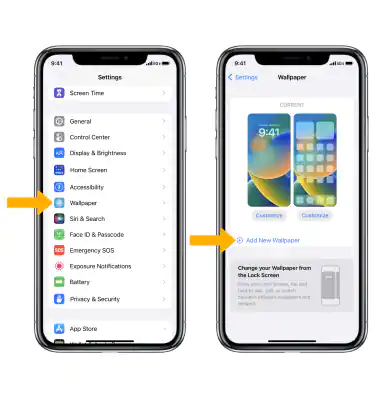
A: Yes, you can change the background image on your iPhone by going to Settings > General > Wallpaper & Style.
Q: How do I customize my home screen on a computer?
A: To customize your home screen on a computer, simply right-click on an empty area of the desktop and select “Personalize.” From there, you can choose from various pre-installed images or upload one of your own.
Q: Can I create folders on my iPhone?
A: Yes, you can create folders on your iPhone by tapping and holding on an empty area of the home screen, then selecting “New Folder” from the menu.
Q: How do I change the background image on my computer?
A: To change the background image on your computer, simply right-click on an empty area of the desktop and select “Personalize.” From there, you can choose from various pre-installed images or upload one of your own.
Q: Can I use different icon packs on my Android device?
A: Yes, you can use different icon packs on your Android device by going to Settings > Display > Theme.
Q: How do I customize the widget on my iPhone?
A: To customize the widget on your iPhone, simply tap and hold on an empty area of the home screen, then select “Widget” from the menu.


