
How to Modify Your Instagram Bio: A Step-by-step Guide
Are you tired of having a boring and outdated Instagram bio? Do you want to showcase your personality, interests, or brand to your followers? Look no further! In this article, we will guide you through the process of modifying your Instagram bio on both Android and iOS devices, as well as on computer using the official website or application.
Why Modify Your Instagram Bio?
Before we dive into the instructions, let’s talk about why modifying your Instagram bio is a great idea. Having an engaging and informative bio can:
- Help you stand out from the crowd
- Showcase your personality and interests
- Provide valuable information to potential followers
- Enhance your brand identity
Modifying Your Instagram Bio on Android And Ios
To modify your Instagram bio on your mobile device, follow these steps:
- Open The Instagram App: Launch the Instagram app on your Android or iOS device.
- Access Your Profile: Tap on your profile picture in the top right corner of the screen to access your profile page.
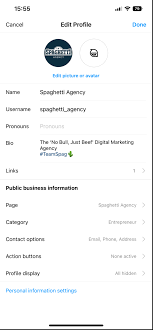
- Tap on “Edit Profile”: Tap on the three horizontal lines (≡) in the top left corner of the screen, then tap on “Edit Profile”.
- Modify Your Bio: Type in a new bio using the keyboard or copy and paste from another source. You can also use emojis to make your bio more engaging.
- Add Links: Tap on the “+” icon next to the bio field to add up to 5 external links.
- Save Changes: Tap on the “√” button in the top right corner of the screen to save your changes.
Modifying Your Instagram Bio on Computer
To modify your Instagram bio on computer, follow these steps:
- Access The Official Website: Go to the official Instagram website and log in to your account.
- Click on Your Profile Picture: Click on your profile picture in the top right corner of the screen to access your profile page.
- Click on “Edit Profile”: Click on the three horizontal lines (≡) in the top left corner of the screen, then click on “Edit Profile”.
- Modify Your Bio: Type in a new bio using the keyboard or copy and paste from another source.
- Add Links: Click on the “+” icon next to the bio field to add up to 5 external links.
- Save Changes: Click on the “Forward” button at the bottom of the screen to save your changes.
How to Change Fonts in Your Instagram Bio
If you want to change the font style or color in your Instagram bio, there are a few ways to do so:
- Use The Official App: You can use the official Instagram app on Android and iOS devices to change fonts using the “Fonts” feature.
- Use Third-party Apps: There are several third-party apps available that allow you to change fonts in your Instagram bio. Some popular options include “Fonts for Instagram” and “IG Fonts”.
- Copy And Paste: You can also copy and paste text from another source with a different font style or color, then paste it into your Instagram bio.
Tips For Writing an Engaging Instagram Bio
Here are some tips to help you write an engaging Instagram bio:
- Keep it Short: Keep your bio concise and easy to read.
- Use Humor: Use humor or sarcasm to make your bio stand out.
- Be Creative: Be creative with your bio and use emojis or GIFs to add visual interest.
- Highlight Your Personality: Highlight your personality and interests in your bio.
Conclusion
Modifying your Instagram bio is a simple process that can help you showcase your personality, interests, or brand to your followers. Whether you’re using the official app on Android and iOS devices or modifying your bio on computer, follow these steps to get started. Don’t forget to use humor, be creative, and highlight your personality in your bio!
Frequently Asked Questions
- How do I Change Fonts in my Instagram Bio?
You can use the official app, third-party apps, or copy and paste text from another source with a different font style or color. - Can I Add Links to my Instagram Bio?
Yes, you can add up to 5 external links to your Instagram bio. - How do I Save Changes to my Instagram Bio?
You can save changes by tapping on the “√” button on mobile devices or clicking on the “Forward” button on computer.
References
- Instagram Help Center: Official instructions for modifying your Instagram bio on Android and iOS devices, as well as on computer.
- Fonts For Instagram App: A third-party app that allows you to change fonts in your Instagram bio.
- IG Fonts App: Another third-party app that offers a wide range of font styles for use in your Instagram bio.


