
How to Change Iphone Ringtone
Are you tired of using the default iPhone ringtone? Do you want to personalize your phone’s notifications with a unique sound? Look no further! In this article, we will guide you through the process of changing your iPhone ringtone, whether it’s for free or by purchasing a new one from the iTunes Store.
Why Change Your Iphone Ringtone?
Changing your iPhone ringtone can be a fun and creative way to personalize your phone. With so many options available, you can choose a tone that reflects your personality, style, or mood. Whether you want to stand out from the crowd or simply have a unique sound for your notifications, changing your iPhone ringtone is a simple process.
How to Change Your Iphone Ringtone
There are several ways to change your iPhone ringtone, and we will cover them all in this article. From using GarageBand to creating a new tone without iTunes, we’ve got you covered.
Using Garageband to Create a New Ringtone
GarageBand is a free app that comes pre-installed on Apple devices. It’s a powerful tool for music creation, and it can also be used to create custom iPhone ringtones. Here’s how:
- Open GarageBand and tap on the “+” icon to create a new project.
- Choose a tempo and time signature for your ringtone.
- Add instruments and loops to create your desired sound.
- Edit and arrange your music as needed.
- Export your ringtone as an M4R file.
Creating a New Ringtone Without Itunes
If you don’t have access to a computer or prefer not to use GarageBand, you can still create a new iPhone ringtone without using iTunes. Here’s how:
- Open the Music app and select the song you want to use as your ringtone.
- Tap on the “…” Icon next to the song title.
- Select “Share” and choose “Ring/SMS Tone”.
- Name your ringtone and save it.
Using Itunes to Create a New Ringtone
If you have access to a computer, you can use iTunes to create a new iPhone ringtone. Here’s how:
- Open iTunes and select the song you want to use as your ringtone.
- Right-click on the song title and select “Get Info”.
- Click on the “Options” tab and check the boxes for start and end times.
- Enter the desired start and end times in seconds.
- Export your ringtone as an M4R file.
Purchasing a New Ringtone From Itunes Store
If you don’t want to create your own ringtone, you can purchase one from the iTunes Store. Here’s how:
- Open the iTunes app on your iPhone or iPad.
- Tap on the “Store” icon and select “Ringtones”.
- Browse through the available ringtones and select the one you like.
- Tap on the ringtone to preview it.
- Tap on the “Buy” button to purchase the ringtone.
Tips And Tricks
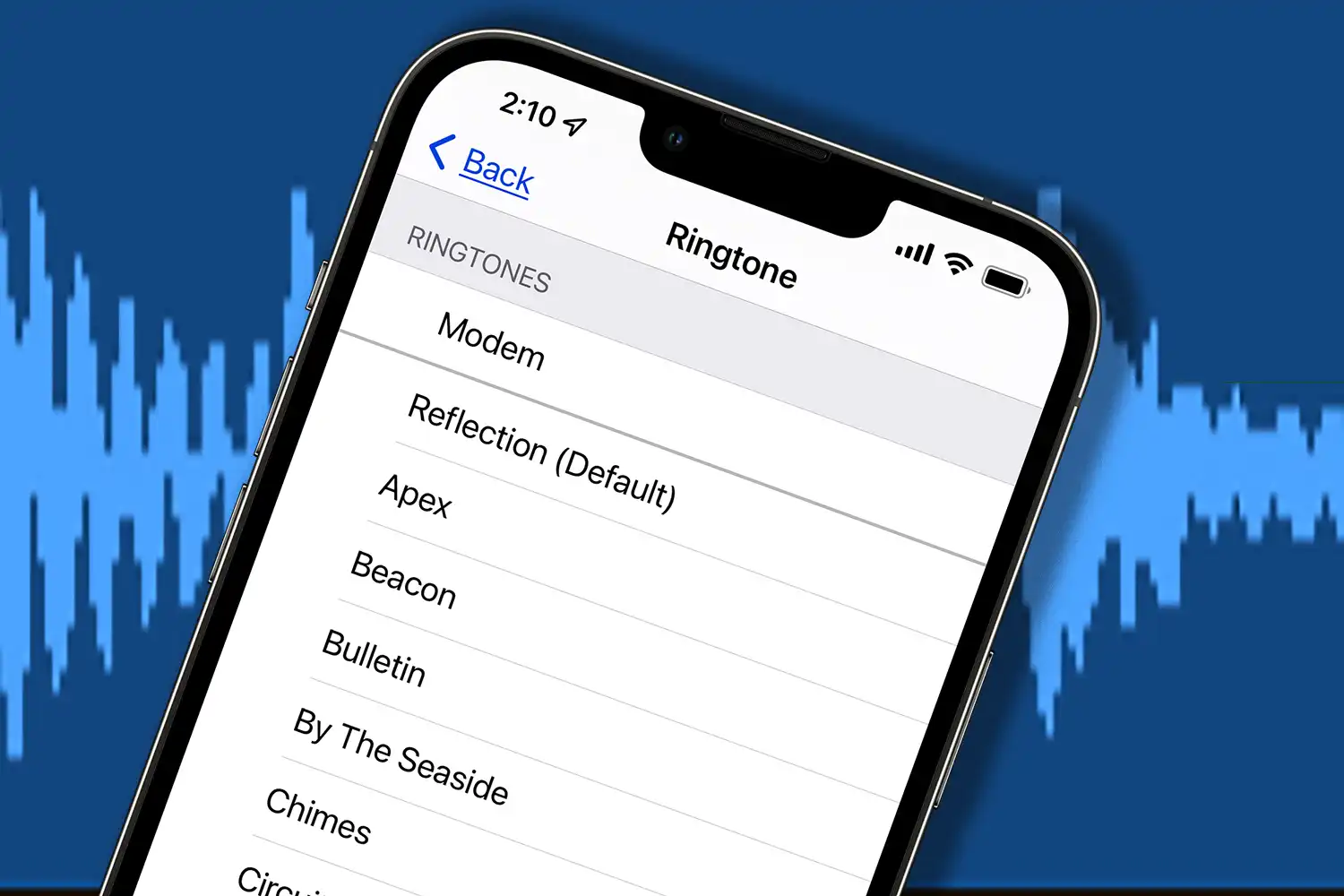
- To change your iPhone ringtone, go to Settings > Sounds and Haptics > Ringtone.
- You can also change your notification sound by going to Settings > Sounds and Haptics > Notification Sound.
- If you’re using a ringless phone case or earbuds, make sure to check if they support custom ringtones.
Conclusion
Changing your iPhone ringtone is a simple process that can add some personality to your phone. Whether you choose to create your own ringtone using GarageBand or purchase one from the iTunes Store, there are plenty of options available. We hope this article has helped you in changing your iPhone ringtone and made it easier for you to personalize your phone.
Frequently Asked Questions
- How do I Change my Iphone Ringtone?
- To change your iPhone ringtone, go to Settings > Sounds and Haptics > Ringtone.
- Can I Create a New Ringtone Without Itunes?
- Yes, you can create a new ringtone using GarageBand or the Music app on your iPhone or iPad.
- How do I Purchase a New Ringtone From Itunes Store?
- To purchase a new ringtone from the iTunes Store, go to Settings > Sounds and Haptics > Ringtone and select “Buy” next to the desired ringtone.
- Can I Change my Notification Sound?
- Yes, you can change your notification sound by going to Settings > Sounds and Haptics > Notification Sound.
- How do I Export a Custom Ringtone From Garageband?
- To export a custom ringtone from GarageBand, go to Share > Ring/SMS Tone and select the desired start and end times.
- Can I Use Any Song as my Iphone Ringtone?
- No, you can only use songs that are 40 seconds or less as your iPhone ringtone.


