
How to Change Your Language on Alexa: A Step-by-step Guide
Are you tired of conversing with Alexa in a language that’s not your own? Do you want to switch to a different tongue while still using the same device? Look no further! In this article, we’ll guide you through the process of changing your language on Alexa, whether you’re using an app or accessing it directly through the website.
What Languages Are Supported by Alexa?
Before we dive into the instructions, let’s take a look at which languages are currently supported by Alexa. According to Amazon, the following languages can be used with Alexa:
- English (United States)
- Spanish (Spain and Latin America)
- French (France and Canada)
- German
- Italian
- Portuguese (Portugal and Brazil)
- Dutch
Changing Your Language on Alexa Using The App
If you’re using the Alexa app on your smartphone or tablet, changing your language is a breeze. Here’s how to do it:
Step 1: Open The Alexa App
First, open the Alexa app on your device. Make sure you have the latest version installed.
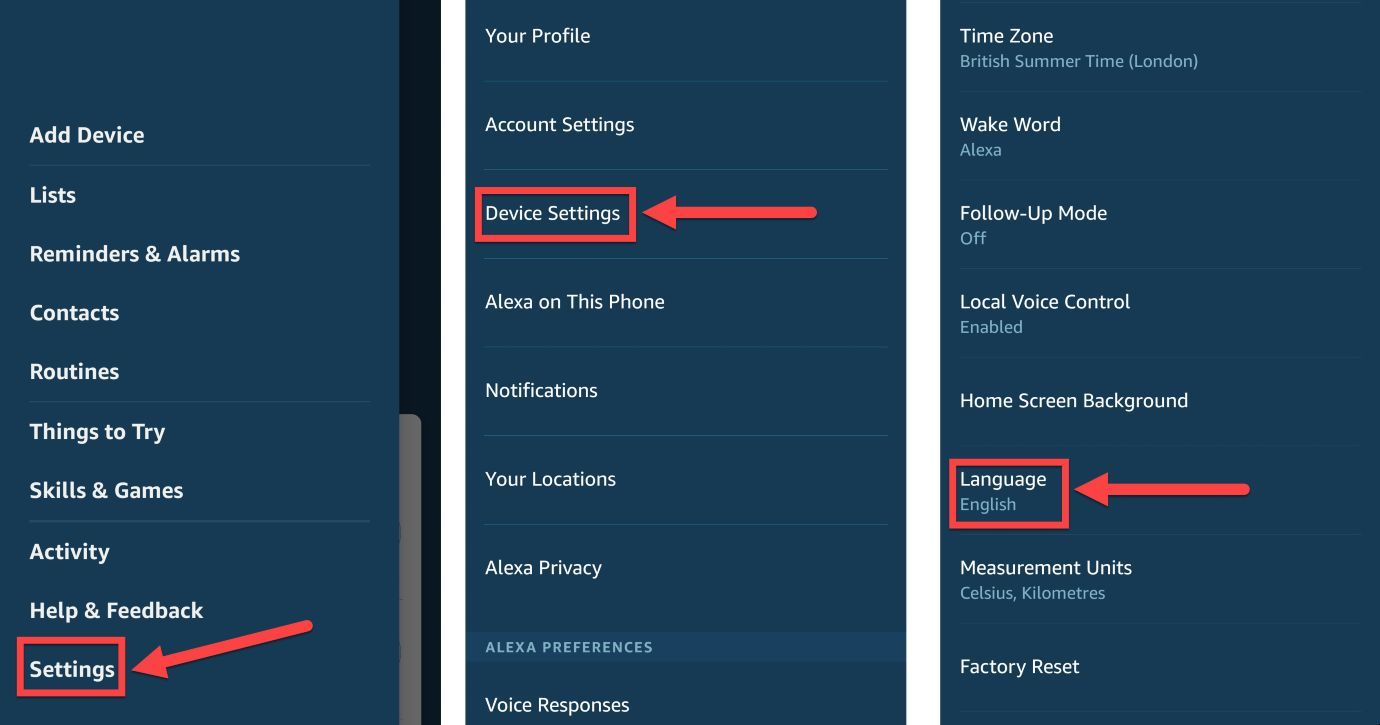
Step 2: Go to Settings
Next, go to the settings section within the app. You can find this by tapping on the menu icon (three horizontal lines) in the top left corner of the screen and selecting “Settings”.
Step 3: Select Your Device
In the settings menu, select your device from the list.
Step 4: Change Your Language
Once you’re in the device settings, scroll down to the “Language” section. From here, you can choose the language you want to use with Alexa. Simply tap on the desired language, and it will be applied to your device.
Changing Your Language on Alexa Without an App
If you prefer not to use the app or are accessing Alexa directly through the website, don’t worry! You can still change your language without using the app. Here’s how:
Step 1: Go to The Alexa Website
First, go to the Alexa website and sign in with your Amazon account.
Step 2: Select Your Device
Once you’re logged in, select your device from the list of available devices.
Step 3: Change Your Language
In the settings menu for your device, scroll down to the “Language” section. From here, you can choose the language you want to use with Alexa by selecting it from the dropdown menu.
Can I Use Two Different Languages With Alexa?
Yes, you can! If you want to use two different languages with Alexa, you can do so by following these steps:
Step 1: Select Your Device
Select your device from the list of available devices.
Step 2: Change Your Language
In the settings menu for your device, scroll down to the “Language” section. From here, you can choose two languages to use with Alexa by selecting them in the “Other Languages” section.
Frequently Asked Questions
Here are some frequently asked questions about changing your language on Alexa:
- Q: Can I change my language on Alexa without using an app?
A: Yes, you can! You can access the settings menu through the Alexa website and change your language there. - Q: What languages are supported by Alexa?
A: According to Amazon, Alexa supports English (United States), Spanish (Spain and Latin America), French (France and Canada), German, Italian, Portuguese (Portugal and Brazil), and Dutch. - Q: Can I use two different languages with Alexa?
A: Yes, you can! If you want to use two different languages with Alexa, you can do so by following the steps outlined above.
Conclusion
Changing your language on Alexa is a straightforward process that can be completed in just a few steps. Whether you’re using an app or accessing it directly through the website, you can easily switch to a different tongue and still enjoy all the benefits of using Alexa.


