
How to Change Your Language on Gmail: A Step-by-step Guide
Are you tired of using a language on Gmail that’s not your native tongue? Do you want to switch to a different language but don’t know how? You’re in luck! In this article, we’ll show you how to change your language on Gmail, whether you’re using a PC or Mac, Android device, or iPhone and iPad.
Why Change Your Language on Gmail?
Changing your language on Gmail can be useful for several reasons. For example, if you’re traveling abroad and want to communicate with locals in their native language, changing the language on your Gmail account can help you do so. Additionally, if you’re a non-native English speaker, using a different language on Gmail can make it easier for you to read and write emails.
Changing Your Language on Gmail: PC And Mac
To change your language on Gmail on a PC or Mac, follow these steps:
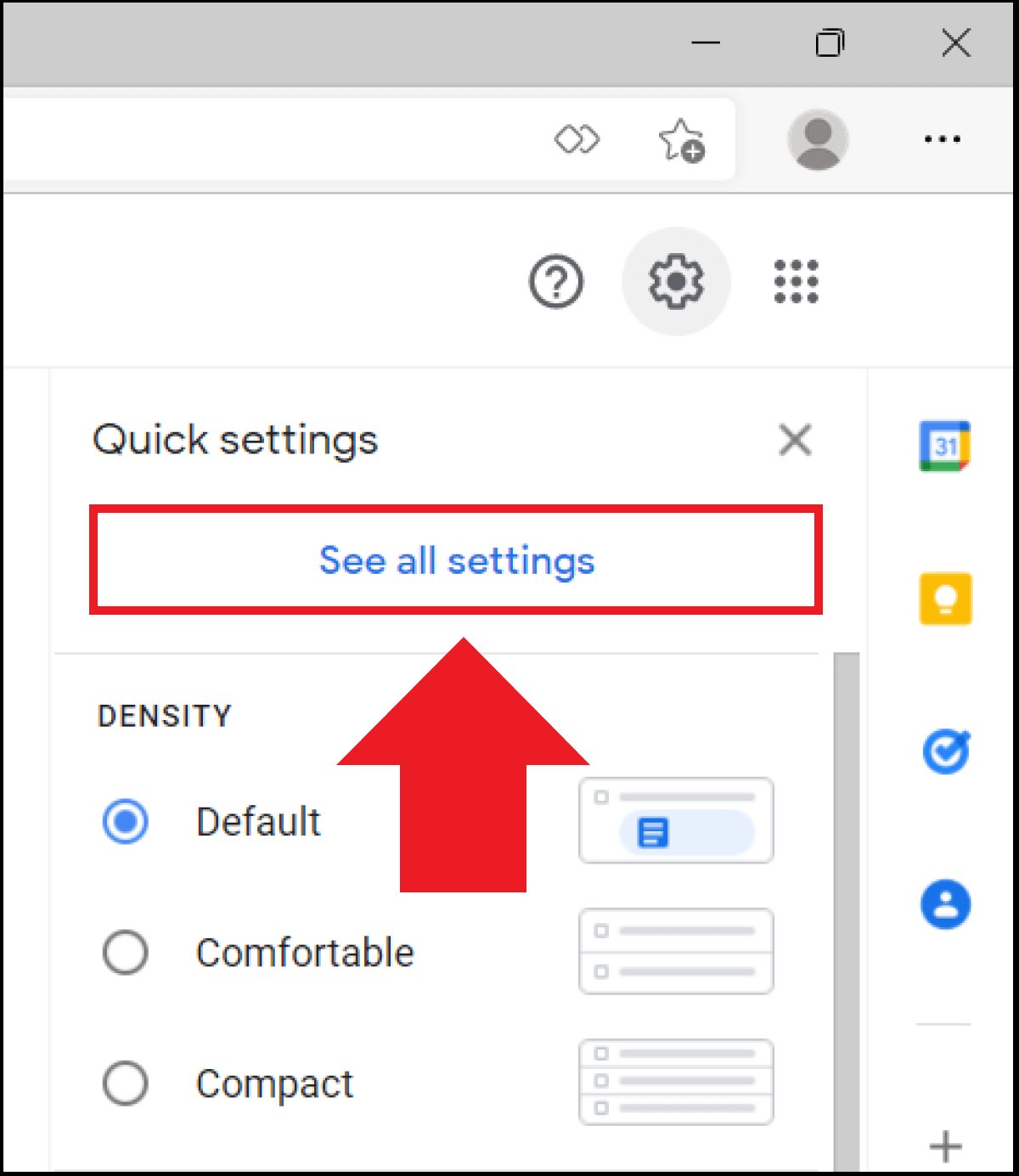
- Access The Settings: First, access the settings of your Gmail account by clicking on the gear icon in the top right corner of the page.
- Select The Language: From there, select the “Language” option from the drop-down menu.
- Choose Your New Language: In the new window that appears, choose your preferred language from the list provided.
- Save Changes: Click on the “Save changes” button to save your new language selection.
Changing Your Language on Gmail: Android
Unfortunately, it’s not possible to change your language on Gmail directly on an Android device using the Gmail app. However, you can change the language on your device itself, which will automatically apply to all apps, including Gmail.
- Access Device Settings: Go to your device settings and select “System” from the options.
- Select Language: From there, select the “Language & keyboard” option.
- Choose Your New Language: Choose your preferred language from the list provided.
- Save Changes: Save your changes by clicking on the back button.
Changing Your Language on Gmail: Iphone And Ipad
To change your language on Gmail on an iPhone or iPad, follow these steps:
- Access Settings: Go to your device settings and select “General” from the options.
- Select Language & Region: From there, select “Language & Region”.
- Choose Your New Language: Choose your preferred language from the list provided.
- Save Changes: Save your changes by clicking on the back button.
What to Do If You Can’t Change Your Language
If you’re unable to change your language on Gmail using the above steps, there may be a few reasons why this is happening. Here are some possible solutions:
- Clear Cache And Cookies: Try clearing your cache and cookies, then try again.
- Use a Different Browser: If you’re using a browser other than Google Chrome, try switching to Chrome or another supported browser.
- Contact Support: If none of the above steps work, contact Gmail support for further assistance.
Conclusion
Changing your language on Gmail is a straightforward process that can be completed in just a few simple steps. Whether you’re using a PC or Mac, Android device, or iPhone and iPad, we’ve provided step-by-step instructions to help you change your language on Gmail. Remember to save your changes by clicking on the “Save changes” button after selecting your new language.
Frequently Asked Questions
- Q: Can I Change my Language on Gmail if I’m Using a Mobile Device?
A: Yes, but it may be necessary to change the language on your device itself first. - Q: How do I Change my Language on Gmail if I’m Using an Iphone or Ipad?
A: Go to Settings > General > Language & Region and choose your preferred language. - Q: Why Can’t I Change my Language on Gmail Directly From The App?
A: Unfortunately, it’s not possible to change your language on Gmail directly from the app on Android devices. However, changing the language on your device itself will apply to all apps, including Gmail. - Q: What if I’m Unable to Change my Language on Gmail?
A: Try clearing your cache and cookies, then try again. If that doesn’t work, contact Gmail support for further assistance.


