
How to Change Language on Google: A Step-by-step Guide
Are you tired of seeing search results only in English? Do you want to explore the world of Google in your native language or another language that interests you? Look no further! In this article, we will guide you through the process of changing the language on Google, from PC to smartphone and tablet.
Why Change Language on Google?
Changing the language on Google can be beneficial for several reasons:
- You can explore search results in your native language or another language that interests you.
- You can access information that may not be available in English.
- You can improve your understanding of other languages by using them regularly.
How to Change Language on Google
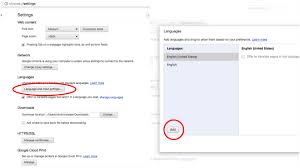
On Pc:
- Go to the Google homepage.
- Click on the gear icon at the top right corner of the page.
- Select “Settings” from the drop-down menu.
- Click on “Language” and select your preferred language from the list.
On Smartphone And Tablet:
- Open the Google app on your device.
- Tap on the three horizontal lines at the top left corner of the screen.
- Select “Settings” from the menu.
- Click on “Language” and select your preferred language from the list.
How to Change Language on Specific Google Services
- Google Drive: You can change the language on Google Drive by going to the settings page and selecting a new language under “Language.”
- Google Play: Unfortunately, it is not possible to change the language for the Google Play Store. However, you can change the language of your device or use a translation app.
- Google Maps: You can change the language on Google Maps by going to the settings page and selecting a new language under “Language.”
- Google Earth: Unfortunately, it is not possible to change the language for Google Earth. However, you can explore other features of the app.
Tips And Tricks:
- Make sure you have an account with Google before changing the language.
- If you’re having trouble finding your preferred language, try searching for “language settings” on Google.
- You can change the language back to English at any time by following the same steps above.
Conclusion
Changing the language on Google is a simple process that can greatly improve your user experience. Whether you want to explore search results in your native language or access information from other languages, this guide has got you covered. So go ahead and give it a try – your linguistic skills will thank you!
Frequently Asked Questions
- Q: Can I Change The Language on Google For All Devices?
A: Yes, you can change the language on Google for PC, smartphone, and tablet. - Q: How do I Change The Language on Specific Google Services Like Google Drive or Google Play?
A: You can change the language on these services by going to their respective settings pages. - Q: Can I Use a Translation App if I Don’t See my Preferred Language on Google?
A: Yes, you can use a translation app to access information in your preferred language.
Conclusion
Changing the language on Google is an easy and beneficial process that opens up new possibilities for users. By following this guide, you can explore search results, access information, and improve your understanding of other languages. Remember to save any changes you make to ensure they stick!


