
Are you tired of using Microsoft Outlook in English, but want to switch to Italian? Look no further! In this article, we will guide you through the process of translating Microsoft Outlook to Italian on various devices and platforms.
Microsoft Outlook 365: Translating The Interface
If you have installed Microsoft Outlook 365 on your PC or Mac, you can easily translate the interface to Italian. Here’s how:
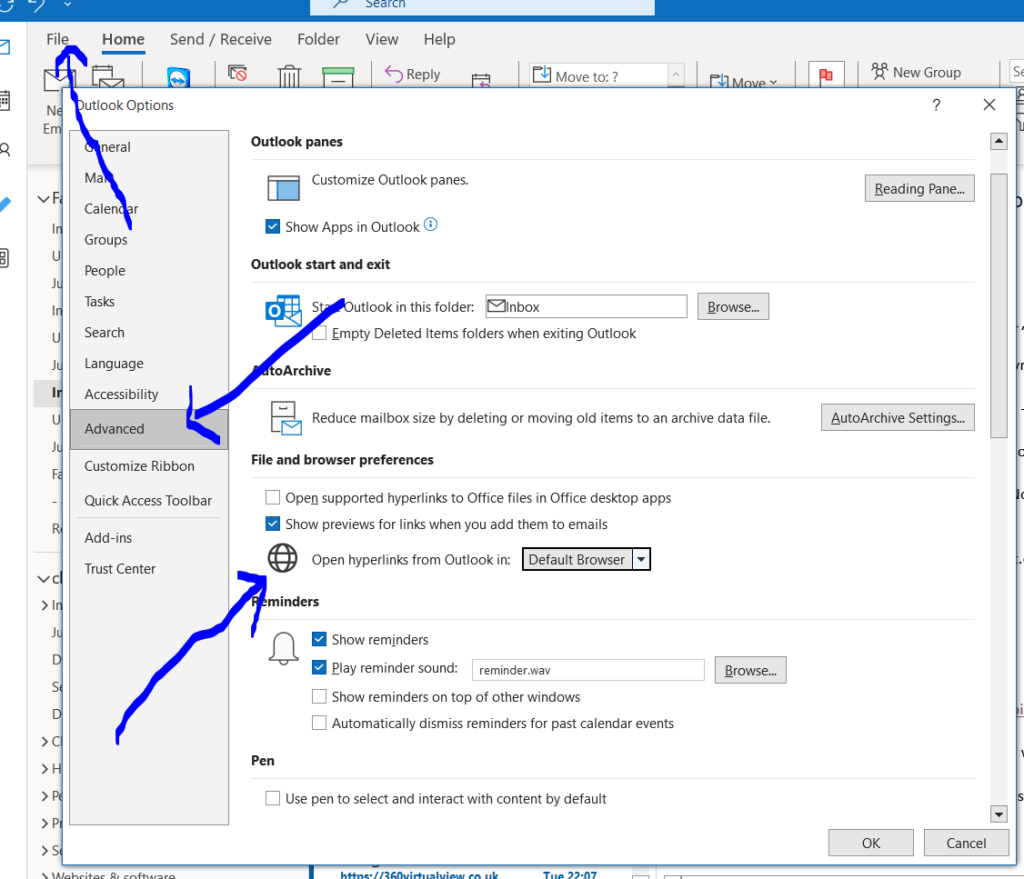
- Windows: Open Microsoft Outlook 365 on your PC and click on the menu bar at the top left corner. Select “Options” and then choose “Language” from the dropdown menu.
- Mac: Go to System Preferences > General, and select Language and Region. Choose Italian from the list of available languages.
Translating Microsoft Outlook 365 on Mac
If you’re using a Mac, you can translate Microsoft Outlook 365 by following these steps:
- Open System Preferences.
- Click on Language & Region.
- Select the General tab and choose Italian as your language.
- Click Apply to save the changes.
Translating Mail For Windows
If you’re using Mail for Windows, you can translate it by following these steps:
- Open Microsoft Outlook 365.
- Click on the menu bar at the top left corner and select “Options.”
- Choose Language from the dropdown menu.
- Select Italian as your language.
Translating Microsoft Outlook.Com
If you’re using Microsoft Outlook.Com, you can translate it by following these steps:
- Log in to your account.
- Click on the gear icon at the top right corner and select “Settings.”
- Choose Language from the dropdown menu.
- Select Italian as your language.
Translating Microsoft Outlook For Android
If you’re using Microsoft Outlook for Android, you can translate it by following these steps:
- Open Microsoft Outlook on your device.
- Tap on the three horizontal lines at the top left corner to open the menu.
- Select “Settings” and then choose Language from the dropdown menu.
- Choose Italian as your language.
Translating Microsoft Outlook For Ios
If you’re using Microsoft Outlook for iOS, you can translate it by following these steps:
- Open Microsoft Outlook on your device.
- Tap on the gear icon at the top right corner to open the settings menu.
- Select “Language” and choose Italian as your language.
Translating Microsoft Outlook For Ipados
If you’re using Microsoft Outlook for iPadOS, you can translate it by following these steps:
- Open Microsoft Outlook on your device.
- Tap on the gear icon at the top right corner to open the settings menu.
- Select “Language” and choose Italian as your language.
Conclusion
Translating Microsoft Outlook to Italian is a straightforward process that can be completed in just a few steps, regardless of the device or platform you’re using. By following these instructions, you’ll be able to enjoy the benefits of using Microsoft Outlook in your native language.
Frequently Asked Questions
Here are some frequently asked questions about translating Microsoft Outlook:
- Q: Can I Translate Microsoft Outlook 365 on my Pc?
A: Yes, you can translate Microsoft Outlook 365 on your PC by following the steps outlined above. - Q: How do I Translate Mail For Windows?
A: You can translate Mail for Windows by following the same steps as translating Microsoft Outlook 365. - Q: Can I Translate Microsoft Outlook.Com?
A: Yes, you can translate Microsoft Outlook.Com by following the steps outlined above. - Q: How do I Translate Microsoft Outlook on my Android Device?
A: You can translate Microsoft Outlook on your Android device by following the steps outlined above. - Q: Can I Translate Microsoft Outlook on my Ios Device?
A: Yes, you can translate Microsoft Outlook on your iOS device by following the same steps as translating it for iPadOS.


