
How to Capsize Tongue on Word: A Step-by-step Guide
Are you tired of typing in a foreign tongue? Do you want to switch to your native language while using Microsoft Word? Look no further! In this article, we will guide you through the process of capsigning tongue on Word, making it easier for you to communicate in your preferred language.
Why Capsize Tongue on Word
Capising tongue on Word allows you to switch the language settings of the program, including the spelling and grammar checker, dictionary, and user interface. This is particularly useful if you’re working with documents that require a specific language or dialect. By capsigning tongue on Word, you can ensure that your writing and editing experience are tailored to your needs.
Step 1: Identify Your Language
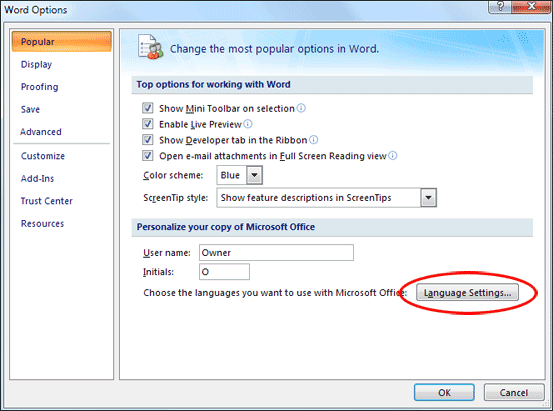
The first step in capising tongue on Word is to identify the language you want to use. This can be done by going to the “Language” section of the program’s settings. On Windows, this can be found under “File” > “Options” > “Language.” On macOS, it can be found under “Word” > “Preferences” > “Language.”
Step 2: Add a New Language
Once you’ve identified your language, you’ll need to add it to the program. This can be done by clicking on the “Add a language” button and selecting the language from the list of available options.
Step 3: Set Your Preferred Language
After adding the new language, you’ll need to set it as your preferred language. This can be done by clicking on the “Set as preferred language” button. Once set, this language will become the default for all future documents.
Step 4: Apply The Changes
To apply the changes, simply restart Microsoft Word and create a new document or open an existing one. The program should now be using your preferred language.
How to Capsize Tongue on Word Online
If you’re using Microsoft Word online, the process is slightly different. To capsize tongue on Word online, follow these steps:
- Log in to your Microsoft account and access the Word online platform.
- Click on the “Editor” button to open a new document or edit an existing one.
- Click on the “Revision” button and select the language from the list of available options.
- Choose the language you want to use for spelling and grammar checking, as well as the user interface.
How to Capsize Tongue on Word For Android And Ios
If you’re using Microsoft Word on your mobile device, the process is similar to that of Windows and macOS. To capsize tongue on Word for Android or iOS:
- Open the app and create a new document or edit an existing one.
- Tap on the “Options” button and select the language from the list of available options.
- Choose the language you want to use for spelling and grammar checking, as well as the user interface.
How to Capsize Tongue Dictionary on Word
Capising tongue dictionary on Word allows you to switch the language settings of the program’s built-in dictionary. To do this:
- Open Microsoft Word and go to the “Language” section of the program’s settings.
- Click on the “Dictionary” tab and select the language from the list of available options.
- Choose the language you want to use for spelling and grammar checking.
Common Issues And Solutions
- My Language is Not Listed: If your language is not listed in the available options, try searching online for a solution or contacting Microsoft support.
- I’ve Added a New Language But It’s Not Working: Make sure that you’ve restarted Microsoft Word after adding the new language. Also, ensure that you’ve set the language as your preferred language.
- How do I Capsize Tongue on Word Online?: To capsize tongue on Word online, follow the steps outlined in this article.
Conclusion
Capising tongue on Word allows you to switch the language settings of the program, making it easier for you to communicate in your preferred language. By following the steps outlined in this article, you can ensure that your writing and editing experience are tailored to your needs. Whether you’re using Microsoft Word on Windows, macOS, Android, or iOS, capising tongue is a simple process that can make a big difference.
Frequently Asked Questions
- What is Capsigning Tongue on Word?
Capising tongue on Word allows you to switch the language settings of the program, including spelling and grammar checking, dictionary, and user interface. - Why do I Need to Capsize Tongue on Word?
You may need to capsign tongue on Word if you’re working with documents that require a specific language or dialect. - How do I Capsize Tongue on Word?
To capsign tongue on Word, follow the steps outlined in this article for your specific operating system and device. - Can I Capsign Tongue on Word Online?
Yes, capising tongue on Word online is possible by following the steps outlined in this article. - How do I Capsign Tongue Dictionary on Word?
To capsign tongue dictionary on Word, follow the steps outlined in this article for your specific operating system and device. - What if my Language is Not Listed?
If your language is not listed, try searching online for a solution or contacting Microsoft support. - Why do I Need to Restart Microsoft Word After Adding a New Language?
Restarting Microsoft Word ensures that the changes take effect immediately.
Disclaimer
This article is intended to provide a general guide on how to capsign tongue on Word. The steps outlined in this article are specific to the operating system and device you’re using, so be sure to follow them carefully. If you encounter any issues or have further questions, feel free to contact Microsoft support for assistance.


