
How to Change The Language on Youtube: A Step-by-step Guide
Are you tired of watching videos on YouTube with subtitles in a language that’s not your own? Do you want to explore new languages and cultures, but don’t know where to start? Look no further! In this article, we’ll show you how to change the language on YouTube, both on your computer and on your mobile device.
Why Change The Language on Youtube?
Changing the language on YouTube can be a great way to:
- Improve your language skills by watching videos in their original language
- Explore new cultures and perspectives
- Enhance your browsing experience by having subtitles and menus in your preferred language
How to Change The Language on Youtube on Computer
To change the language on YouTube on your computer, follow these steps:
- Open Youtube: Go to youtube.Com and log in to your account.
- Click on Your Profile Picture: Click on your profile picture in the top right corner of the screen.
- Select Settings: From the dropdown menu, select “Settings”.
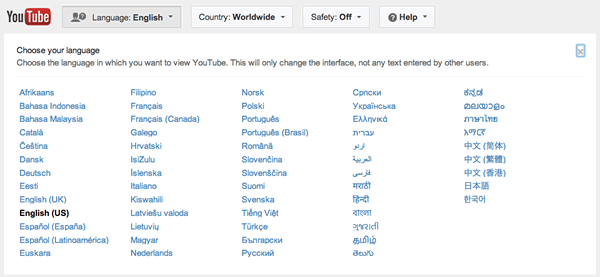
- Choose Your Language: In the settings page, click on “Language” and select your preferred language from the list.
- Save Changes: Click on “Save changes” to apply the new language setting.
How to Change The Language on Youtube on Android
To change the language on YouTube on your Android device, follow these steps:
- Open Youtube App: Open the YouTube app on your device.
- Tap on Your Profile Picture: Tap on your profile picture in the top right corner of the screen.
- Select Settings: From the dropdown menu, select “Settings”.
- Choose Your Language: In the settings page, tap on “Language” and select your preferred language from the list.
- Save Changes: Tap on “Save changes” to apply the new language setting.
How to Change The Language on Youtube on Iphone And Ipad
To change the language on YouTube on your iPhone or iPad, follow these steps:
- Open Youtube App: Open the YouTube app on your device.
- Tap on Your Profile Picture: Tap on your profile picture in the top right corner of the screen.
- Select Settings: From the dropdown menu, select “Settings”.
- Choose Your Language: In the settings page, tap on “Language” and select your preferred language from the list.
- Save Changes: Tap on “Save changes” to apply the new language setting.
How to Change The Subtitles Language on Youtube
To change the subtitles language on a specific video on YouTube, follow these steps:
- Open The Video: Open the video you want to change the subtitles language for.
- Click on The Three Dots: Click on the three dots in the top right corner of the screen.
- Select Subtitles: From the dropdown menu, select “Subtitles”.
- Choose Your Language: Select your preferred language from the list.
Conclusion
Changing the language on YouTube is a simple process that can enhance your browsing experience and improve your language skills. Whether you’re using a computer or a mobile device, follow these steps to change the language on YouTube:
- On computer: Open YouTube, click on your profile picture, select settings, choose your language, and save changes.
- On Android: Open YouTube app, tap on your profile picture, select settings, choose your language, and save changes.
- On iPhone or iPad: Open YouTube app, tap on your profile picture, select settings, choose your language, and save changes.
Faqs
- Q: Why Can’t I Change The Language on my Mobile Device?
A: Unfortunately, you cannot change the language on your mobile device using the YouTube app. - Q: How do I Change The Subtitles Language on a Specific Video?
A: To change the subtitles language on a specific video, open the video, click on the three dots, select subtitles, and choose your preferred language. - Q: Will Changing The Language Affect my Account Settings?
A: No, changing the language will not affect your account settings or any other features on YouTube. - Q: Can I Change The Language Back to Its Original Setting?
A: Yes, you can always go back to the original language setting by following the same steps as above and selecting the original language from the list. - Q: Will Changing The Language Affect my Browsing Experience?
A: No, changing the language will only affect the subtitles and menus on YouTube and will not affect any other features or settings on your device. - Q: Can I Change The Language on Multiple Devices at Once?
A: Unfortunately, you cannot change the language on multiple devices at once. You’ll need to follow these steps on each device separately.
We hope this article has helped you understand how to change the language on YouTube! If you have any further questions or concerns, feel free to ask in the comments below.


