
How to Change Your Name on Microsoft Account: A Step-by-step Guide
Are you tired of having a name that doesn’t represent you on your Microsoft account? Look no further! In this article, we will guide you through the process of changing your name on Microsoft account, covering various services and devices.
Why Change Your Name on Microsoft Account?
Before we dive into the steps, let’s quickly discuss why you might want to change your name on Microsoft account. Perhaps you’ve outgrown your old name, or maybe you just want a fresh start. Whatever the reason, changing your name on Microsoft account is a straightforward process that can be completed in a few easy steps.
Changing Name on Microsoft Account: Windows 10
Let’s start with the most common scenario – changing your name on Microsoft account associated with Windows 10. To do this, follow these simple steps:
- Click on the Start button (Windows logo) and select Settings.
- From the Settings menu, click on Accounts.
- In the Accounts section, click on Your info: Manage my Microsoft account.
- Sign in to your Microsoft account with your credentials.
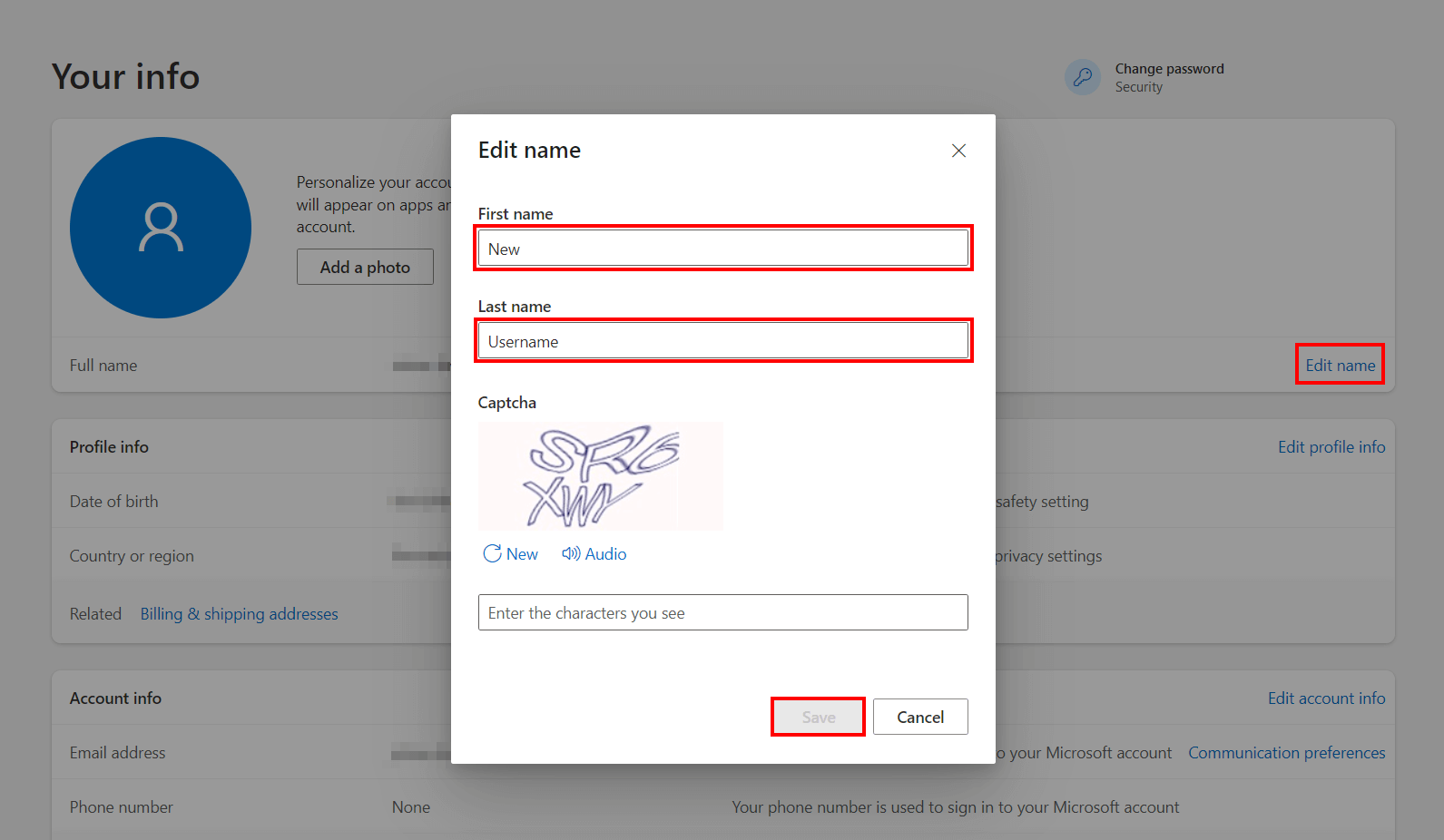
- Click on Modify name, located under your profile image.
- Enter your new name and surname, and then click Save.
That’s it! The changes will be visible on Windows 10 after a few minutes, following the restart of the operating system.
Changing Name on Local Account
If you want to modify only the name of the local account (not associated with Microsoft account), follow these steps:
- Press the Windows key + R to open the Run dialog box.
- Type “control panel” and press Enter.
- In the Control Panel, click on User Accounts.
- Click on Change your account type.
- Select Local Account and then click Next.
- Fill in your new name and click Save.
Easy peasy!
Changing Name on Microsoft Account: Website
Now, let’s move on to changing your name on Microsoft account via the website. Here’s how:
- Go to the Microsoft account website (www.Microsoft.Com/account).
- Click on Sign in and enter your email address or phone number.
- Enter your password and click Next.
- In the Account section, click on Your info.
- Click on Modify name and fill in your new name and surname.
- Verify the changes by clicking Save.
Changing Name on Microsoft Teams
Next up is changing your name on Microsoft Teams. Here’s how you can do it:
- Launch Microsoft Teams on your computer or mobile device.
- Select the account you want to modify.
- Click on the profile image (top right).
- Select Edit Profile and enter your new name.
- Click Save to complete the changes.
Changing Name on Microsoft Skype
Now, let’s talk about changing your name on Microsoft Skype. Follow these steps:
- Launch Microsoft Skype on your computer or mobile device.
- Sign in with your credentials.
- Click on the profile image (top left).
- Select Profile and then click Edit.
- Enter your new name and click Save.
That’s it!
Changing Name on Xbox
If you’re an Xbox user, you might want to change your Gamertag – here’s how:
- Go to the Xbox website (www.Xbox.Com).
- Sign in with your Microsoft account credentials.
- Click on Your info and select Profile settings.
- Fill in your new name (make sure it’s within the 12-character limit).
- Verify the changes by clicking Save.
Changing Name on Minecraft
Lastly, let’s talk about changing your name on Minecraft. Here’s how:
- Go to the Minecraft website (www.Minecraft.Net).
- Sign in with your Microsoft account credentials.
- Click on Your profile and select Edit profile.
- Enter your new name and click Save.
That’s it!
Conclusion
Changing your name on Microsoft account might seem daunting, but it’s a straightforward process that can be completed in a few easy steps. Whether you’re using Windows 10, Microsoft Teams, Skype, Xbox, or Minecraft, the process is similar. By following these steps, you’ll be able to update your name and start fresh with your Microsoft account.
Frequently Asked Questions (FAQs)
- Q: Can I Change my Name on Microsoft Account For Free?
A: Yes, the first modification is free! However, subsequent modifications may incur a small fee. - Q: How Long Does it Take to See Changes on Windows 10 After Modifying my Name?
A: Changes will be visible on Windows 10 after a few minutes, following the restart of the operating system. - Q: Can I Change my Name on Local Account Without Affecting my Microsoft Account?
A: Yes, you can modify your name on local account separately from your Microsoft account. - Q: How do I Know if my Gamertag Has Been Changed Successfully on Xbox?
A: After modifying your Gamertag, you’ll see a confirmation message indicating that the changes have taken place. - Q: Can I Change my Name on Minecraft Without Affecting my Xbox Profile?
A: Yes, changing your name on Minecraft will not affect your Xbox profile.


