
The Ultimate Guide to Understanding Dpi And How to Adjust it on Your Mouse
Are you tired of struggling with your mouse’s sensitivity? Do you find yourself constantly adjusting the settings to get the perfect feel? Look no further! In this comprehensive guide, we’ll delve into the world of DPI (Dots Per Inch) and explore how to adjust it on your mouse.
What is Dpi?
Before we dive into the nitty-gritty, let’s first understand what DPI is. Simply put, DPI refers to the number of dots that can be displayed within one inch of a monitor screen. In other words, it measures how sensitive or responsive a mouse cursor is to movement.
How Does Dpi Affect My Mouse Experience?
The DPI of your mouse directly affects its sensitivity and responsiveness. If you’re playing games or using precision software, a high DPI setting can be beneficial for precise cursor movements. On the other hand, if you’re browsing the web or performing everyday tasks, a lower DPI setting might be more suitable.
Why Is Dpi Important?
In today’s digital age, DPI has become an essential factor in gaming and productivity. With the rise of high-resolution monitors and precision software, having a mouse with adjustable DPI settings can make all the difference between winning and losing, or getting the job done efficiently.
How to Adjust Dpi on Your Mouse: A Step-by-step Guide
Adjusting DPI on your mouse is relatively straightforward, but it may vary depending on your operating system and mouse brand. Here’s a step-by-step guide to help you get started:
Windows 10
- Search For “Mouse” in The Start Menu: Type “mouse” in the search bar located at the bottom left corner of your screen.
- Access The Mouse Settings: Click on the “Mouse” option from the search results.
- Adjust Dpi: Scroll down to the “Motion” section and click on the dropdown menu to adjust the DPI setting.
Mac
- Click on The Apple Logo: Located at the top left corner of your screen.
- Select System Preferences: Click on the Apple logo and select “System Preferences.”
- Access Mouse Settings: Click on the “Mouse” icon from the System Preferences window.
- Adjust Dpi: Scroll down to the “Speed” section and adjust the DPI setting.
How to Adjust Dpi on Popular Gaming Mice
If you’re using a gaming mouse, adjusting DPI might be as simple as pressing a button or accessing a software program. Here are some popular gaming mice and how to adjust their DPI settings:
- Razer Mouse: Download and install the Razer Synapse software, which allows you to adjust DPI on your Razer mouse.
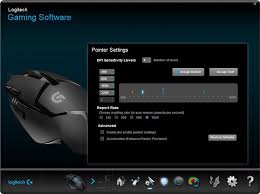
- Logitech Mouse: Access the Logitech Gaming Software (LGS) to adjust DPI on your Logitech mouse.
- Corsair Mouse: Use the iCUE software to adjust DPI on your Corsair mouse.
Tips And Tricks
Here are some additional tips and tricks to keep in mind when adjusting DPI:
- Experiment With Different Dpi Settings: Find what works best for you, whether it’s a high or low DPI setting.
- Consider Using a Gaming Mouse With Adjustable Dpi: These mice often come equipped with features like on-the-fly DPI adjustment.
- Don’t Forget to Adjust Dpi In-game: Some games may require specific DPI settings to achieve optimal performance.
Conclusion
Adjusting DPI on your mouse is an essential step in achieving the perfect gaming or productivity experience. By following our step-by-step guide, you can easily adjust DPI on Windows 10 and Mac operating systems, as well as popular gaming mice. Remember to experiment with different DPI settings, consider using a gaming mouse with adjustable DPI, and don’t forget to adjust DPI in-game.
Frequently Asked Questions
- What is The Average Dpi Setting For a Gaming Mouse?
The average DPI setting for a gaming mouse ranges from 400 to 1600. - Can I Adjust Dpi on my Macbook?
Yes, you can adjust DPI on your Macbook by accessing the System Preferences window and clicking on the “Mouse” icon. - What is The Benefit of Using a High Dpi Setting?
Using a high DPI setting can provide more precise cursor movements, which can be beneficial for gaming or precision software use. - Can I Adjust Dpi on my Gaming Keyboard?
Some gaming keyboards come equipped with DPI-adjustable mice, but this is not a standard feature. - How Often Should I Adjust Dpi?
You may need to adjust DPI depending on the game or software you’re using. Experiment with different DPI settings to find what works best for you. - Can I Adjust Dpi In-game?
Yes, some games allow you to adjust DPI within the game settings. - What is The Recommended Dpi Setting For Gaming?
The recommended DPI setting for gaming varies depending on the game and personal preference. Experiment with different DPI settings to find what works best for you.
I hope this comprehensive guide has helped you understand DPI and how to adjust it on your mouse. Happy gaming!


