
How to Reset Your Outlook Password: A Step-by-step Guide
Are you having trouble accessing your Outlook account due to a forgotten password? Don’t worry, we’ve got you covered! In this article, we’ll guide you through the process of resetting your Outlook password in a few easy steps.
Why is it Important to Have a Strong Password?
Before we dive into the step-by-step guide, let’s quickly talk about why having a strong password is essential. A weak or easily guessable password can put your email account at risk of being compromised by hackers. This can lead to all sorts of problems, including identity theft and unauthorized access to sensitive information.
How to Reset Your Outlook Password on Computer
To reset your Outlook password on computer, follow these steps:
- Go to The Settings Page: First, navigate to the settings page of your Outlook account. You can do this by clicking on the gear icon in the top right corner of the screen.
- Click on “Manage Accounts”: In the settings page, click on “Manage Accounts.”
- Select Your Account: From the list of accounts, select the one you want to reset the password for.
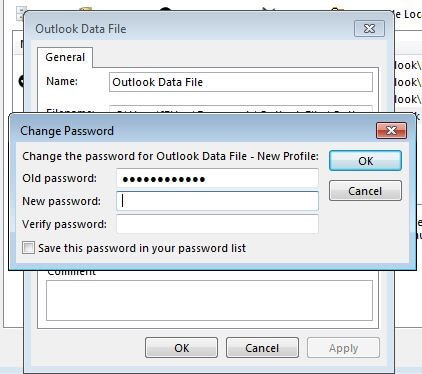
- Click on “Change Password”: Click on “Change Password” and enter your old password.
- Enter a New Password: Enter a new password that meets the requirements (e.G., At least 8 characters, including uppercase and lowercase letters, numbers, and special characters).
- Confirm Your New Password: Confirm your new password by entering it again in the “New Password” field.
- Click on “Save”: Click on “Save” to complete the password reset process.
How to Reset Your Outlook Password on Mobile
If you’re trying to reset your Outlook password on mobile, follow these steps:
- Open The Outlook App: Open the Outlook app on your mobile device.
- Tap on The Menu Icon: Tap on the menu icon (three horizontal lines) in the top left corner of the screen.
- Select “Settings”: Select “Settings.”
- Click on “Manage Accounts”: Click on “Manage Accounts.”
- Select Your Account: From the list of accounts, select the one you want to reset the password for.
- Tap on “Change Password”: Tap on “Change Password” and enter your old password.
- Enter a New Password: Enter a new password that meets the requirements (e.G., At least 8 characters, including uppercase and lowercase letters, numbers, and special characters).
- Confirm Your New Password: Confirm your new password by entering it again in the “New Password” field.
- Tap on “Save”: Tap on “Save” to complete the password reset process.
How to Recover Your Outlook Password
If you’ve forgotten your Outlook password, don’t worry! You can recover it using these steps:
- Go to The Outlook Website: Go to the Outlook website and click on “Forgot Password.”
- Enter Your Email Address: Enter your email address associated with your Outlook account.
- Choose a Recovery Option: Choose a recovery option (e.G., Security question, alternative email address, or mobile phone).
- Answer Security Question or Verify Alternative Email Address or Mobile Phone: Answer the security question, verify the alternative email address, or enter the verification code sent to your mobile phone.
- Create a New Password: Create a new password that meets the requirements (e.G., At least 8 characters, including uppercase and lowercase letters, numbers, and special characters).
- Confirm Your New Password: Confirm your new password by entering it again in the “New Password” field.
Conclusion
Resetting your Outlook password is an easy process that can be completed in a few steps. Remember to choose a strong password that meets the requirements (e.G., At least 8 characters, including uppercase and lowercase letters, numbers, and special characters). If you’re having trouble accessing your account due to a forgotten password, don’t worry! You can recover it using the steps outlined above.
Frequently Asked Questions
- Q: Why is it Important to Have a Strong Password?
A: A weak or easily guessable password can put your email account at risk of being compromised by hackers. - Q: How do I Reset my Outlook Password on Computer?
A: To reset your Outlook password on computer, go to the settings page, click on “Manage Accounts,” select your account, and click on “Change Password.” - Q: How do I Reset my Outlook Password on Mobile?
A: To reset your Outlook password on mobile, open the Outlook app, tap on the menu icon, select “Settings,” click on “Manage Accounts,” select your account, and tap on “Change Password.” - Q: Can I Recover my Outlook Password if I’ve Forgotten It?
A: Yes, you can recover your Outlook password by going to the Outlook website, clicking on “Forgot Password,” entering your email address, choosing a recovery option, answering security questions or verifying alternative email addresses or mobile phones, and creating a new password. - Q: What Are Some Best Practices For Creating a Strong Password?
A: Some best practices for creating a strong password include using at least 8 characters, including uppercase and lowercase letters, numbers, and special characters; avoiding easily guessable information (e.G., Your name, birthdate); and changing your password regularly.
Additional Resources
For more information on how to reset or recover your Outlook password, check out these additional resources:
- Microsoft Support: Outlook Password Reset
- Microsoft Support: Recovering Your Outlook Account
We hope this article has been helpful in guiding you through the process of resetting or recovering your Outlook password. If you have any further questions or concerns, don’t hesitate to reach out!


