
How to Capsize Password Discharge: A Step-by-step Guide
Are you tired of using the same old password for your Free Mail account? Do you want to capsize it and create a new one, but don’t know where to start? Look no further! In this article, we’ll guide you through the process of changing your password on various devices, including PC, smartphone, and tablet.
Why Capsize Your Password?
Before we dive into the steps, let’s talk about why you might want to capsize your password. If you’ve been using the same password for a while, it may be time to change it for security reasons. Using the same password across multiple accounts can make it easier for hackers to gain access to all of them if one account is compromised.
Capsize Password Discharge on PC
To capsize your password on a PC, follow these steps:
- Log in to Your Free Mail Account: Go to the login page of your Free Mail account and enter your current email address and password.
- Click on ‘Change Password’: Once you’re logged in, click on the “Change Password” button at the top right corner of the page.
- Enter Current Password: Enter your current password in the first field.
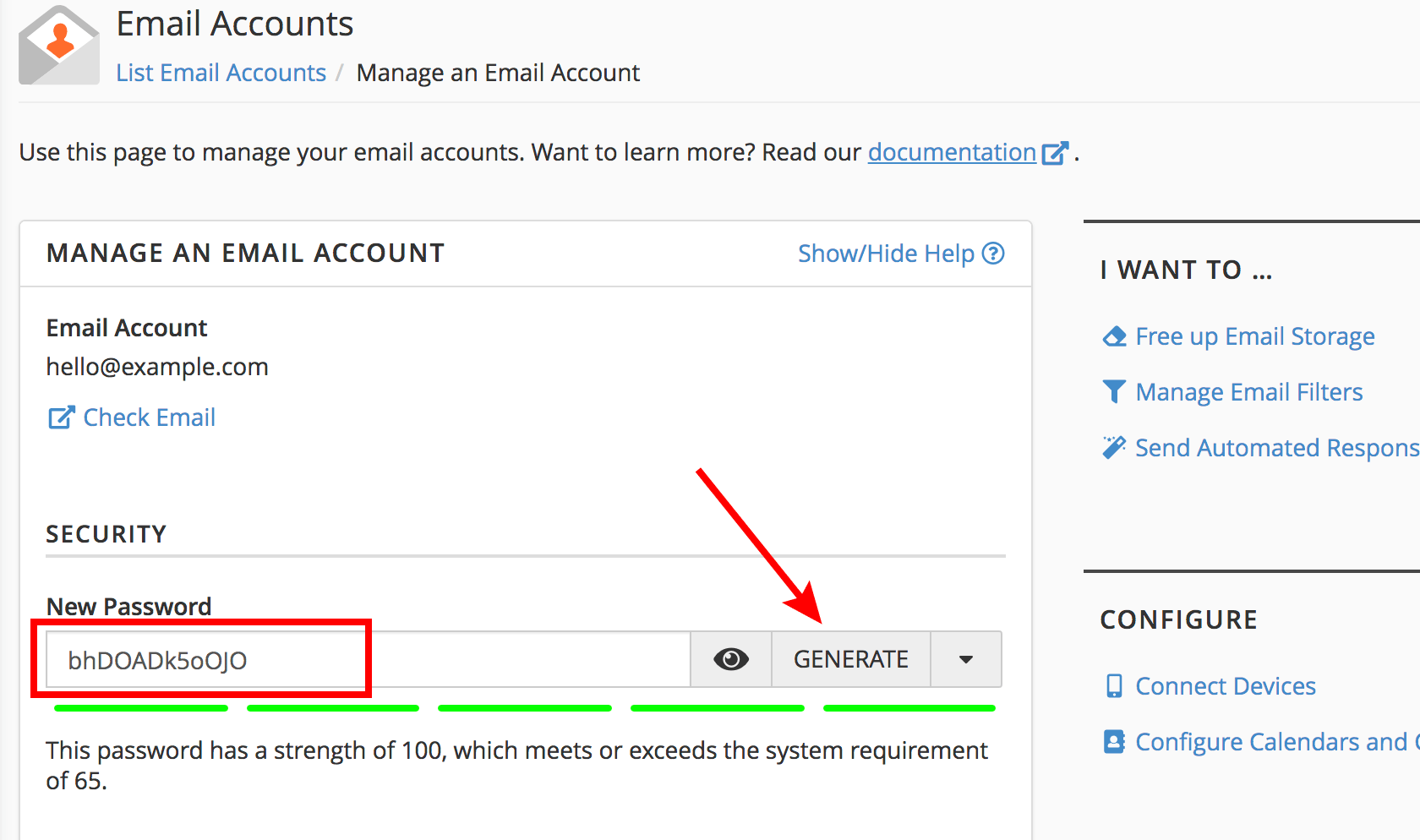
- Create a New Password: Create a new password by typing it in the second and third fields.
- Save Changes: Click on the “Save Changes” button to complete the process.
Capsize Password Discharge on Smartphone (Android And Ios)
To capsize your password on an Android or iOS device, follow these steps:
- Open Your Free Mail App: Open the Free Mail app on your smartphone.
- Tap on ‘Settings’: Tap on the three horizontal lines at the top left corner of the screen to access the settings menu.
- Scroll Down And Select ‘Account Settings’: Scroll down and select “Account Settings” from the menu.
- Tap on ‘Change Password’: Tap on the “Change Password” button.
- Enter Current Password: Enter your current password in the first field.
- Create a New Password: Create a new password by typing it in the second and third fields.
- Save Changes: Tap on the “Save Changes” button to complete the process.
Additional Tips
Here are some additional tips to keep in mind when capsize your password:
- Use a strong password that is at least 12 characters long and includes a mix of uppercase letters, lowercase letters, numbers, and special characters.
- Avoid using easily guessable information such as your name or birthdate.
- Consider enabling two-factor authentication (2FA) to add an extra layer of security to your account.
How Capsize Password Discharge Works
To understand how capsize password discharge works, let’s break it down:
- Enter Current Password: You enter your current password in the first field.
- Create a New Password: You create a new password by typing it in the second and third fields.
- Save Changes: The changes are saved, and you’re logged out of your account.
Why Choose Free Mail?
Free Mail is a popular email service that offers many features, including:
- A simple and intuitive interface
- Support for multiple devices and platforms
- Integration with other Google services
Conclusion
Changing your password on Free Mail is a straightforward process that can be completed in just a few steps. By following the instructions above, you’ll be able to capsize your password and create a new one, adding an extra layer of security to your account.
Frequently Asked Questions (FAQs)
- What Happens if I Forget my Current Password?: If you forget your current password, you can try recovering it by following the steps above.
- Can I Change my Password on Multiple Devices at Once?: Yes, you can change your password on multiple devices at once by logging in to your account and following the steps above.
- How do I Enable 2FA on Free Mail?: To enable 2FA on Free Mail, follow these steps: Go to your account settings, scroll down and select “Security”, then toggle the switch next to “Two-factor authentication” to turn it on.
- What is Capsize Password Discharge?: Capsize password discharge refers to the process of changing your password by entering your current password, creating a new one, and saving changes.
- Why do I Need to Change my Password Regularly?: Changing your password regularly helps to prevent unauthorized access to your account in case your current password is compromised.
Final Thoughts
Changing your password on Free Mail is an important step in maintaining the security of your account. By following the steps above, you’ll be able to capsize your password and create a new one, protecting yourself from potential threats.


