
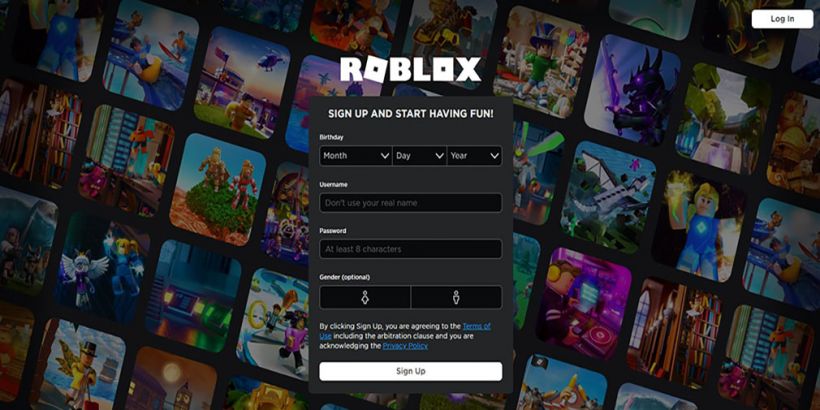
Changing Your Password on Roblox: A Step-by-step Guide
Are you tired of using a weak password on Roblox? Do you want to ensure that your account is secure from unauthorized access? Look no further! In this article, we will guide you through the process of changing your password on Roblox, both on computer and mobile devices.
Why Change Your Password on Roblox?
Using a strong password on Roblox is essential for protecting your account from hackers. A weak password can be easily guessed or cracked by malicious individuals, putting your account at risk. By changing your password regularly, you can ensure that your account remains secure and protected.
Changing Your Password on Computer
To change your password on computer, follow these steps:
- Log in to Your Roblox Account: Open the Roblox website and log in to your account using your current username and password.
- Click on The Settings Icon: Click on the settings icon (represented by a gear) located at the top right corner of the screen.
- Select Account Info: From the drop-down menu, select “Account Info”.
- Click on The Pencil Icon: Click on the pencil icon next to the password field.
- Enter Your New Password: Enter your new password in the “New Password” field. Make sure it’s strong and unique!
- Confirm Your New Password: Confirm your new password by re-entering it in the “Confirm Password” field.
- Click on Update: Click on the “Update” button to save your changes.
Changing Your Password on Mobile Device
To change your password on mobile device, follow these steps:
- Open The Roblox App: Open the Roblox app on your mobile device (available for both Android and iOS).
- Tap on The Settings Icon: Tap on the settings icon (represented by a gear) located at the top right corner of the screen.
- Select Account Info: From the drop-down menu, select “Account Info”.
- Click on The Pencil Icon: Click on the pencil icon next to the password field.
- Enter Your New Password: Enter your new password in the “New Password” field. Make sure it’s strong and unique!
- Confirm Your New Password: Confirm your new password by re-entering it in the “Confirm Password” field.
- Tap on Update: Tap on the “Update” button to save your changes.
What If You Forget Your Password?
If you forget your password, don’t worry! You can recover it easily using the following steps:
- Go to The Roblox Website: Go to the Roblox website and click on the “Forgot Password” link.
- Enter Your Email Address: Enter your email address associated with your Roblox account.
- Click on Submit: Click on the “Submit” button to receive a password reset email.
Troubleshooting
If you encounter any problems while changing your password, don’t worry! You can contact the Roblox support team for assistance.
Conclusion
Changing your password on Roblox is an essential step in protecting your account from unauthorized access. By following these simple steps, you can ensure that your account remains secure and protected. Remember to change your password regularly and use a strong password to prevent hacking!
Faqs
- Q: How Often Should I Change my Password?
A: It’s recommended to change your password every 30-60 days to maintain maximum security. - Q: What Makes a Good Password?
A: A good password is one that’s strong, unique, and difficult to guess. - Q: Can I Recover my Password if I Forget It?
A: Yes, you can recover your password by following the steps outlined above. - Q: How do I Contact Roblox Support For Assistance?
A: You can contact Roblox support through their website or mobile app.


