
How to Become Administrator on Pc: A Step-by-step Guide
Are you tired of being restricted by your current user account settings? Do you want to gain more control over your PC and access features that are currently out of reach? Look no further! In this article, we will guide you through the process of becoming an administrator on your PC, whether it’s running Windows 11, Windows 10, Windows 7, or even a Mac.
Why Become Administrator on Pc?
As an administrator, you’ll have elevated privileges that allow you to access and modify system settings, install software, and perform other tasks that would normally be restricted. This can be particularly useful for:
- Installing new operating systems
- Accessing and modifying system files
- Troubleshooting and resolving issues that require administrative permissions
How to Become Administrator on Pc: A Step-by-step Guide
Windows 11
To become an administrator on a Windows 11 PC, follow these steps:
- Open the Settings app by clicking on the Start button and selecting “Settings.”
- Click on “Account” in the menu to the left.
- Select “Other users” from the list of available options.
- Click on the “Add another user” button.
- Choose “Administrator” as the account type.
- Follow the prompts to create a new administrator account.
Windows 10
To become an administrator on a Windows 10 PC, follow these steps:
- Click on the Start button and select “Settings.”
- Click on “Account & Family” in the menu to the left.
- Select “Other users” from the list of available options.
- Click on the “Add another user” button.
- Choose “Administrator” as the account type.
- Follow the prompts to create a new administrator account.
Windows 7
To become an administrator on a Windows 7 PC, follow these steps:
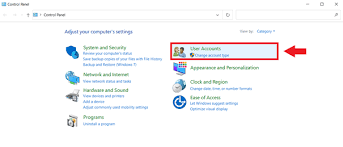
- Open the Control Panel by clicking on the Start button and selecting “Control Panel.”
- Click on “User Accounts” in the menu to the left.
- Select “Manage another account” from the list of available options.
- Click on the “Add a new user” button.
- Choose “Administrator” as the account type.
- Follow the prompts to create a new administrator account.
Mac
To become an administrator on a Mac, follow these steps:
- Click on the Apple menu and select “System Preferences.”
- Click on “Users & Groups” in the menu to the left.
- Select “Login Options” from the list of available options.
- Click on the “+” button at the bottom of the window.
- Choose “Administrator” as the account type.
- Follow the prompts to create a new administrator account.
Troubleshooting: What if I Don’t Know My Administrator Password?
If you’re unable to remember your administrator password, there are a few options available:
- Kon-boot: This is a bootable USB drive that can be used to bypass the password requirement. However, please note that this method should only be attempted by experienced users.
- Recovery Mode: If you’re running Windows 10 or later, you can access Recovery Mode from the login screen. From there, you can reset your administrator password.
Important Notes
Before attempting to become an administrator on your PC, keep in mind the following:
- Administrative privileges should be used responsibly and only when necessary.
- Tampering with system settings can lead to unintended consequences or even system instability.
- Always backup your data before making any significant changes to your system.
By following these steps and taking the necessary precautions, you’ll be able to become an administrator on your PC and unlock a world of new possibilities!
Frequently Asked Questions (FAQs)
- Q: What Are The Benefits of Becoming an Administrator on my Pc?
A: As an administrator, you’ll have elevated privileges that allow you to access and modify system settings, install software, and perform other tasks that would normally be restricted. - Q: How do I Become an Administrator on Windows 11?
A: To become an administrator on a Windows 11 PC, follow the steps outlined in this article. - Q: What if I Don’t Know my Administrator Password?
A: If you’re unable to remember your administrator password, try using Recovery Mode or a bootable USB drive like KON-BOOT. - Q: Is it Safe to Become an Administrator on my Pc?
A: Yes, but please use administrative privileges responsibly and only when necessary. Tampering with system settings can lead to unintended consequences or even system instability. - Q: Can I Change my Administrator Password?
A: Yes! To change your administrator password, follow the prompts in the Settings app on Windows 11 or Control Panel on earlier versions of Windows. - Q: How do I Delete an Old Administrator Account?
A: To delete an old administrator account, access the User Accounts section in the Control Panel and select “Manage another account.” From there, you can delete the account and its associated data.
By understanding these frequently asked questions, you’ll be well-equipped to tackle any challenges that come your way as a newly minted administrator on your PC!


