
How to Change Your Profile Picture on Whatsapp
Are you tired of using the same old profile picture on WhatsApp? Do you want to give your friends and family a glimpse into your personality or interests? Changing your profile picture on WhatsApp is easier than you think, and we’re here to guide you through it.
In this article, we’ll show you how to change your profile picture on WhatsApp, whether you’re using an Android device, an iPhone, or a computer. We’ll also cover some additional features, such as changing the background image of a chat group or personalizing your state.
Why Change Your Profile Picture?
Before we dive into the instructions, let’s talk about why you might want to change your profile picture on WhatsApp. Here are just a few reasons:
- To express yourself: A profile picture can give others an idea of what you’re interested in or passionate about.
- To add some personality: A fun or quirky profile picture can make you stand out and show off your personality.
- To keep things fresh: Let’s face it, sometimes we get tired of the same old profile picture. Changing it up can be a great way to mix things up.
How to Change Your Profile Picture on Whatsapp (Android)
If you’re using an Android device, follow these steps to change your profile picture on WhatsApp:
- Open Whatsapp: Tap on the WhatsApp icon to open the app.
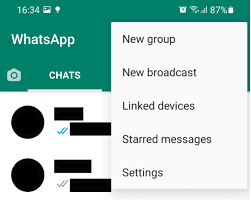
- Tap on Settings: In the top-right corner of the screen, tap on the three dots (⋯) and then select “Settings.”
- Select Your Profile Picture: Scroll down to the “Profile” section and tap on your profile picture.
- Choose a New Photo: Select one of the following options:
- Take a new photo: Tap on “Scatta foto” to take a new photo using your device’s camera.
- Choose a photo: Browse through your device’s gallery or choose an existing photo to use as your profile picture.
- Edit And Save: If you’re choosing a new photo, edit it by tapping on the “+” and “-” buttons to resize and crop the image. Tap “Fine” when you’re done.
How to Change Your Profile Picture on Whatsapp (iPhone)
If you’re using an iPhone, follow these steps to change your profile picture on WhatsApp:
- Open Whatsapp: Tap on the WhatsApp icon to open the app.
- Tap on Settings: In the bottom-left corner of the screen, tap on “Settings.”
- Select Your Profile Picture: Scroll down to the “Profile” section and tap on your profile picture.
- Choose a New Photo: Select one of the following options:
- Take a new photo: Tap on “Take photo” to take a new photo using your device’s camera.
- Choose a photo: Browse through your iPhone’s Photos app or choose an existing photo to use as your profile picture.
- Edit And Save: If you’re choosing a new photo, edit it by tapping on the “+” and “-” buttons to resize and crop the image. Tap “Done” when you’re done.
How to Change Your Profile Picture on Whatsapp (Computer)
If you’re using WhatsApp on your computer, follow these steps:
- Open Whatsapp: Open WhatsApp Web or the WhatsApp desktop app.
- Click on Your Profile Picture: Click on your profile picture in the top-left corner of the screen.
- Choose a New Photo: Select one of the following options:
- Take a new photo: Click on “Take photo” to take a new photo using your device’s camera.
- Choose a photo: Browse through your computer’s file explorer or choose an existing photo to use as your profile picture.
- Edit And Save: If you’re choosing a new photo, edit it by clicking on the “+” and “-” buttons to resize and crop the image. Click “Save” when you’re done.
How to Change Your Chat Group Background Image
Did you know that you can also change the background image of a chat group? Here’s how:
- Open Whatsapp: Tap on the WhatsApp icon to open the app.
- Tap on Chats: In the bottom-left corner of the screen, tap on “Chats.”
- Select Your Chat Group: Choose the chat group you want to change the background image for.
- Tap on Settings: Tap on the three dots (⋯) in the top-right corner of the screen and then select “Settings.”
- Change The Background Image: Scroll down to the “Background” section and tap on the “+” icon to choose a new background image.
How to Personalize Your State
You can also personalize your state by changing its background image or adding an emoji. Here’s how:
- Open Whatsapp: Tap on the WhatsApp icon to open the app.
- Tap on Settings: In the top-right corner of the screen, tap on the three dots (⋯) and then select “Settings.”
- Select Your State: Scroll down to the “State” section and tap on your state’s background image.
- Change The Background Image: Tap on the “+” icon to choose a new background image or add an emoji.
Conclusion
Changing your profile picture, chat group background image, or personalizing your state is easy and fun! Whether you’re using WhatsApp on Android, iPhone, or computer, these steps will guide you through the process. Don’t be afraid to get creative and show off your personality!
Faqs
Q: Can I change my profile picture on WhatsApp Web?
A: Yes, you can change your profile picture on WhatsApp Web by following the same steps as on Android or iPhone.
Q: How do I change the background image of a chat group on WhatsApp Web?
A: Unfortunately, it’s not possible to change the background image of a chat group on WhatsApp Web. However, you can change the color of the background image.
Q: Can I personalize my state on WhatsApp Web?
A: Yes, you can personalize your state on WhatsApp Web by changing its background image or adding an emoji.
Q: How do I delete my profile picture on WhatsApp?
A: Tap on Settings > Profile and select “Delete photo” to remove your current profile picture.
Q: Can I change the background image of a chat group on iPhone?
A: Yes, you can change the background image of a chat group on iPhone by following the same steps as on Android.
Q: How do I personalize my state on WhatsApp for iOS?
A: Tap on Settings > Profile and select “Change profile photo” to choose a new background image or add an emoji.
Q: Can I change my profile picture on WhatsApp Business?
A: Yes, you can change your profile picture on WhatsApp Business by following the same steps as on Android or iPhone.


