
How to Change Account on Google Play Store: A Step-by-step Guide
Are you tired of using the same account on your Google Play Store and want to switch to a new one? Or maybe you have multiple family members who use your tablet or smartphone and you want to set up different accounts for each person. Look no further! In this article, we’ll guide you through the process of changing account on Google Play Store.
Why Change Account on Google Play Store?
Before we dive into the steps, let’s quickly discuss why you might want to change your account on Google Play Store. Here are a few scenarios:
- You’ve set up a new account on your smartphone or tablet and now want to switch back to your old one.
- You have multiple family members who use your device and you want to set up separate accounts for each person.
- You want to use a different account for making payments or purchases on the Play Store.
Step 1: Add a New Account
To change account on Google Play Store, you first need to add a new account. Here’s how:
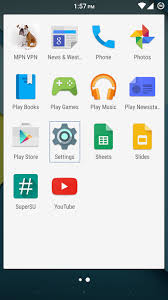
- Open the Settings app on your smartphone or tablet.
- Tap on “Password and account/Account” (the exact wording may vary depending on your device).
- Tap on “Add an account”.
- Select “Google” as the type of account you want to add.
- Enter the email address and password for your new account.
Step 2: Switch to The New Account
Now that you’ve added a new account, it’s time to switch to it. Here’s how:
- Open the Play Store app on your smartphone or tablet.
- Tap on the profile picture at the top right corner of the screen.
- Select the new account from the menu that appears.
Step 3: Make Payments With Your New Account
If you want to use a different account for making payments, here’s how:
- Open the Play Store app on your smartphone or tablet.
- Tap on the profile picture at the top right corner of the screen.
- Select the new account from the menu that appears.
- Go to “Payments and subscriptions” (the exact wording may vary depending on your device).
- Add a payment method using your new account.
Step 4: Change Account Name
If you want to change the name of your Google account, here’s how:
- Open the Settings app on your smartphone or tablet.
- Tap on “Google”.
- Tap on “Manage your Google account”.
- Go to “Personal info” and tap on “Edit profile”.
- Change the name of your account.
Tips And Variations
Here are a few tips and variations to keep in mind:
- You can also change account on Google Play Store from a PC or other device using a web browser. Simply go to the Google Account page, click on the profile picture at the top right corner of the screen, and select “Add an account”.
- If you’re having trouble switching accounts, try restarting your smartphone or tablet.
- If you’ve set up multiple family members with different accounts, you can use a feature called “Family Library” to share purchases across devices.
Conclusion
Changing account on Google Play Store is a relatively straightforward process that requires just a few steps. Whether you want to switch to a new account or set up separate accounts for multiple family members, we hope this guide has been helpful. Remember to always follow the instructions carefully and take your time to ensure everything goes smoothly.
Frequently Asked Questions (FAQs)
- Q: Can I Change Account on Google Play Store From a Pc?
A: Yes, you can change account on Google Play Store from a PC or other device using a web browser. - Q: How do I Add a New Payment Method to my Account?
A: To add a new payment method, go to “Payments and subscriptions” in the Play Store app, tap on the profile picture at the top right corner of the screen, and select your new account. - Q: Can I Change The Name of my Google Account?
A: Yes, you can change the name of your Google account by going to “Personal info” in the Settings app, tapping on “Edit profile”, and changing the name of your account. - Q: How do I Switch Between Multiple Accounts on my Device?
A: To switch between multiple accounts on your device, go to the Play Store app, tap on the profile picture at the top right corner of the screen, and select the account you want to use. - Q: Can I Share Purchases Across Devices Using a Feature Called “Family Library”?
A: Yes, you can share purchases across devices using a feature called “Family Library”. This allows family members with different accounts to share purchases without needing to create a new account each time.
We hope this article has been helpful in answering your questions about changing account on Google Play Store. If you have any further questions or need additional assistance, don’t hesitate to reach out!


