
How to Change Your Ringtone on Android: A Step-by-step Guide
Are you tired of using the default ringtone on your Android device? Do you want to personalize your phone with a unique sound that reflects your personality? Look no further! In this article, we will guide you through the process of changing your ringtone on Android.
Why Change Your Ringtone?
Changing your ringtone can be a great way to express yourself and make your phone stand out. With so many options available, you can choose a sound that suits your mood, style, or preferences. Plus, it’s a simple way to personalize your device and make it feel more like yours.
How to Change Your Ringtone on Android
Changing your ringtone on Android is a straightforward process. Here’s how:
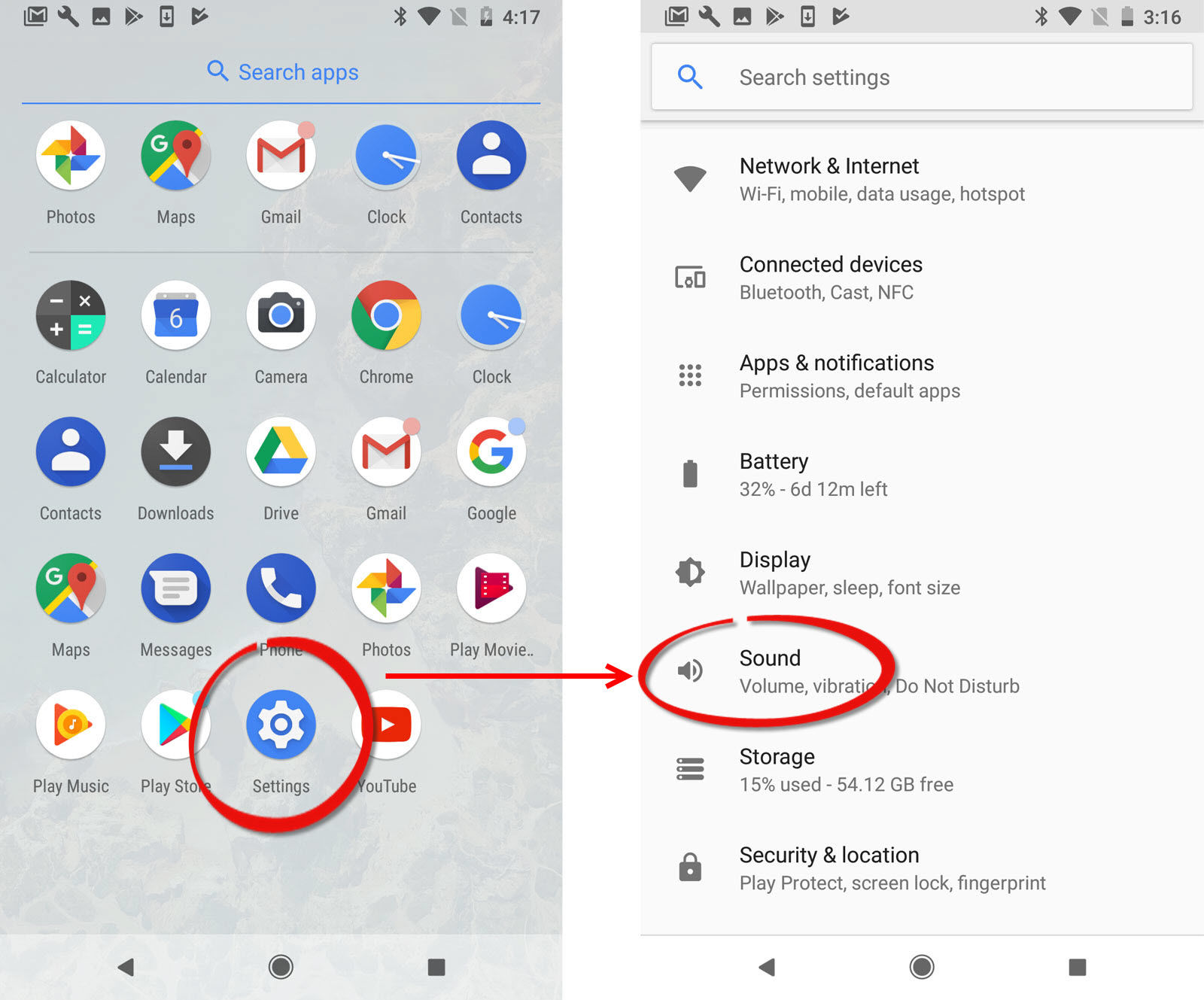
- Open The Settings App: Go to your phone’s settings app by finding the gear icon on your home screen or in your app drawer.
- Find The Sound And Vibration Section: Scroll down and find the “Sound and vibration” section.
- Select Ringtone: Tap on “Ringtone” to choose a new sound.
- Choose a New Ringtone: Select from the list of pre-installed ringtones or browse through your phone’s music library to select a custom ringtone.
- Save Your Changes: Once you’ve selected a new ringtone, tap “OK” or “Save” to apply the changes.
Tips And Variations
- Customize Your Ringtone: You can also use third-party apps to create and customize your own ringtones.
- Change Your Notification Sound: You can change your notification sound in the same way as you change your ringtone.
- Personalize Your Alarm Sound: You can also personalize your alarm sound by choosing a custom ringtone.
How to Change Your Ringtone on Samsung
If you’re using a Samsung device, changing your ringtone is just as easy. Here’s how:
- Open The Settings App: Go to your phone’s settings app.
- Find The Sound Section: Scroll down and find the “Sound” section.
- Select Ringtone: Tap on “Ringtone” to choose a new sound.
- Choose a New Ringtone: Select from the list of pre-installed ringtones or browse through your phone’s music library to select a custom ringtone.
- Save Your Changes: Once you’ve selected a new ringtone, tap “OK” or “Save” to apply the changes.
How to Change Your Ringtone on Xiaomi
If you’re using an Xiaomi device, changing your ringtone is just as easy. Here’s how:
- Open The Settings App: Go to your phone’s settings app.
- Find The Sounds And Vibration Section: Scroll down and find the “Sounds and vibration” section.
- Select Ringtone: Tap on “Ringtone” to choose a new sound.
- Choose a New Ringtone: Select from the list of pre-installed ringtones or browse through your phone’s music library to select a custom ringtone.
- Save Your Changes: Once you’ve selected a new ringtone, tap “OK” or “Save” to apply the changes.
How to Change Your Ringtone on Huawei
If you’re using a Huawei device, changing your ringtone is just as easy. Here’s how:
- Open The Settings App: Go to your phone’s settings app.
- Find The Sound Section: Scroll down and find the “Sound” section.
- Select Ringtone: Tap on “Ringtone” to choose a new sound.
- Choose a New Ringtone: Select from the list of pre-installed ringtones or browse through your phone’s music library to select a custom ringtone.
- Save Your Changes: Once you’ve selected a new ringtone, tap “OK” or “Save” to apply the changes.
How to Change Your Ringtone on Iphone
If you’re using an iPhone, changing your ringtone is just as easy. Here’s how:
- Open The Settings App: Go to your phone’s settings app.
- Find The Sounds Section: Scroll down and find the “Sounds” section.
- Select Ringtone: Tap on “Ringtone” to choose a new sound.
- Choose a New Ringtone: Select from the list of pre-installed ringtones or browse through your phone’s music library to select a custom ringtone.
- Save Your Changes: Once you’ve selected a new ringtone, tap “OK” or “Save” to apply the changes.
Conclusion
Changing your ringtone on Android is a simple process that can be customized to suit your preferences. Whether you’re using a Samsung, Xiaomi, Huawei, or iPhone device, following these steps will guide you through the process of changing your ringtone.
Frequently Asked Questions (FAQs)
- Q: How do I Change my Ringtone on Android?
A: To change your ringtone on Android, go to Settings > Sound and vibration > Ringtone. - Q: Can I Use a Custom Ringtone on my Iphone?
A: Yes, you can use a custom ringtone on your iPhone by going to Settings > Sounds > Ringtone. - Q: How do I Change my Notification Sound on Android?
A: To change your notification sound on Android, go to Settings > Sound and vibration > Notification sound. - Q: Can I Personalize my Alarm Sound on Android?
A: Yes, you can personalize your alarm sound on Android by going to Settings > Sound and vibration > Alarm sound.
We hope this article has been helpful in guiding you through the process of changing your ringtone on Android. If you have any further questions or need additional assistance, please don’t hesitate to ask!


