
How to Customize Samsung Notification Sounds: A Step-by-step Guide
Are you tired of the same old default notification sounds on your Samsung device? Do you want to personalize your phone’s sound experience with custom ringtones? Look no further! In this article, we’ll guide you through a step-by-step process on how to customize Samsung notification sounds.
Why Customize Notification Sounds?
Customizing notification sounds can enhance your overall user experience. It allows you to differentiate between various notifications and alerts, making it easier to focus on the ones that matter most. Plus, with personalized ringtones, you can express yourself and showcase your personality through sound.
Method 1: Using Android Settings
To customize Samsung notification sounds using Android settings, follow these steps:
Step 1: Open Device Settings
Go to your device’s home screen and tap on the “Settings” icon, represented by a gear or cogwheel.
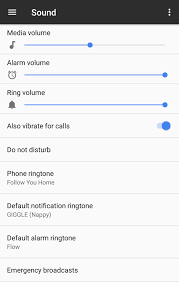
Tap on “Sounds and vibration.” This will open a menu with various sound-related options.
Step 3: Select Notification Sounds
Choose “Sound of notification” from the list. You’ll see a selection of pre-installed ringtones. Pick the one that suits your taste, or browse through your device’s audio library to find the perfect tune.
Step 4: Adjust Volume And Vibration Settings
If you want to adjust the volume level for specific notifications, tap on “Volume audio of the notifications.” Move the slider left or right to set the desired volume. You can also enable or disable vibrations for notifications by tapping on the corresponding option.
Step 5: Apply Changes
Tap “Save” or “OK” to apply your changes. The new notification sound will be set system-wide, affecting all apps with similar settings.
Method 2: Using App-specific Settings (Optional)
Some apps allow you to customize their individual notification sounds within the app itself. Follow these steps:
Step 1: Open The App
Launch the specific app for which you want to change the notification sound (e.G., Gmail, WhatsApp).
Step 2: Access Settings
Look for a settings menu or option within the app and tap on it.
Step 3: Configure Notification Sounds
Find the “Notifications” or “Sounds” section in the app’s settings. Select the specific type of notification you want to customize (e.G., Emails, chats).
Step 4: Choose a Sound
Browse through your device’s audio library or select from pre-installed ringtones to find the perfect sound for that type of notification.
Step 5: Save Changes
Tap “Save” or “OK” to apply your changes. The new notification sound will be set specifically for that app.
Tips And Tricks
- To disable notification sounds system-wide, go back to the “Sounds and vibration” menu and toggle off the “Sound of notification” option.
- If you’re having trouble finding a specific sound or app setting, try searching online for tutorials or forums related to your device or app.
- Consider creating different notification profiles based on time, location, or events to further enhance your customization experience.
Conclusion
Customizing Samsung notification sounds can greatly improve your user experience and help you stay organized. By following these simple steps, you can personalize your phone’s sound experience with custom ringtones that reflect your personality and preferences.


